

Software Your Whole Team Can Learn, One Step at a Time.
Launching Early 2027 · Join the Early-Access List
A facilities platform is only useful if the people who run the buildings can use it. Facilities Logix opens every tool in guided steps, explains each step in a sentence, carries its manuals inside the program and trains each role on a complete sample portfolio. Help works offline, like everything else.
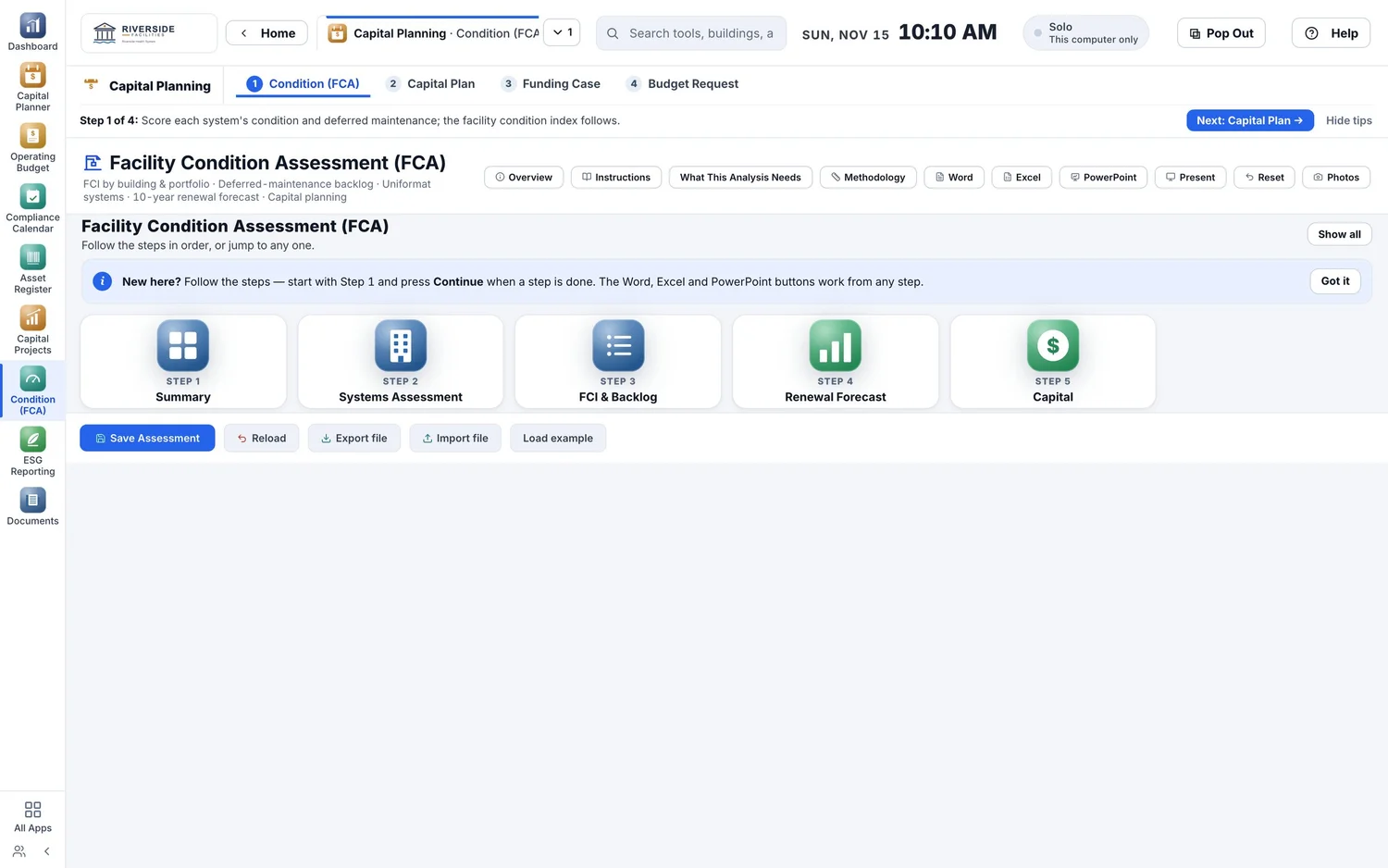
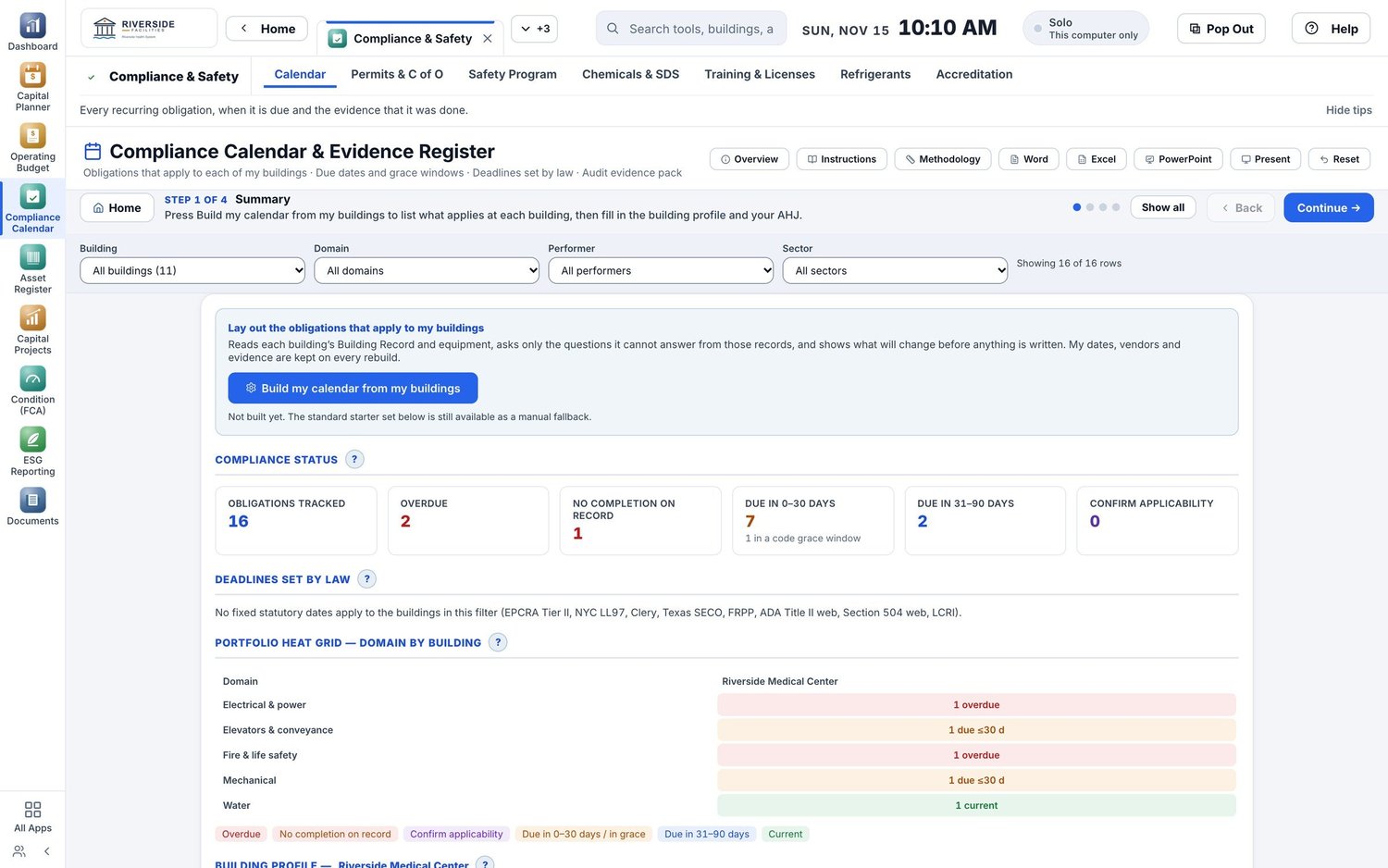
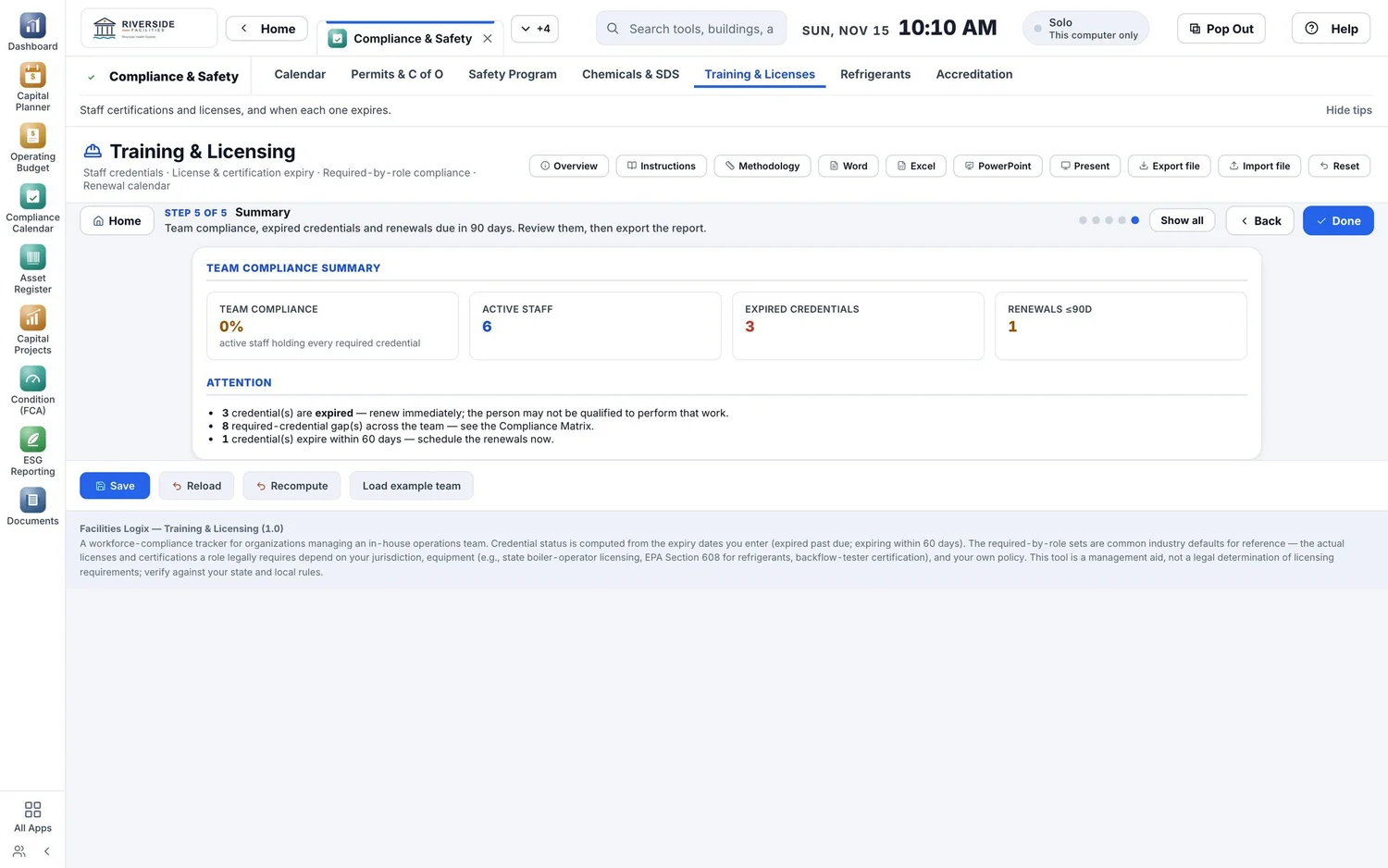
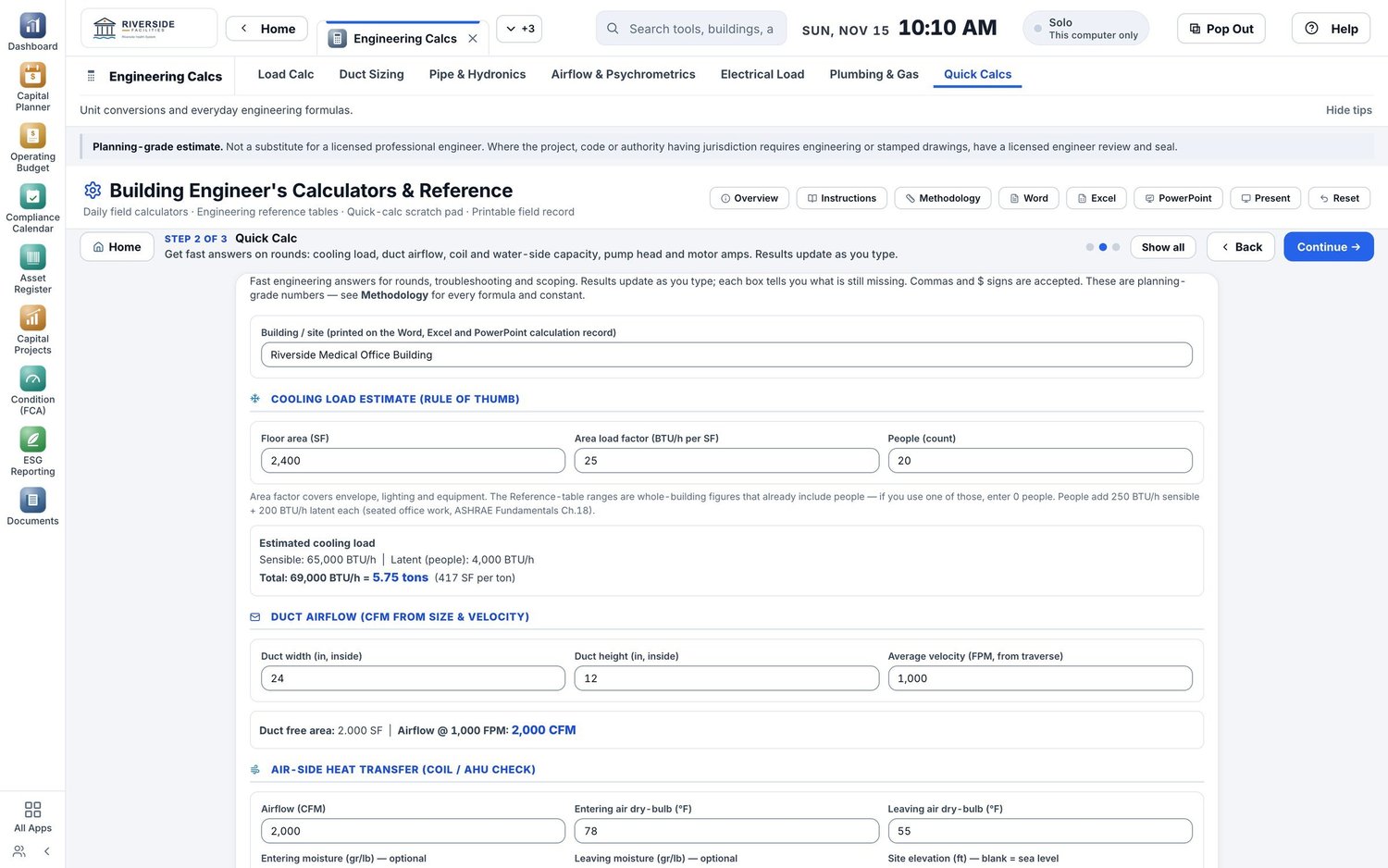
Every Tool Walks You Through Its Work
One Step at a Time
- Every tool opens on its own Home with a tile for each step
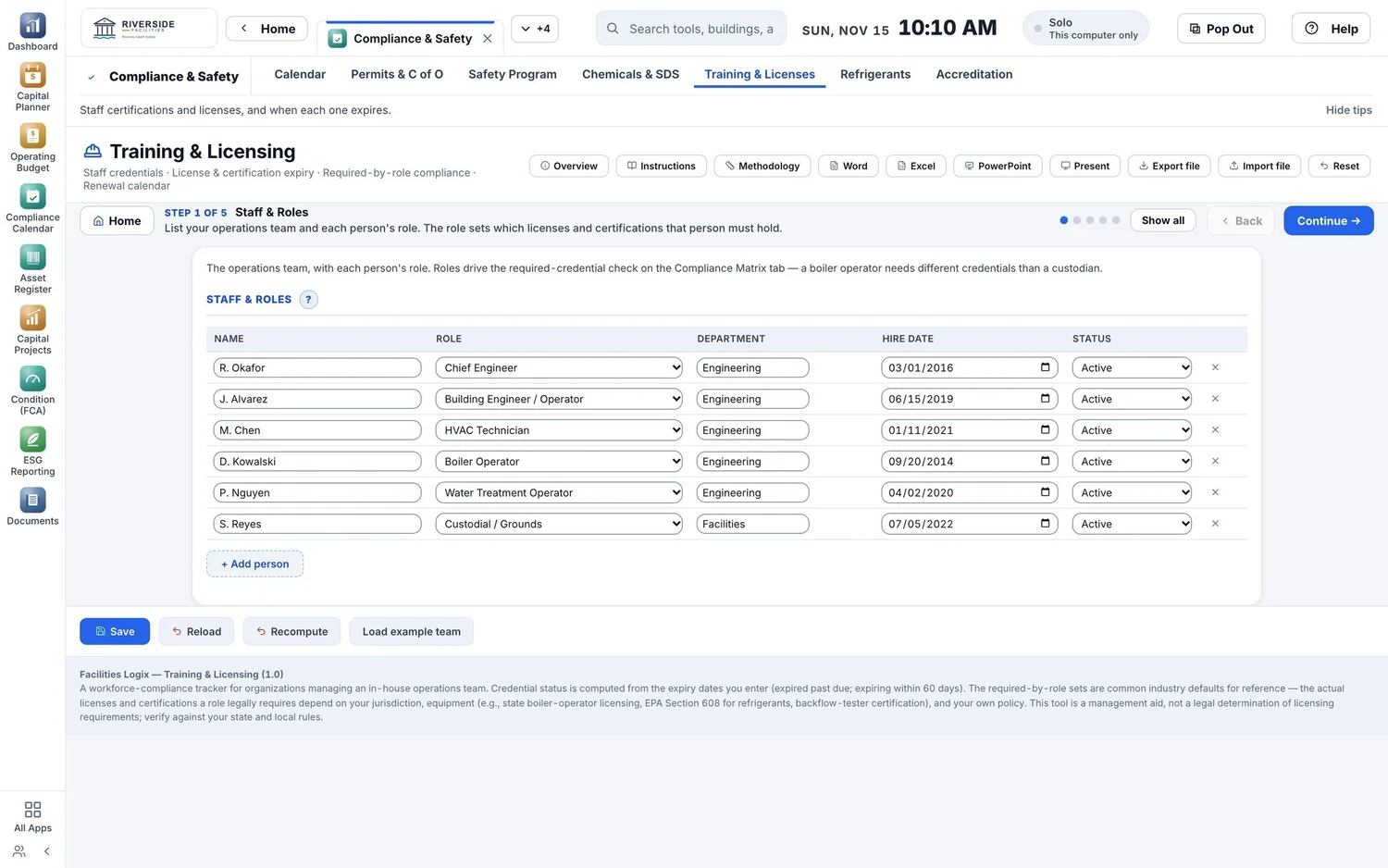
- A step strip reads Step n of N with a one-line note: what to do on this step and why it matters
- Continue and Back move through the steps; dots jump to any step
- Numbered apps show the order the work is done in, with a Next button to the following step
- Experienced users can choose Show All to see every section at once
Small Things That Prevent Mistakes
- Empty lists say what to do next, with a button to add the first row or load an example
- Unsaved Changes and Save Now show on the step strip, and your work is saved for you when you leave a tool
- Deleted. Undo appears for ten seconds after a row is removed
- Blank building and organization fields fill themselves from your setup
- Steps that do not apply, such as federal steps for a non-federal building, stay out of the way
- New Here? The first time you open a tool on a computer, a short note explains its steps; Got It puts it away for that tool
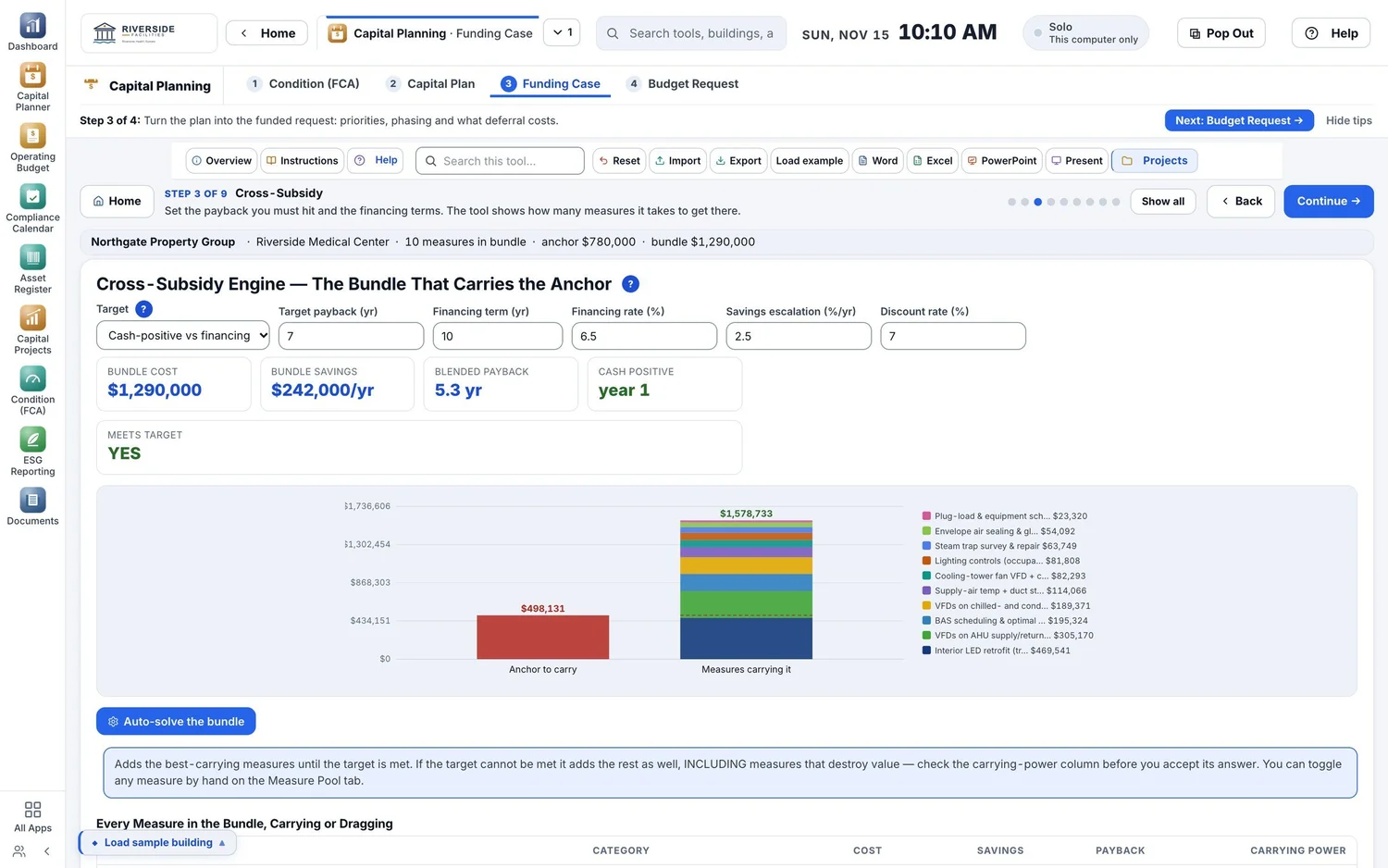
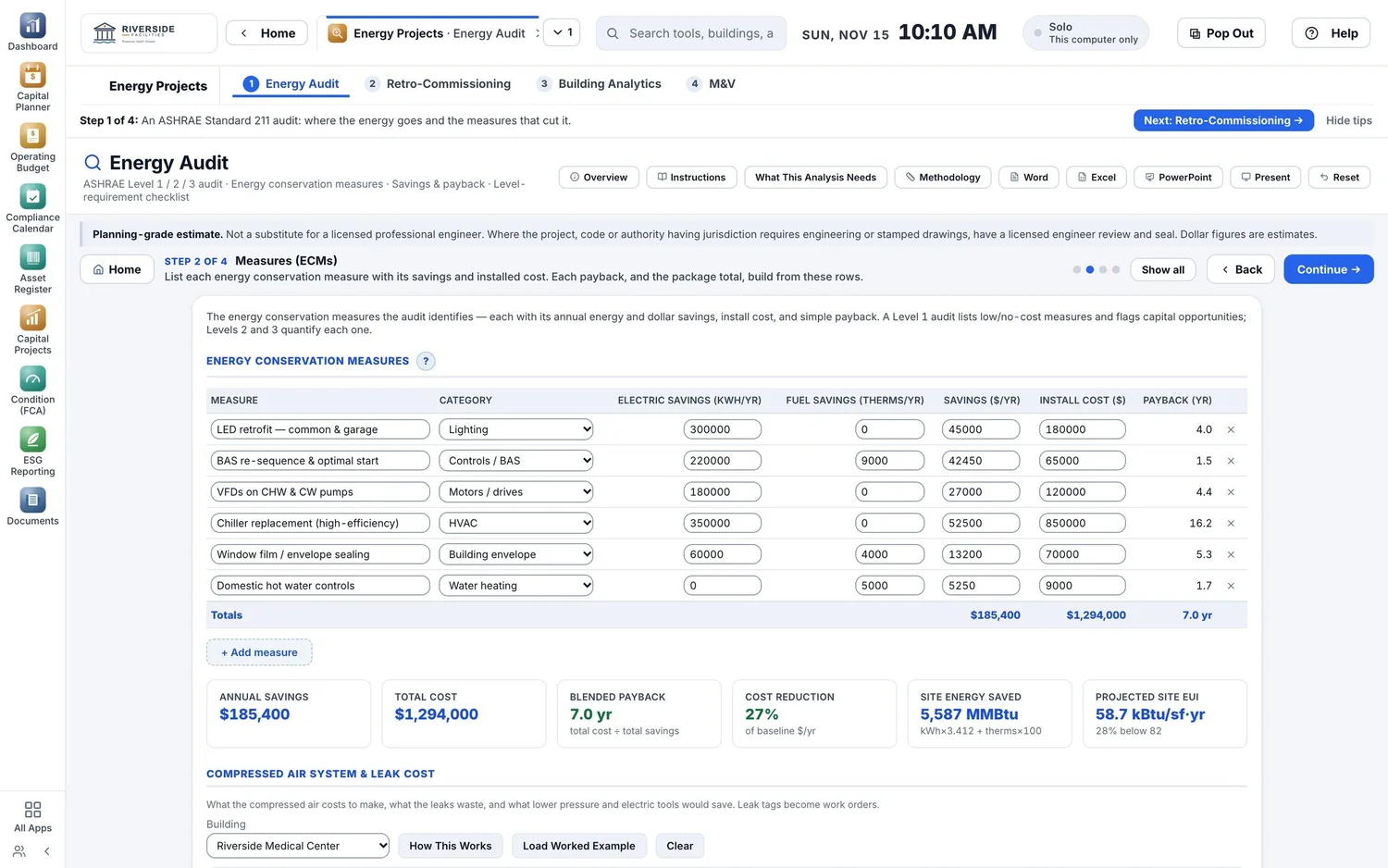
Cross-Subsidy in Capital Bridge: set the payback you must hit and the financing terms. The tool shows how many measures it takes to get there.
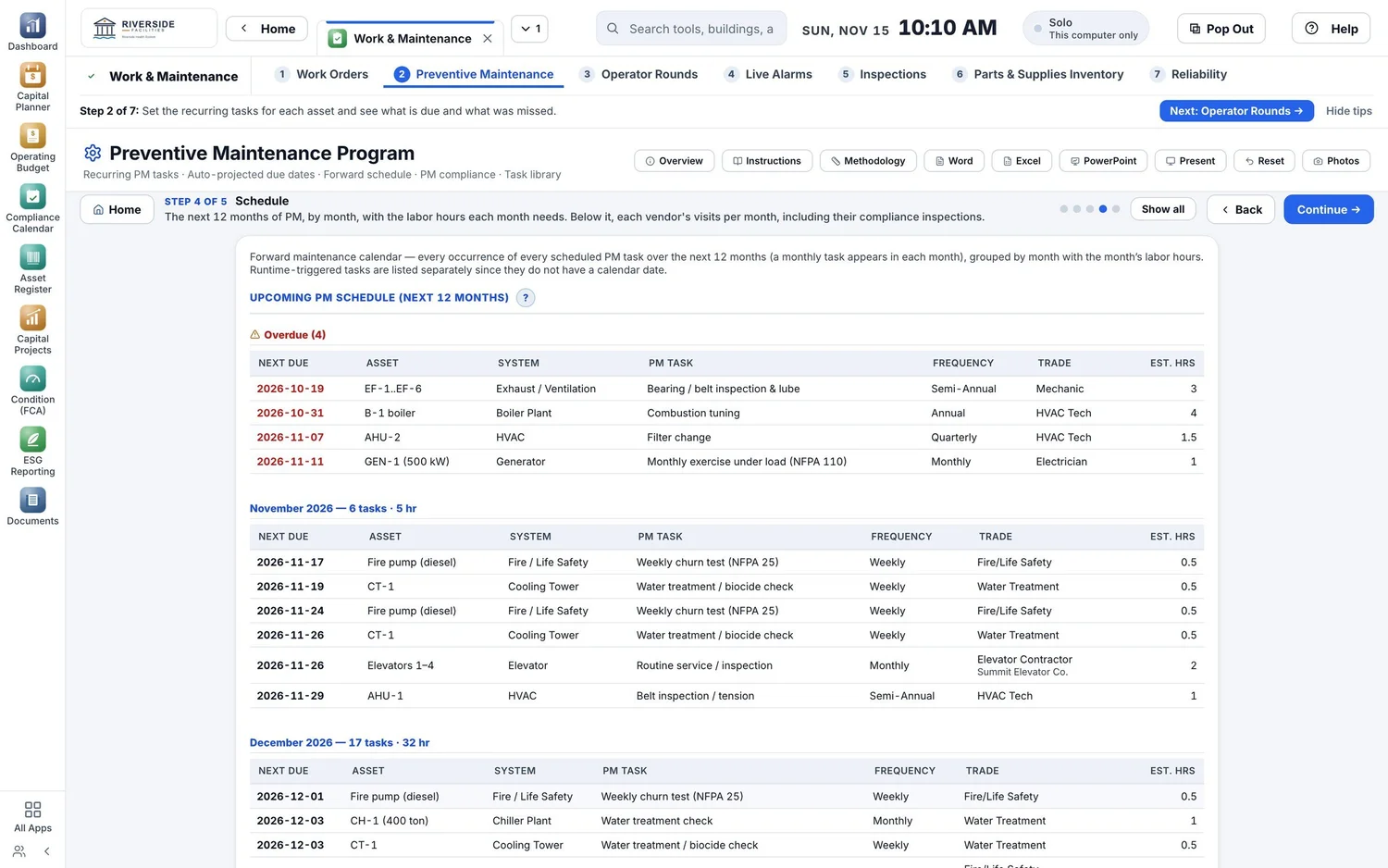
New users stall when a screen has no starting point, so every tool walks through its work one numbered step at a time.
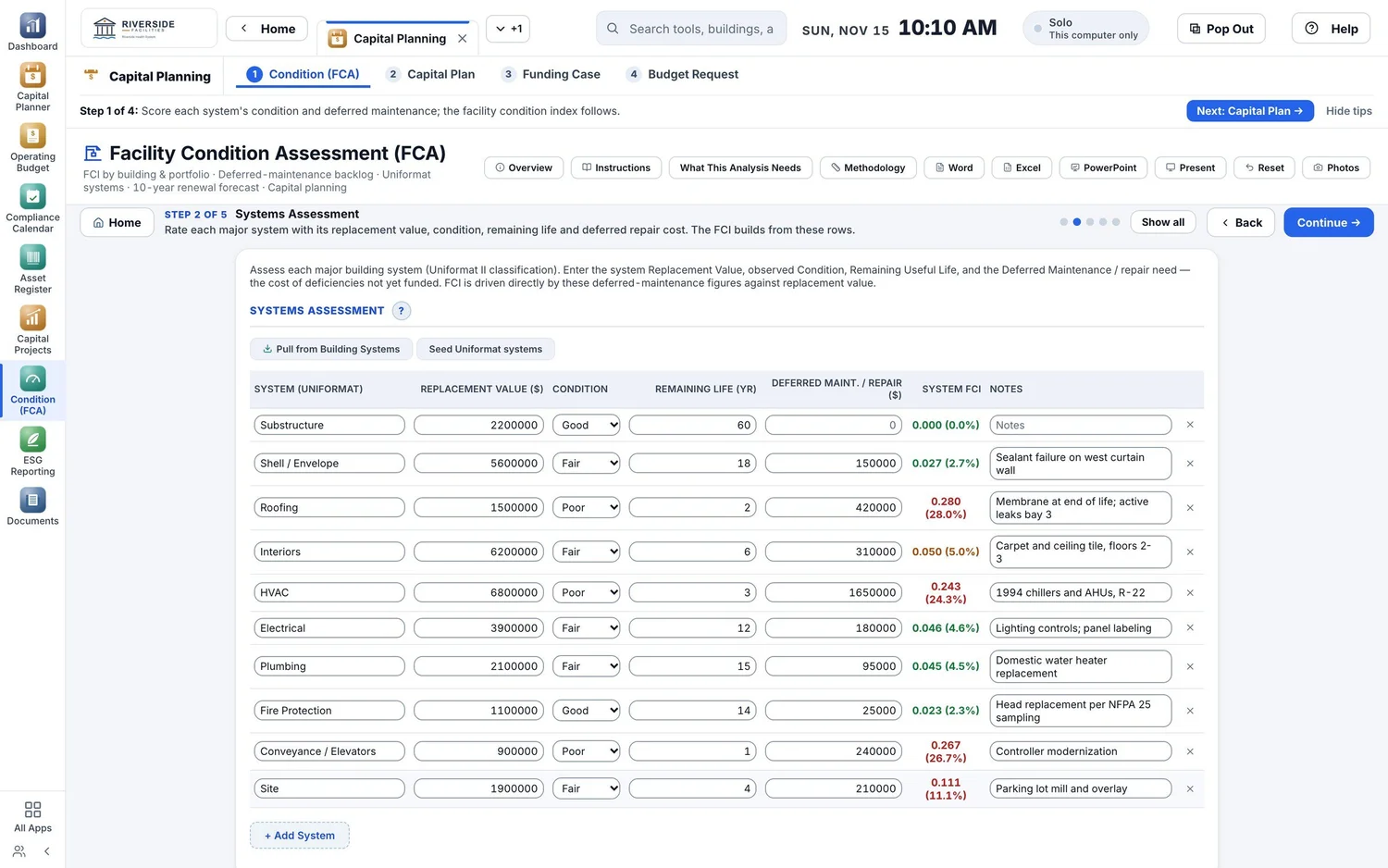
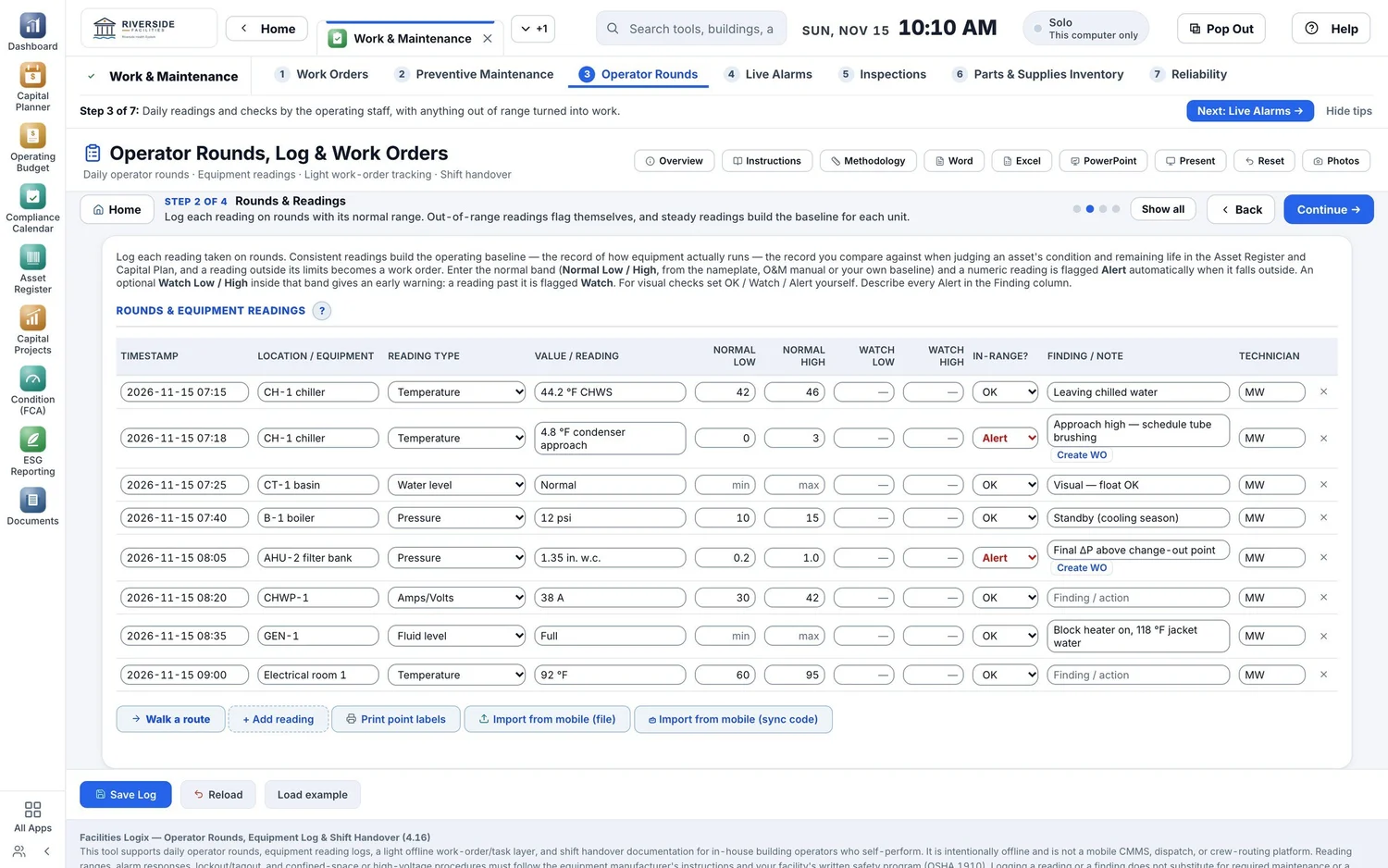
An Overview, Instructions and the Method Behind the Numbers
Overview
What the tool is for and what it produces, in plain language.
Learn MoreShow Less
Time spent learning a tool by trial and error is paid time. The Overview says in plain words what the tool produces before anyone enters a number.
- A short New Here? note the first time a tool opens on a computer
- Each step's strip says what to do and why it matters
- A tip of the day on Overview screens
- Show All lays out every section at once for experienced users
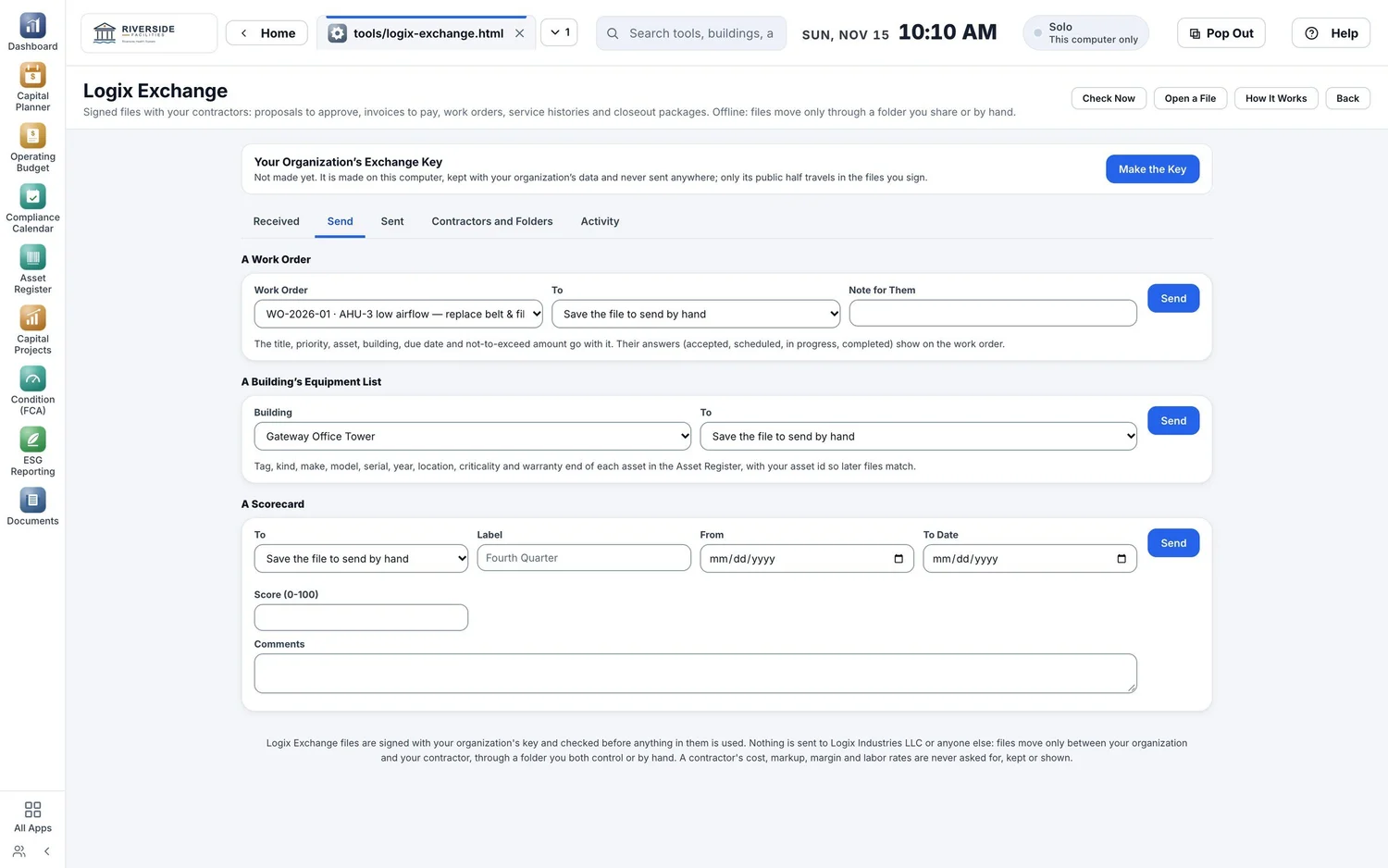
Instructions
How to work through the tool, step by step.
Learn MoreShow Less
A step done out of order means rework. Guided steps walk the tool in sequence, so a new person gets it right the first time.
- A step strip reading STEP n OF N, with the step's name and a one-line note
- Dots show where you are; Continue and Back move between steps
- Empty lists say exactly what to press first
- Tiles group the steps, with reference pages kept apart at the end
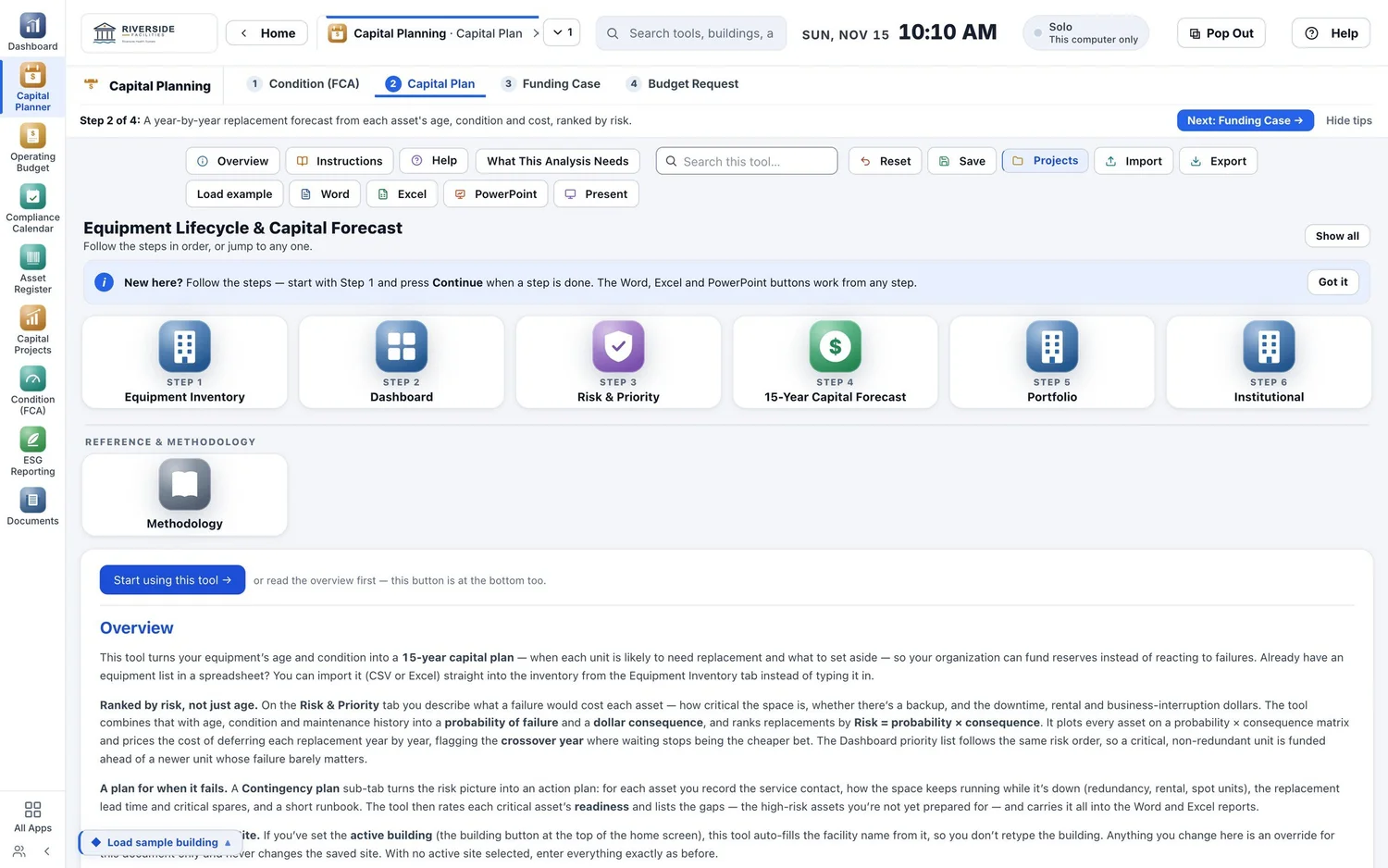
Every tool opens an Overview of what it does and what you get from it.
Methodology
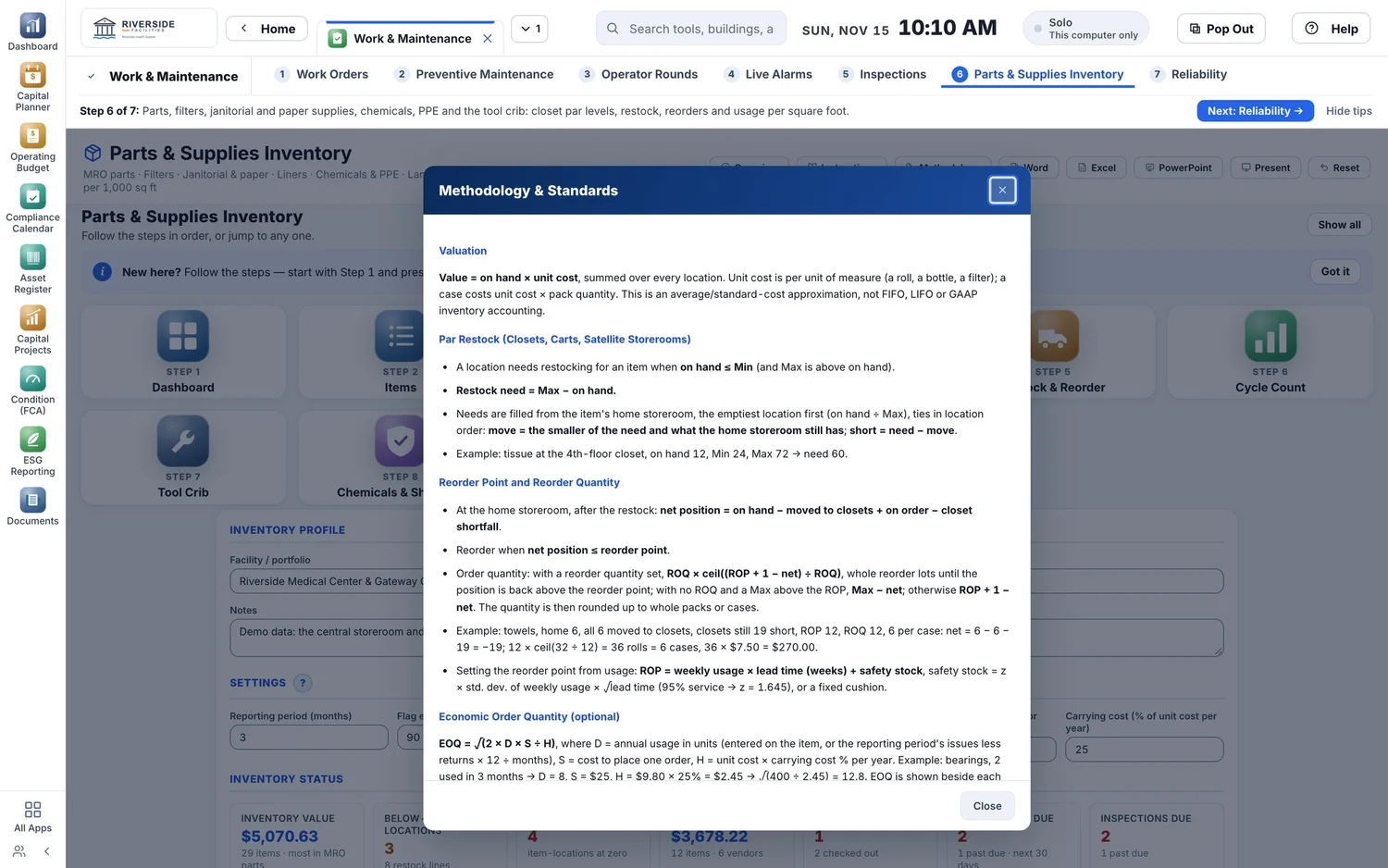
The formulas, standards and assumptions behind the numbers. When a result surprises you, the method is one click away.
Learn MoreShow Less
A number finance cannot trace gets sent back, and the approval waits. The Methodology shows every formula behind the result, so questions are answered in minutes.
- What the tool calculates and the method it uses
- Each formula written out, every term defined, units stated
- Assumptions and defaults, each with a source and the date last checked
- A worked example you can reproduce by hand, also printed in the Word and Excel reports
Help at the Right Page
The Help button inside a step opens the manual at that tool's section.
Learn MoreShow Less
Hunting through a manual for the right page wastes time mid-task. Help opens at the part of the manual for the step you are on.
- Falls back from the step to the tool's section to the index, never a dead end
- Works offline and stays open while you work
- Found In counts matches across every manual at once
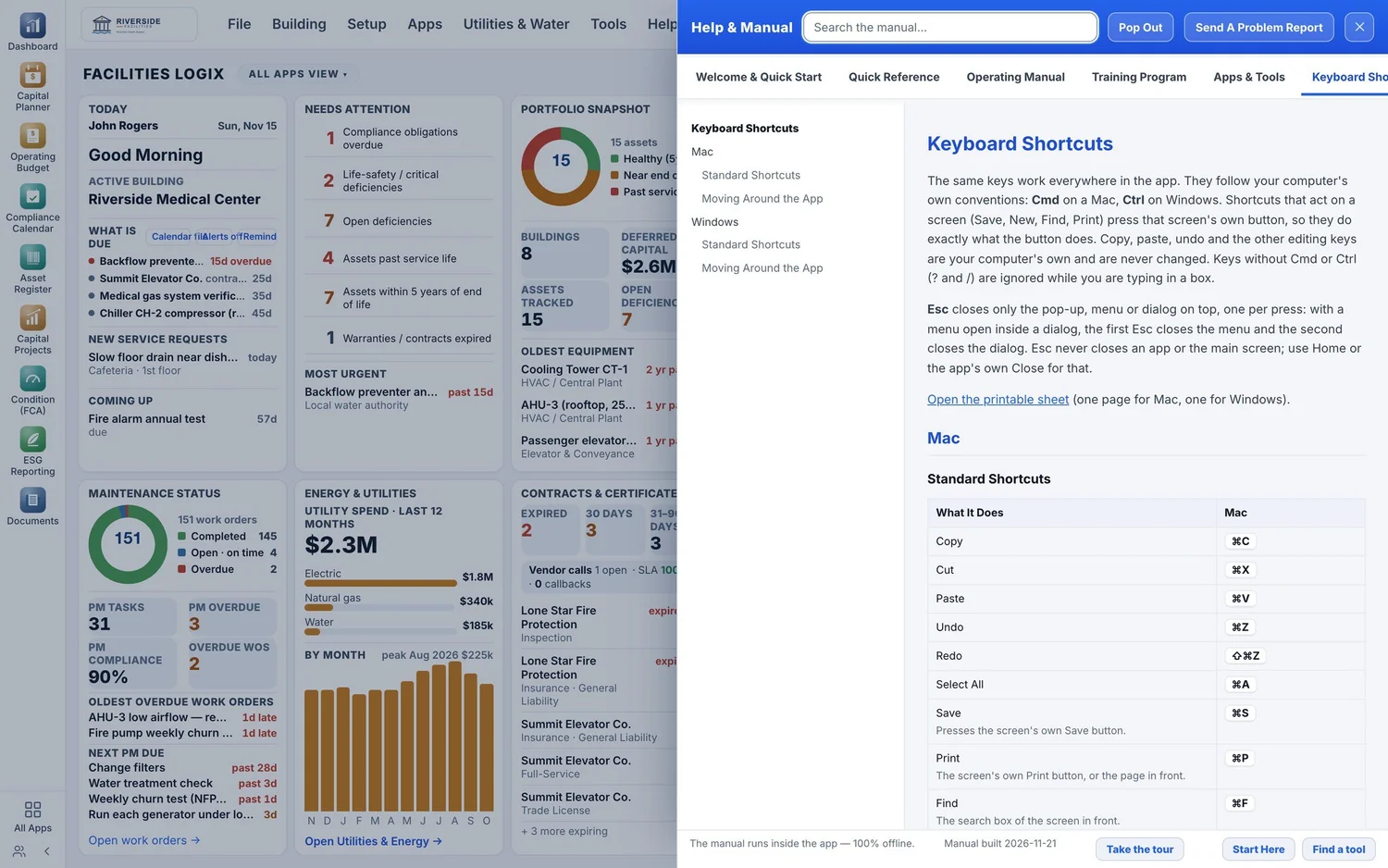
- The ? key opens Help from anywhere
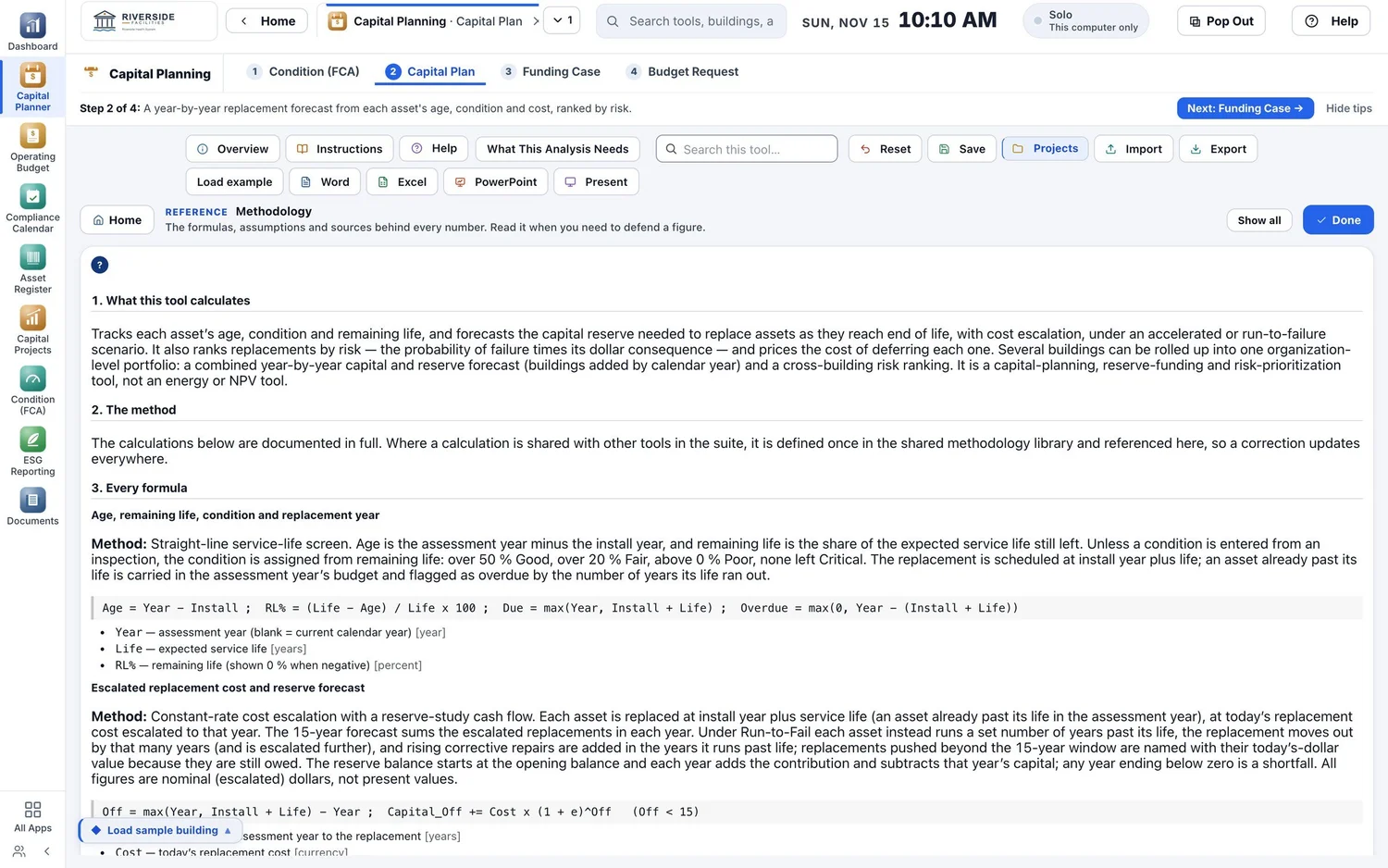
The Methodology tab: the formulas, sources and assumptions behind every number.
Field Explanations
Fields that change which rules apply have a question mark beside them that explains, in one line, what the field changes.
Learn MoreShow Less
A wrong answer in a field that decides which rules apply can put a whole building on the wrong compliance plan. The explanation sits beside the field, so the right answer is given first time.
- A small dot beside a key field opens a short, plain explanation
- Says what the field is and why it matters
- Links to More in the Manual where a section covers it
- Changes no calculation and saves nothing
Search This Tool
Find a field or a section inside the tool you are in.
Learn MoreShow Less
Long tools hide fields, and looking for one wastes time. Search This Tool finds it inside the step you have open, and the main Search covers the rest of the program.
- Search This Tool sits on every step's toolbar
- The main Search understands plain words such as restock, manual or what I owe
- It also finds buildings, assets and vendors by name
- A result opens the app on that step, whatever the role view
A ? That Opens a Help Window
A question should not mean leaving the step. The ? beside a section heading opens a help window on that section: what it holds, what to enter and how it is used. Fields that decide which rules apply, such as the jurisdiction, carry their own ? with a one-line explanation of what the field changes.
Learn MoreShow Less
Leaving a step to look something up breaks the work and costs time. The ? beside a section heading answers the question in place.
- Opens on the section you asked about
- Says what the section holds and how to use it
- Routes to the manual's section for that tool
- Works offline
How the Numbers Are Worked Out
The calculating tools follow one seven-part Methodology: what the tool calculates, the method, every formula with its terms and units, the assumptions and reference values with their source and review date, what is included and what is not, accuracy and limits, and a worked example. Where tools share a calculation it is written once, so a correction reaches every tool together.
Learn MoreShow Less
A correction made in one tool but not another leaves two numbers for the same thing. Shared formulas are written once and referenced, so a fix reaches every tool at the same time.
- Each shared block records exactly which tool's code it was captured from
- Seven parts in the same order in every calculating tool
- Accuracy and Limits says when not to rely on the result
- The same Methodology goes into the Word and Excel exports
What This Analysis Needs
An analysis is only as good as the records behind it. Beside Help on the analysis screens, such as the condition assessment, energy audit, benchmarking, automation analytics and ESG reporting, a checklist shows each record the analysis reads, marked on file, partly on file or not yet, with what it cannot say without it and where that record is kept.
Learn MoreShow Less
An analysis run on thin records gives a confident wrong answer, and money follows it. The checklist shows what is on file before you rely on the result.
- Each record marked on file, partly on file, or not yet
- What the analysis cannot say without it
- The screen where each record is kept
- Read only: nothing is written or sent
Tip of the Day
Overview screens show a short tip, a different one each day.
Learn MoreShow Less
Some of the costliest facilities mistakes are habits. The tip is one short line of judgment, often about money, such as how deferred maintenance compounds.
- 138 tips in groups such as money, equipment, safety and people
- A tool shows a tip from its own group
- Everyone on a team sees the same tip on the same day
- Changes no record and calculates nothing
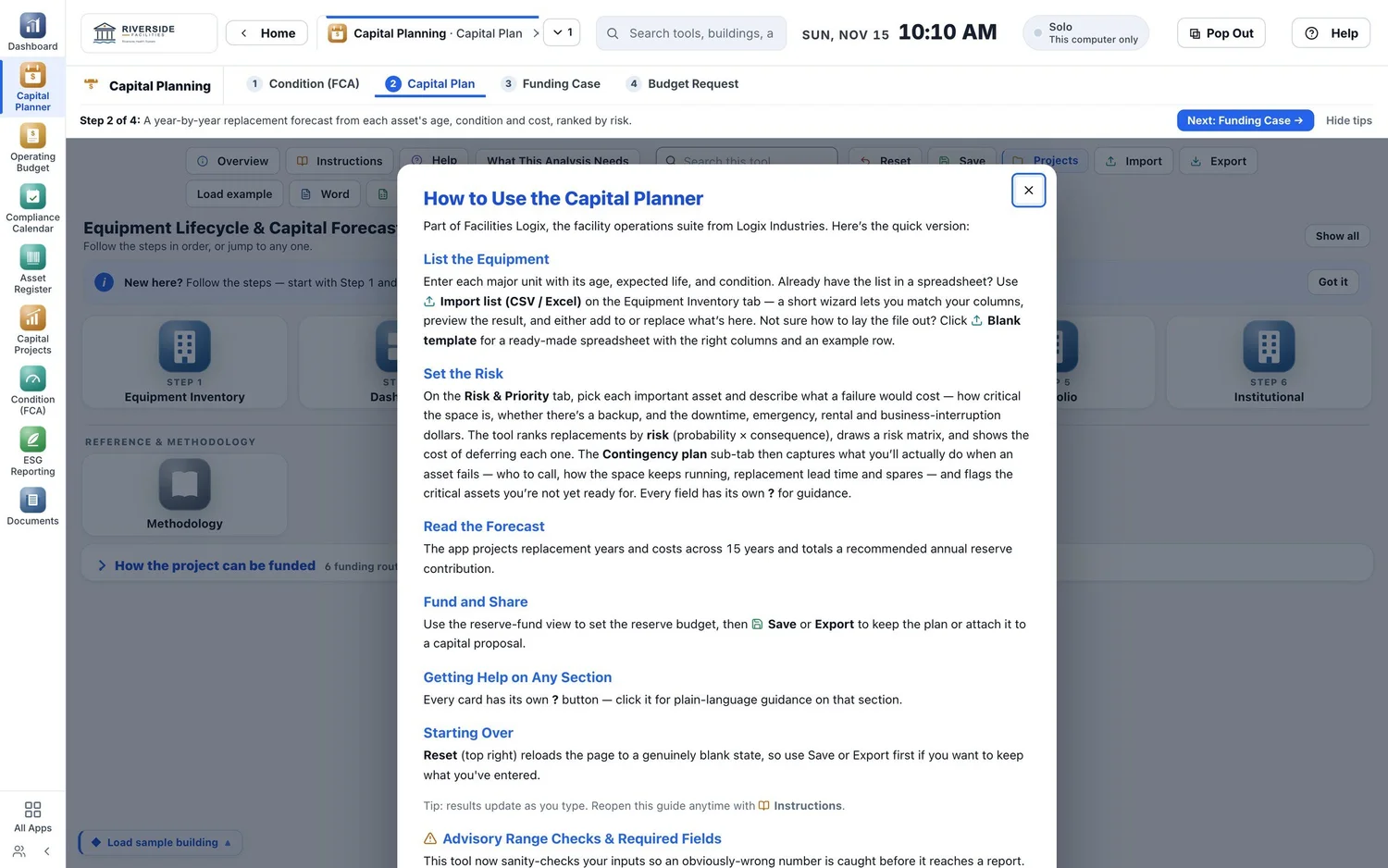
Instructions inside the tool: how to work through it, step by step.
Four Manuals Inside the Program, Searchable and Offline
The Help Window
- Welcome & Quick Start, Quick Reference, the Operating Manual and the Training Program
- An Apps & Tools tab lists every app and step with Open and Read in Manual
- Search filters as you type and counts matches in every manual at once
- Help stays available while an app is open, and can pop out to its own window that follows the step you are on
Finding Your Way
- Search in the header finds apps, steps and tools by name or purpose, and everyday tasks in plain words such as work order, morning round or restock
- Search also finds buildings, assets and vendors
- Role views show each person the apps for their work
- Keyboard shortcuts for search, switching buildings and moving between apps, with a printable sheet
- A Getting Started tour introduces the home screen, the apps and the Setup menu
Start Here, Workflows and Troubleshooting
- Start Here: a short primer on how the work moves through a building's records and between roles
- Find the Right Tool: answer a couple of plain questions and it points to one to three tools, each one click to open
- A key workflows chapter walks seven real jobs: assess a building and build the capital plan, evaluate bids, benchmark a service agreement, hire and pay a contractor, carry an award through closeout, produce an audit pack and build the funded case for the board
- A troubleshooting chapter answers the messages people actually see, in plain words, with a separate one for the field app
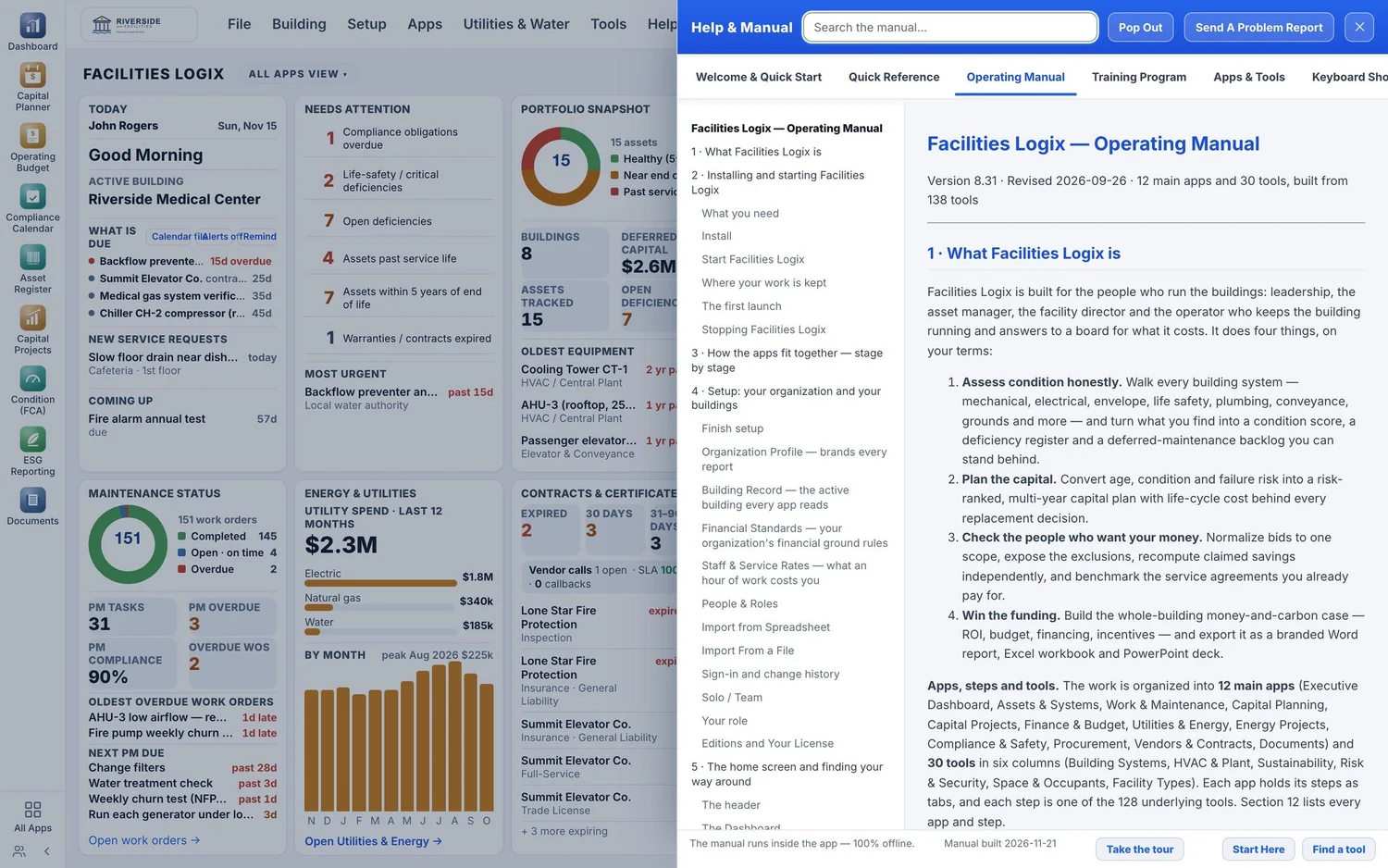
Help opens the Operating Manual beside the work, searchable, with no internet needed.
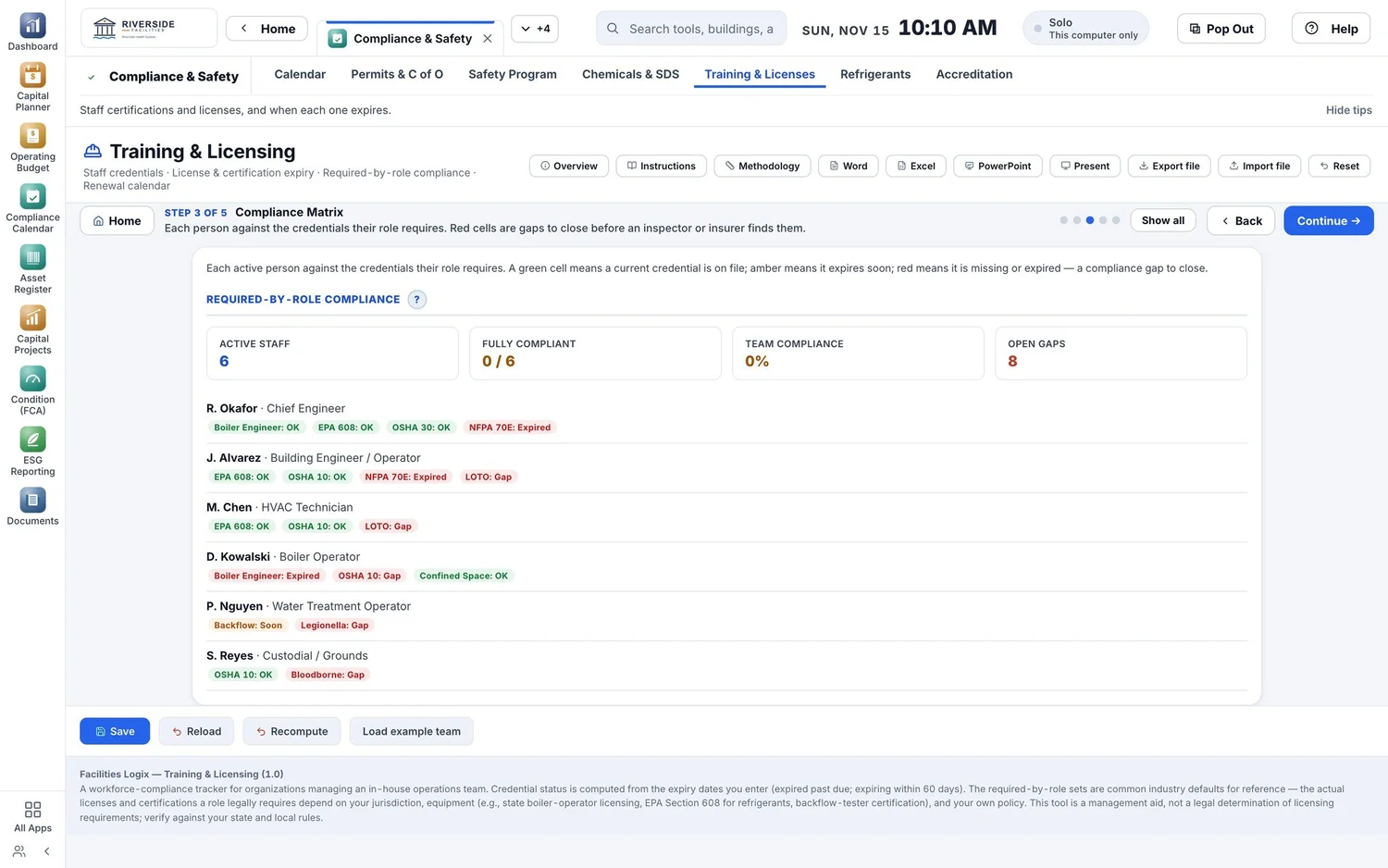
Short, Hands-On Sessions for Each Role
Start Here: Everyone
One session on finding your way around.
Learn MoreShow Less
Training time is paid time, so it should be short and practical. Start Here takes 30 minutes in the software, on the sample portfolio.
- Find your way around, without help
- Know where to read how anything works
- Ends with check-yourself questions and answers
- Taken by everyone before their own track
Leadership
Four sessions: the portfolio on one screen; condition and the capital outlook; the risk you are carrying; and the board package.
Learn MoreShow Less
Leaders should not need a staff briefing to read their own numbers. Four sessions, about 2 hours 20 minutes in all, teach them to do it themselves.
- L1, the portfolio on one screen: 30 minutes
- L2, condition, deferred capital and the capital outlook: 35 minutes
- L3, the risk you are carrying: 30 minutes
- L4, the board package and its three reports: 45 minutes
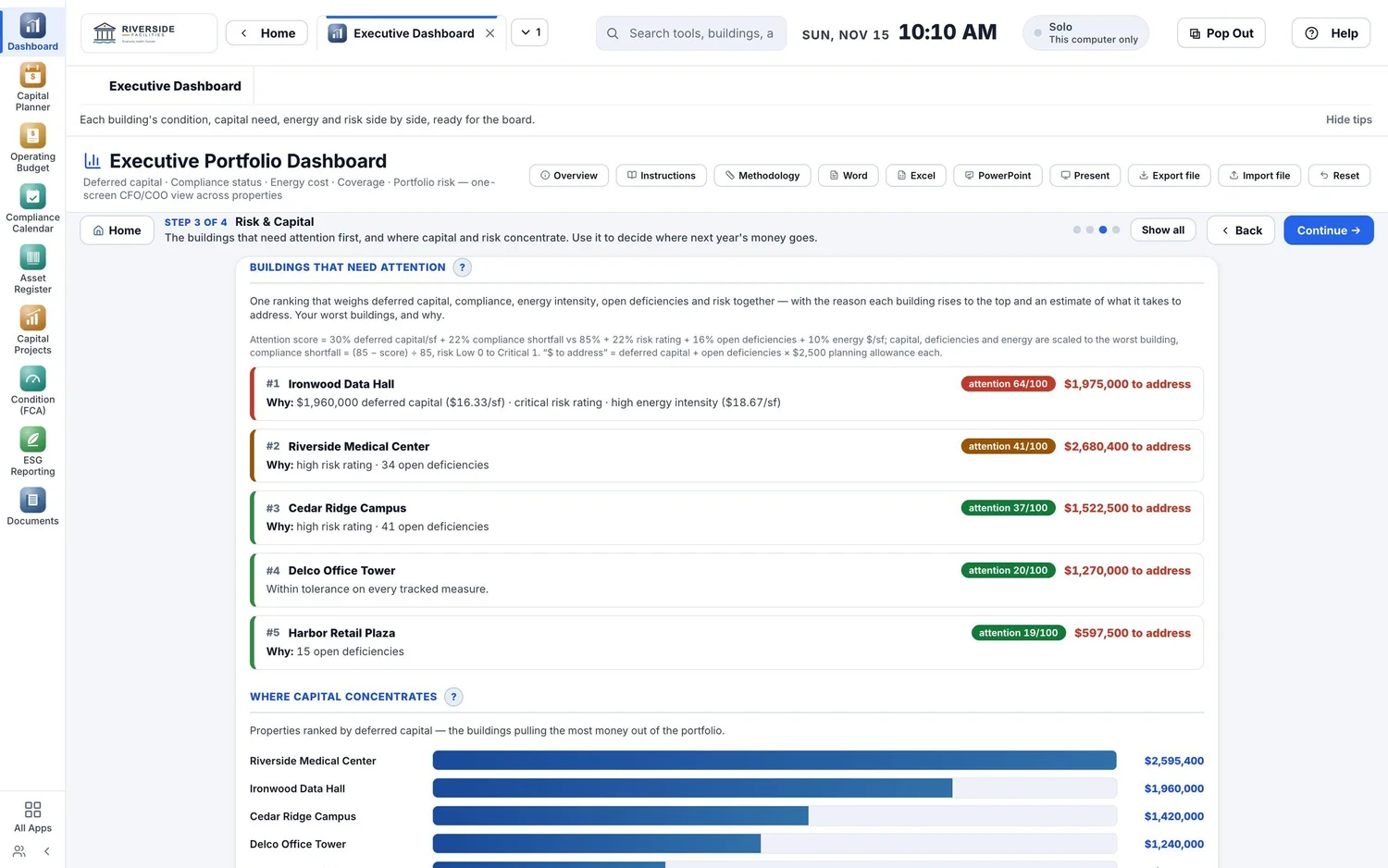
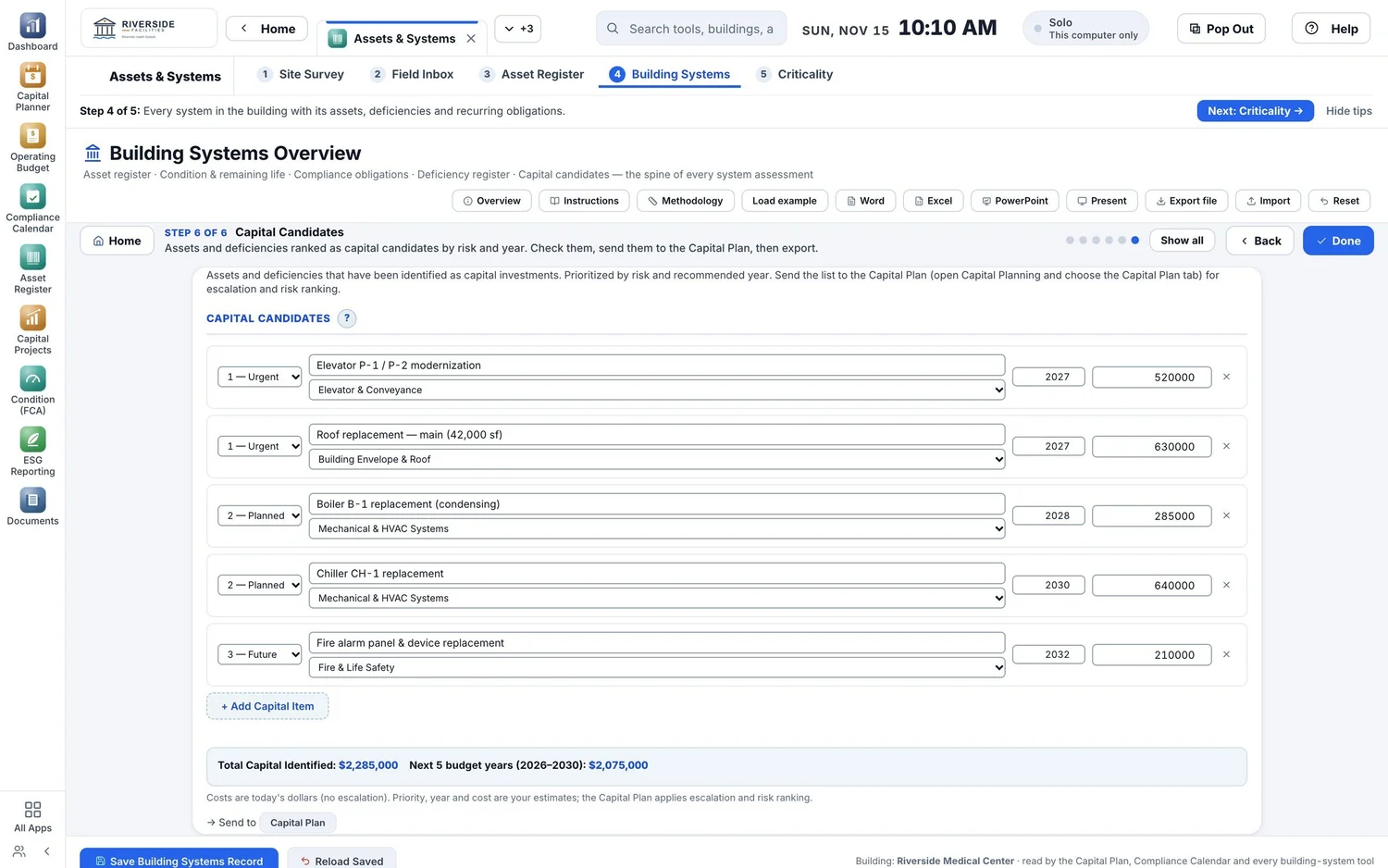
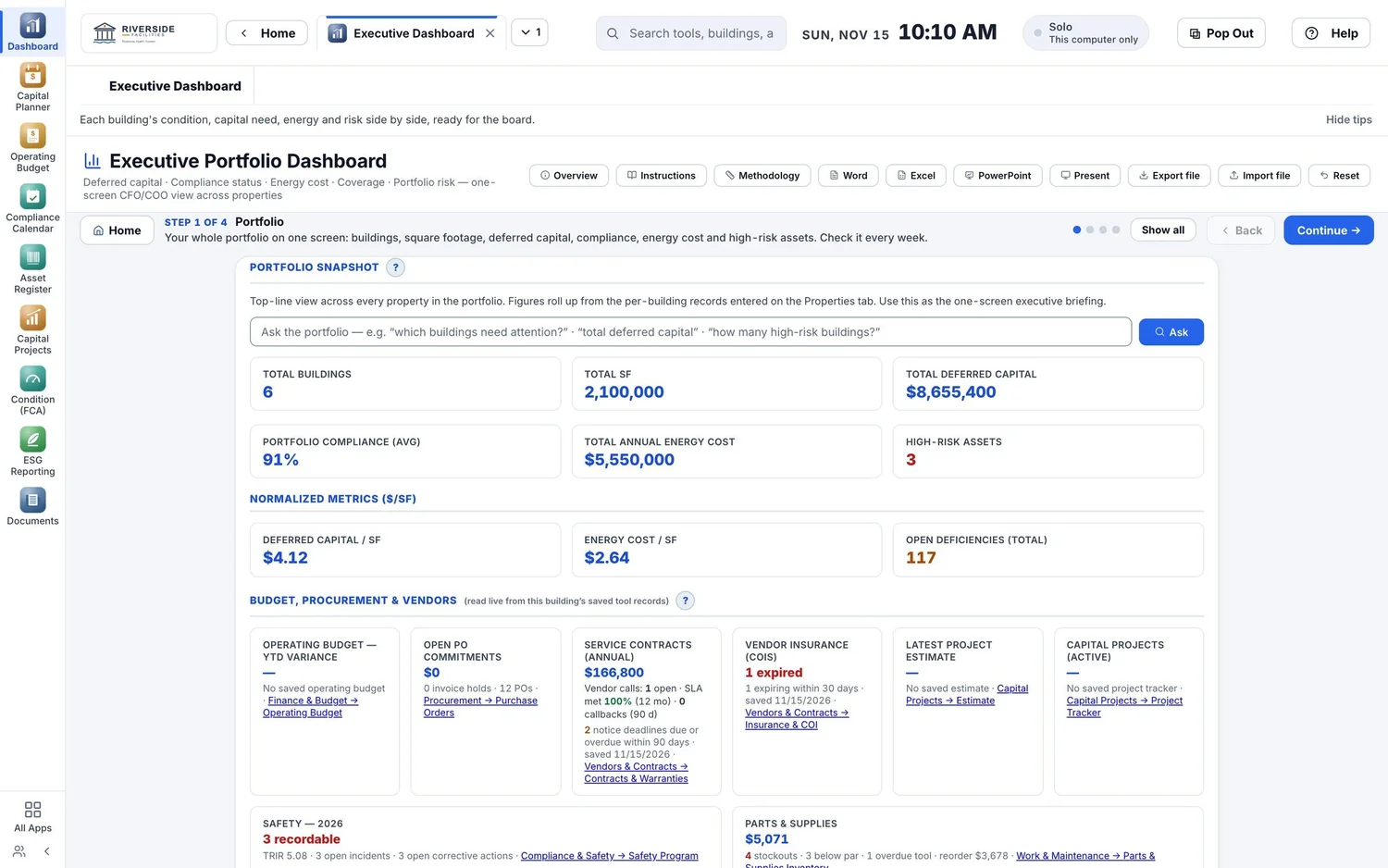
Risk & Capital in Executive Portfolio Dashboard: the buildings that need attention first, and where capital and risk concentrate. Use it to decide where next year's money goes.
Management
Seven sessions: buildings, assets and coverage, the capital plan, the compliance calendar, utilities and energy, vendors and dispatch, and procurement.
Learn MoreShow Less
Managers carry the capital, compliance, energy and vendor work, so time saved there counts most. Seven sessions take about 4 hours 40 minutes.
- M3, from condition to the capital plan: 45 minutes
- M4, the compliance calendar and the evidence pack: 45 minutes
- M6, vendors, contracts and contractor dispatch: 40 minutes
- M7, procurement from scope to purchase order: 45 minutes
Operations and Technicians
Six sessions: work orders, preventive maintenance, rounds and the shift handover, inspections and parts, the field app, and closing the loop with reliability.
Learn MoreShow Less
A technician who learns the system on live work costs time and errors. Six sessions, about 3 hours 40 minutes, cover the daily work.
- O1, work orders and service requests: 40 minutes
- O3, operator rounds and the shift handover: 35 minutes
- O5, the field app on a phone or tablet: 45 minutes
- O6, closing the loop with reliability and the Dashboard: 25 minutes
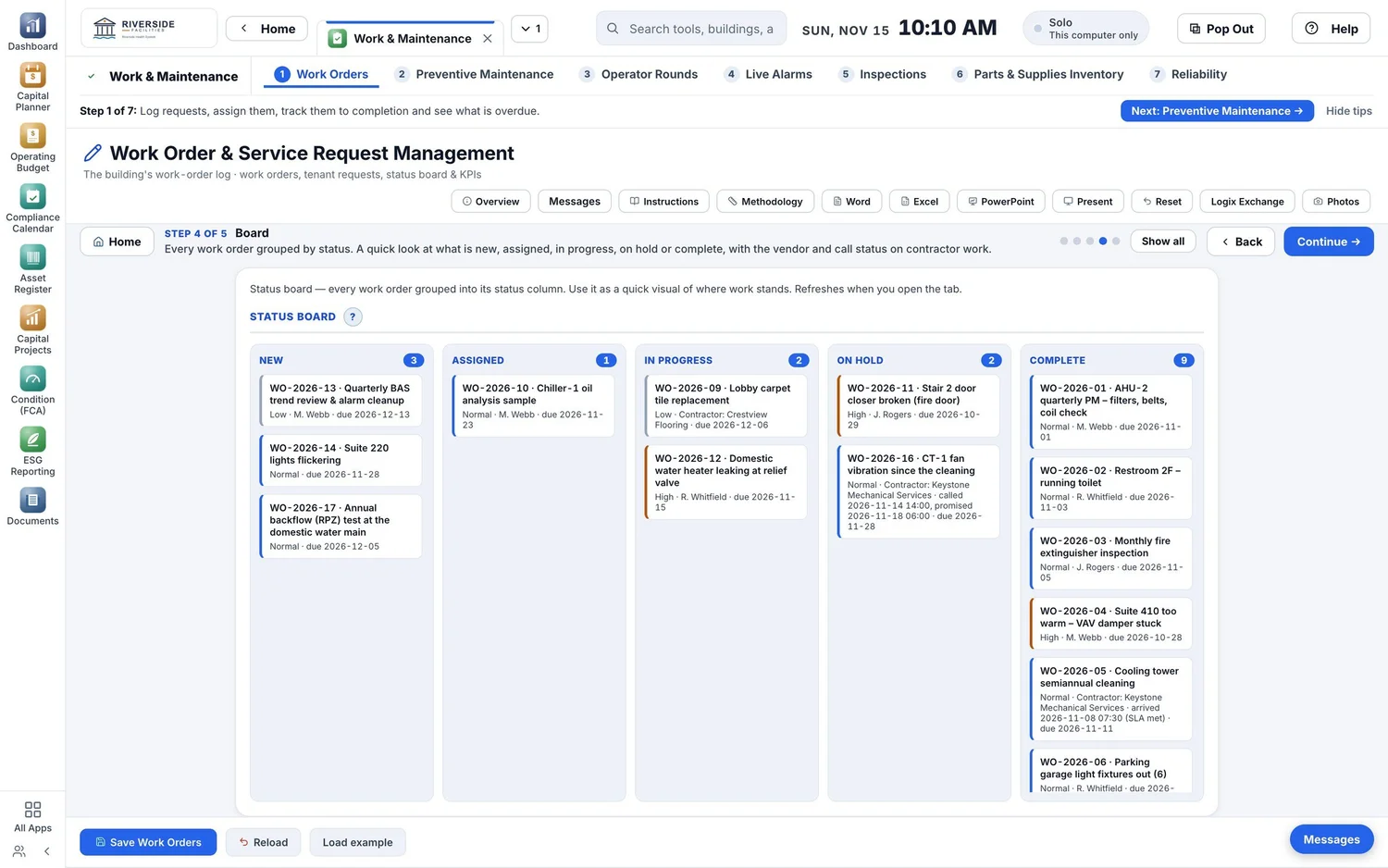
Board in Work Order & Service Requests: every work order grouped by status. A quick look at what is new, assigned, in progress, on hold or complete, with the vendor and call status on contractor work.
Administrator and Setup
Five sessions: the Setup menu, importing from a spreadsheet, backups and restore, team setup and roles, and pairing phones and tablets.
Learn MoreShow Less
A setup mistake can cost lost records later. Five sessions, about 3 hours 10 minutes, cover what the administrator must get right.
- A1, the Setup menu: 45 minutes
- A3, backups, restore and where data lives: 30 minutes
- A4, Solo or Team on the shared drive, people and roles: 45 minutes
- A5, pairing the team's phones and tablets: 40 minutes
Check Yourself
Each session is practiced on the sample portfolio and ends with questions and their answers.
Learn MoreShow Less
Training that is never checked has to be repeated. Each session proves what was learned, without a trainer's time.
- Three to five questions per session, each with its answer
- A Do It exercise names buttons and tabs exactly as on screen
- What to Look For explains why the exercise matters to the job
- Practiced on sample data, so real records are untouched
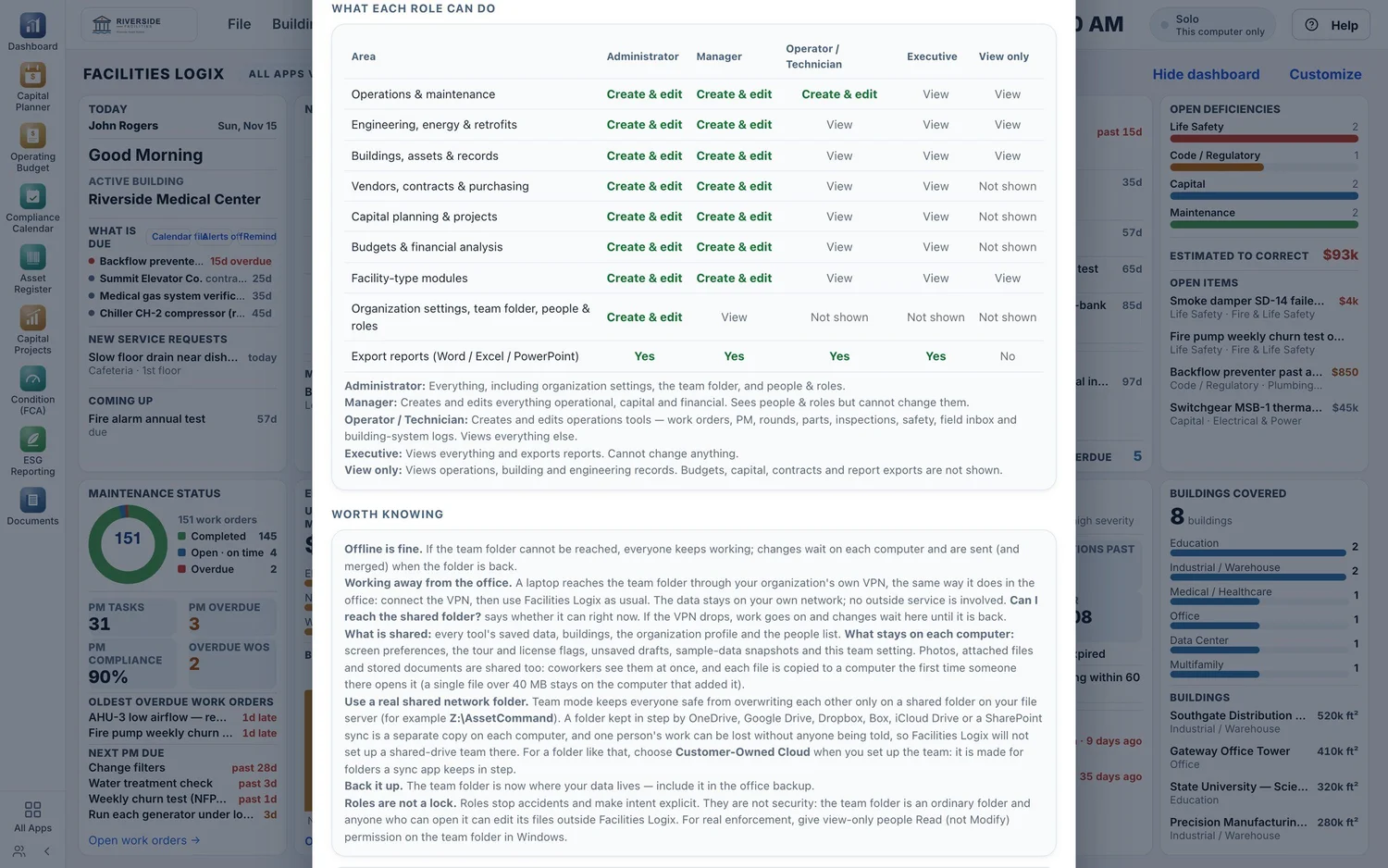
What each role can do: Administrator, Manager, Operator, Executive and View only.
A Sample Portfolio and a Worked Example in Every Step
The Sample Portfolio
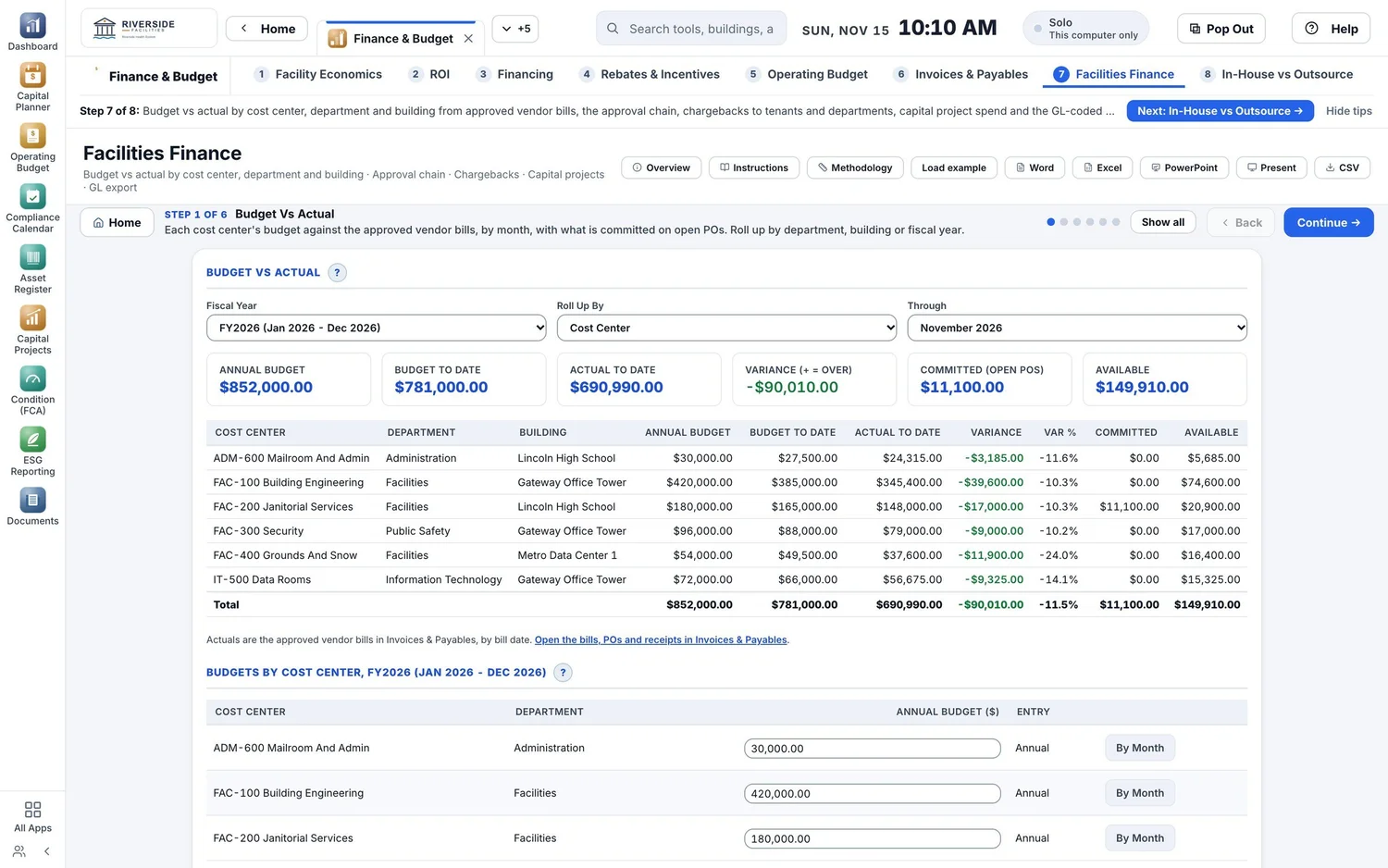
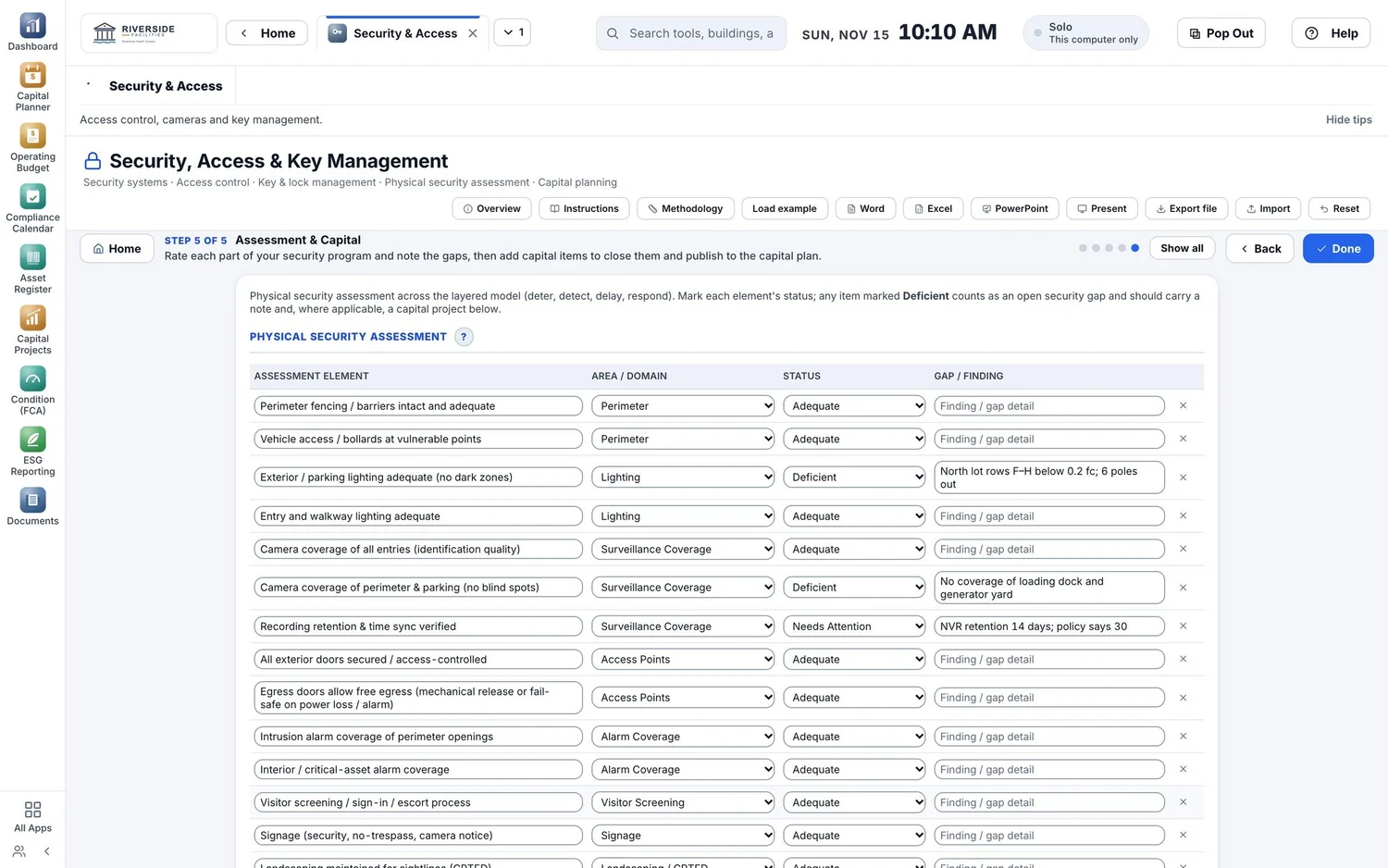
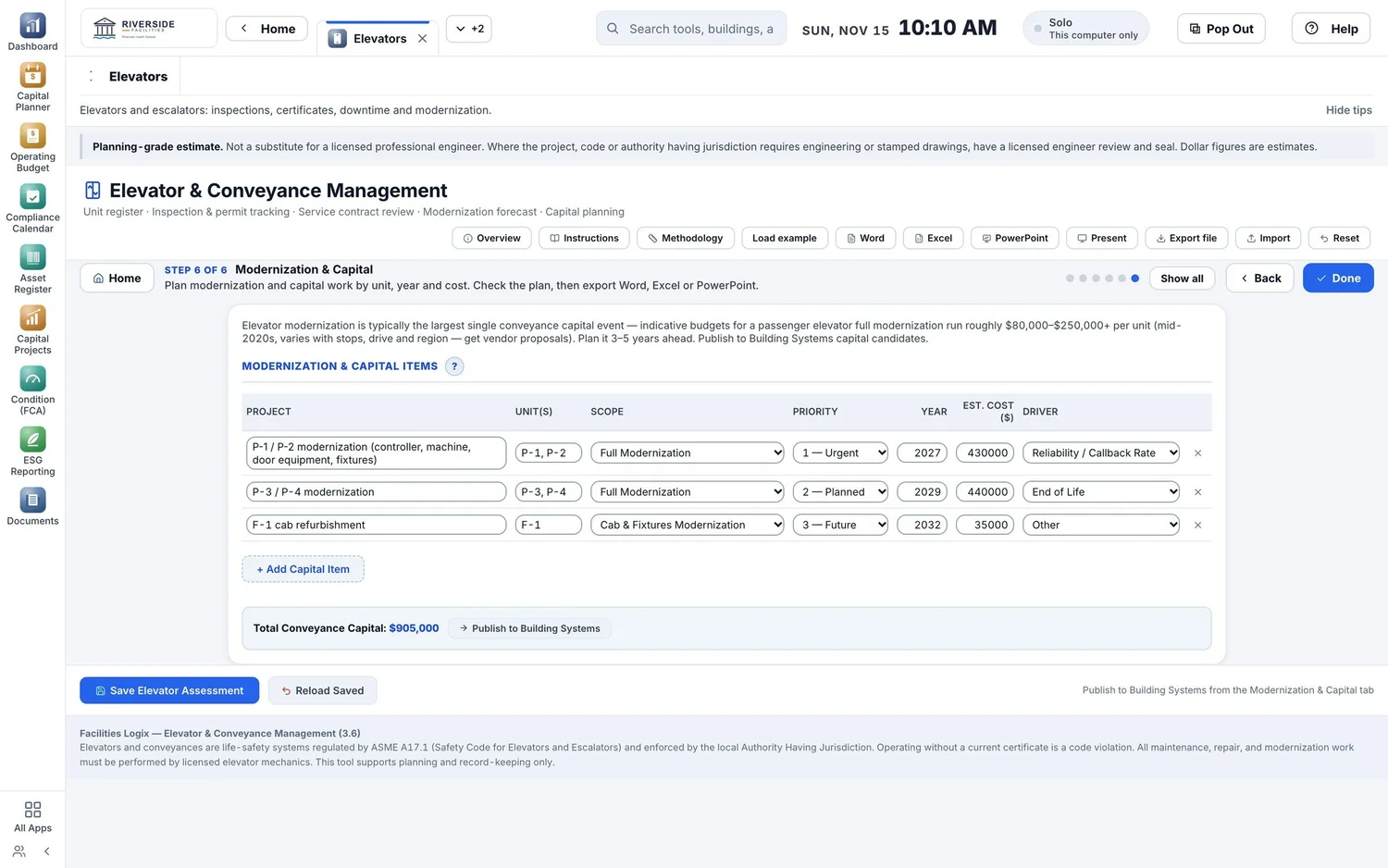
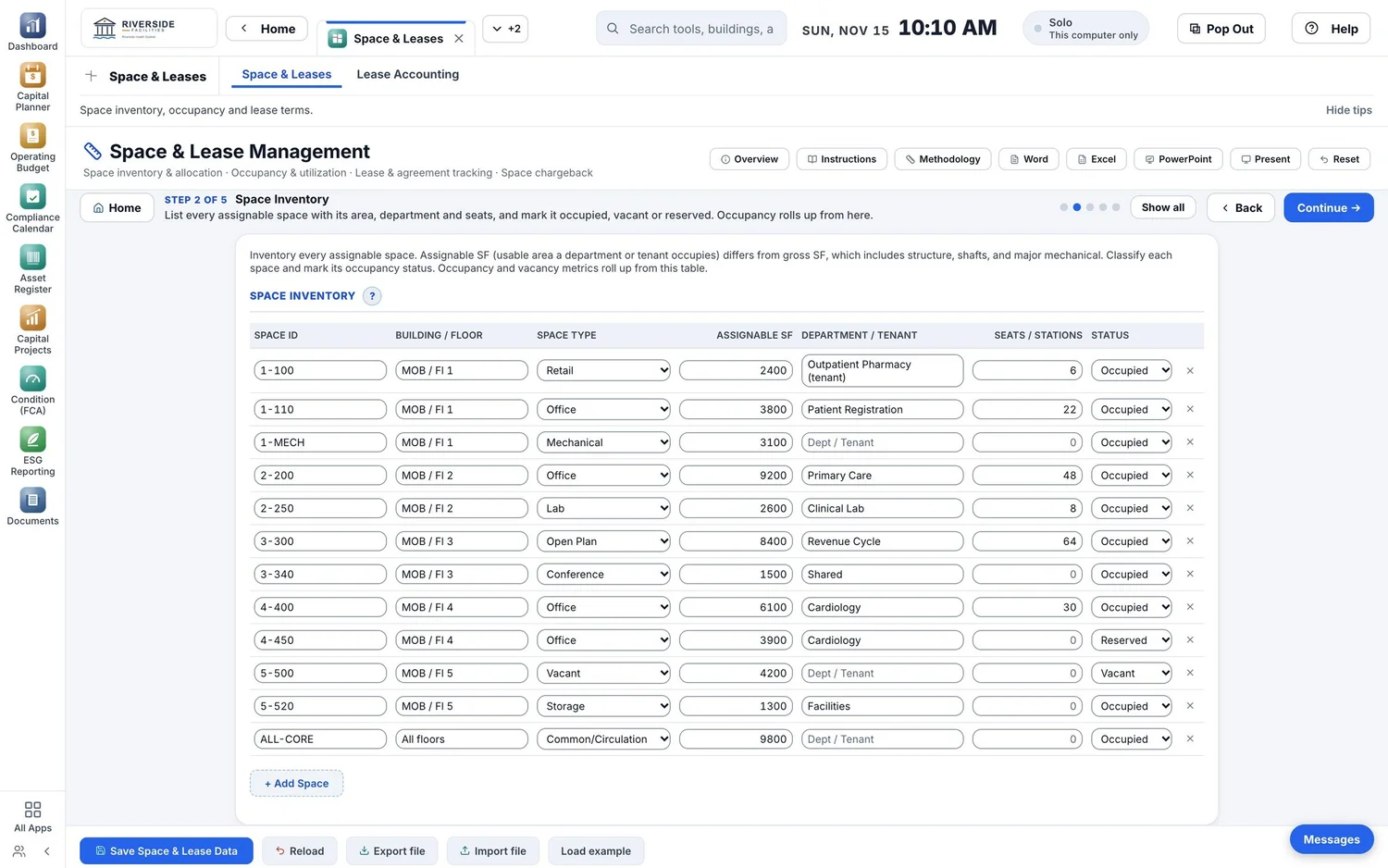
A complete sample portfolio shows every dashboard, register and report filled in. Your team can click through real workflows, such as an alarm that became a work order or a capital plan built from condition, without touching your own records.
Load Example
Any step can load a worked example before you type anything. A SAMPLE banner and a watermark on every export keep examples apart from your own figures, and one button restores your work exactly as it was.
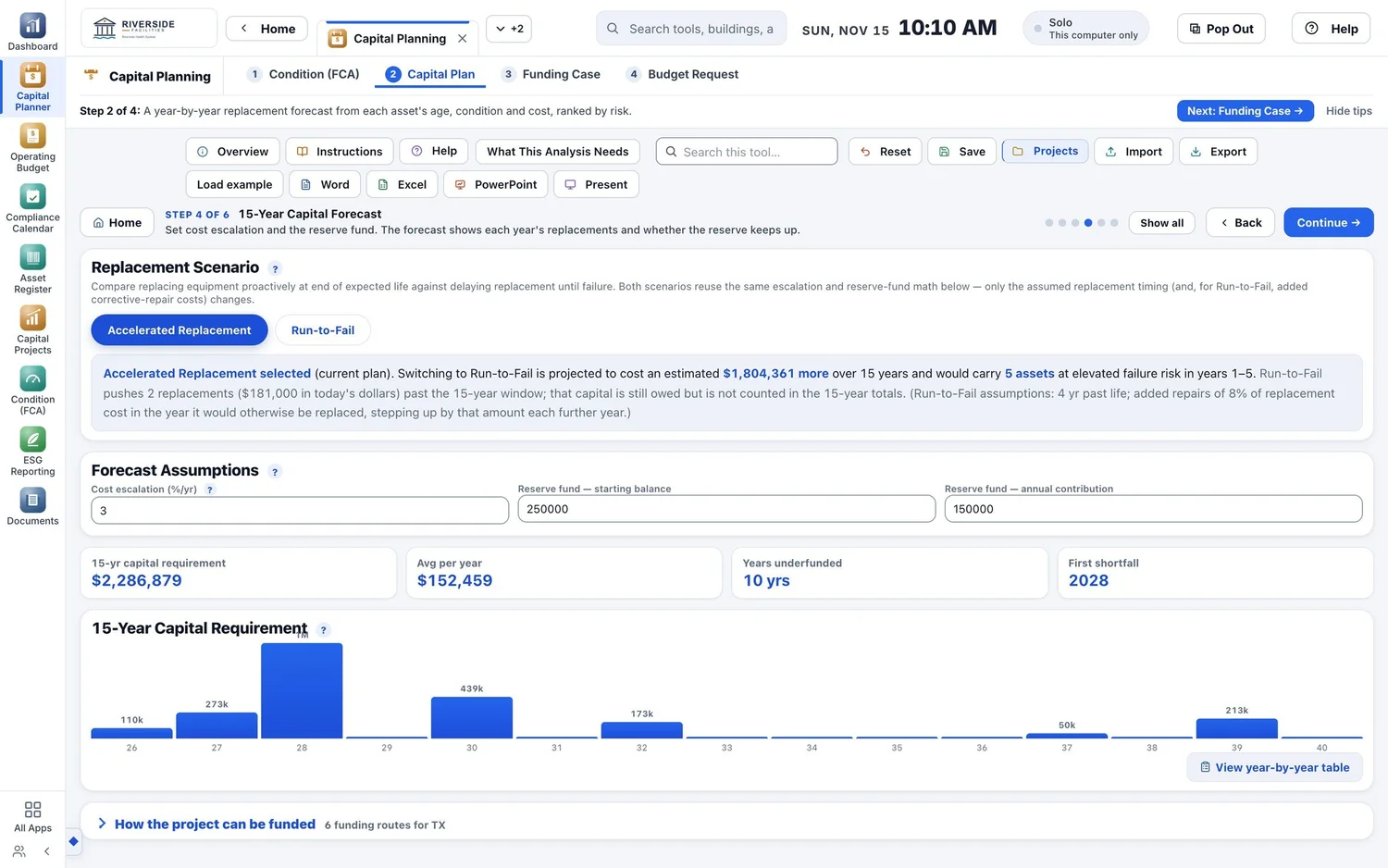
15-Year Capital Forecast in Capital Planner: set cost escalation and the reserve fund. The forecast shows each year's replacements and whether the reserve keeps up.
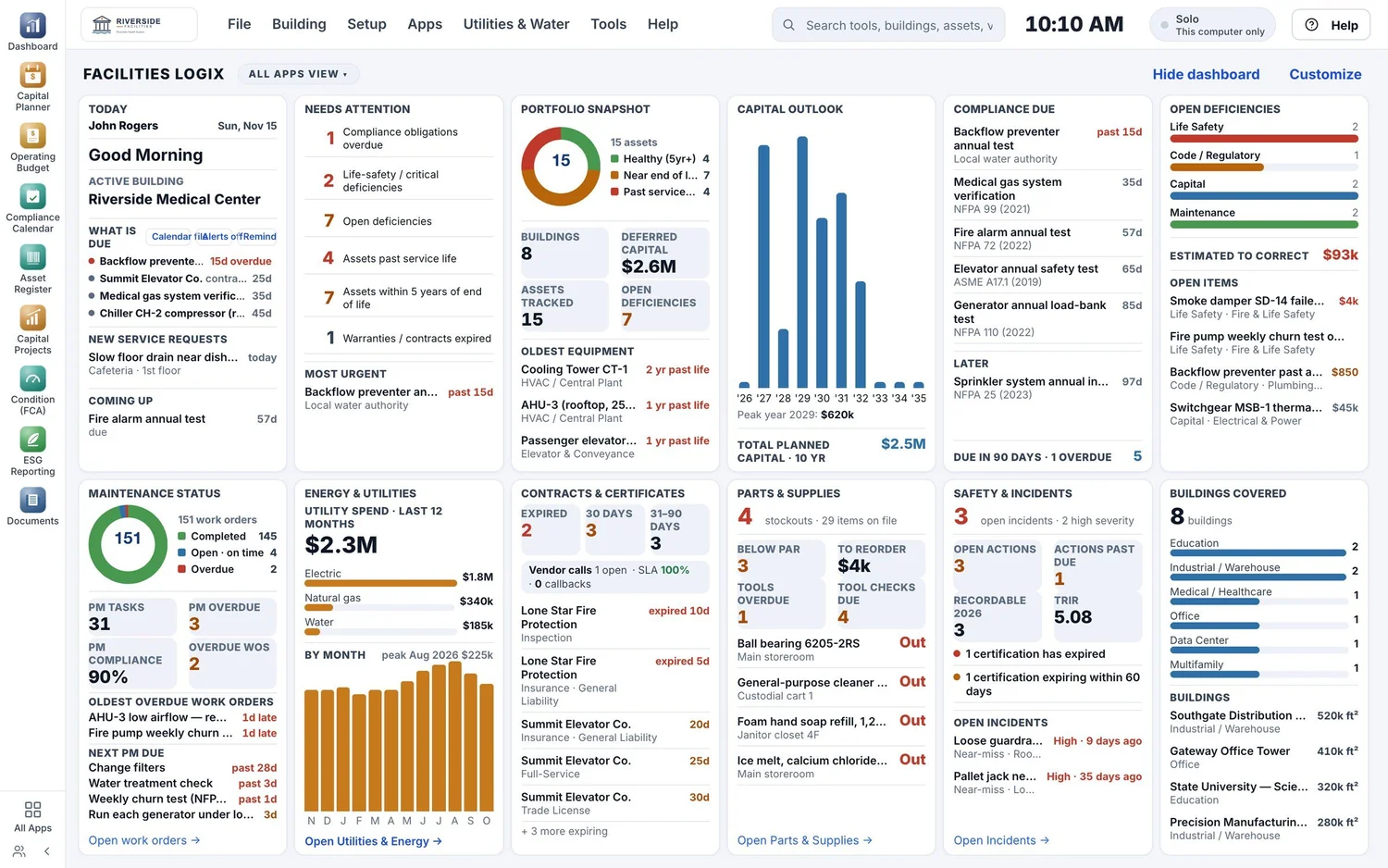
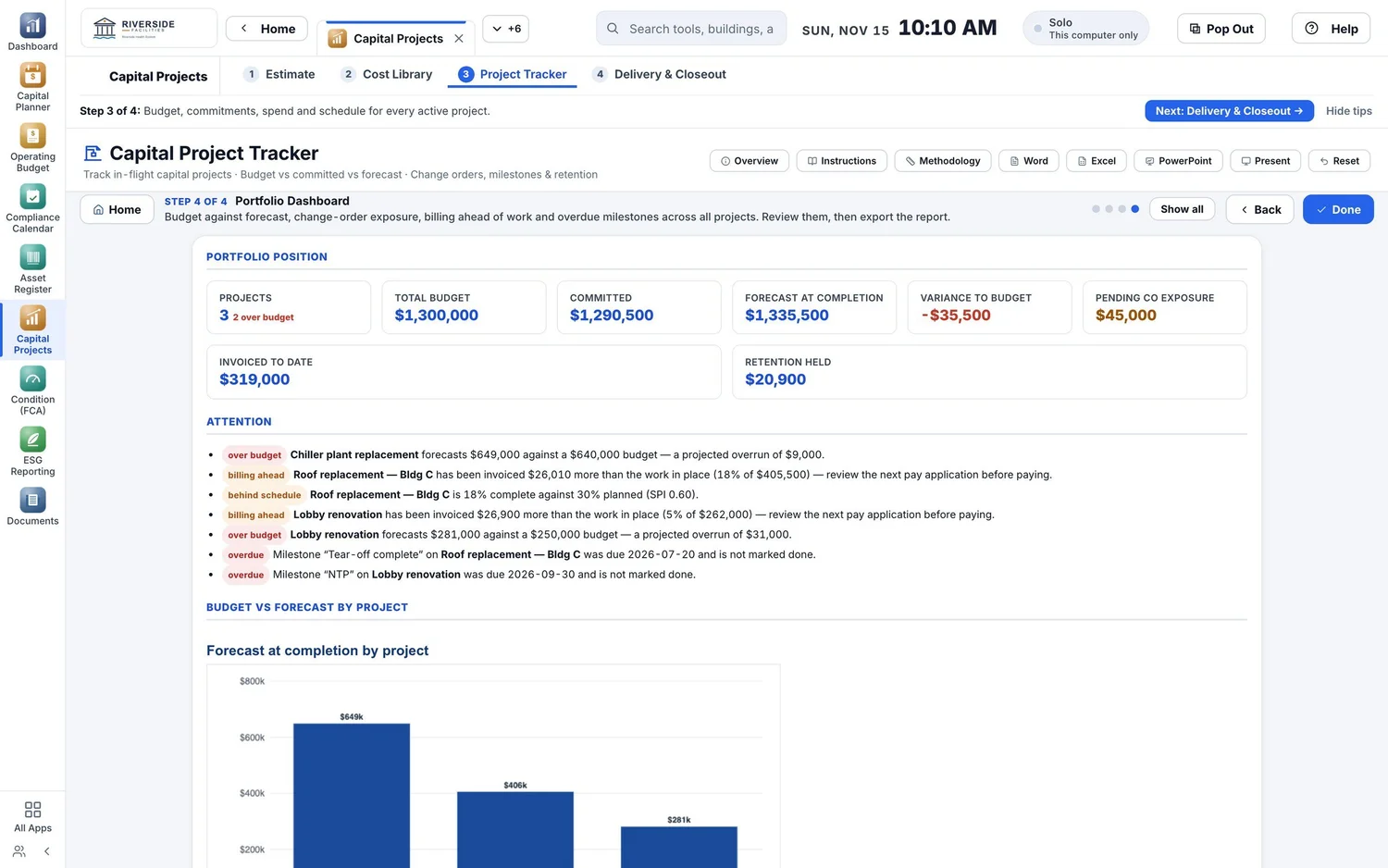
Training on live records puts real data at risk, so a complete sample portfolio lets your team practice safely.
A First-Week Checklist, Videos and a Direct Line
First Week Checklist
After you switch from another program, a checklist of eight items tracks the first week: buildings, assets, PM schedules, team, backup folder, recovery key, a paired device and the first closed work order.
Learn MoreShow Less
A switch that stalls halfway leaves two systems to pay for and maintain. The checklist tracks the eight steps that make the switch stick.
- Buildings entered, assets imported, PM schedules running and team invited
- Backup folder set and recovery key printed
- A phone paired and the first work order closed
- Ticked by itself when the program can tell, or marked done by you
Overview and Training Videos
Short videos follow the same order as the built-in help, so what you watch is what you see on screen.
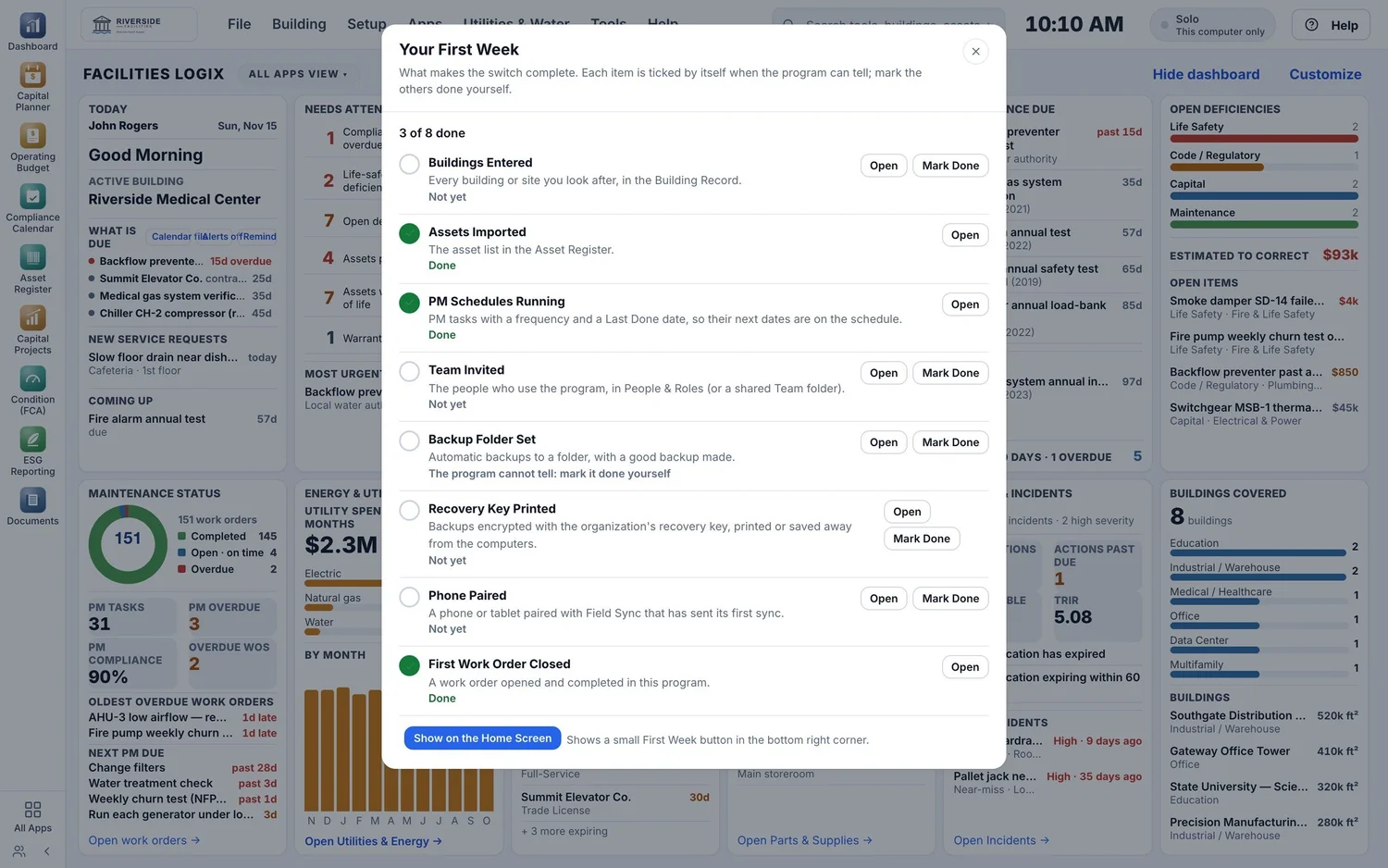
The First Week Checklist ticks itself as buildings, assets, PM, team and backups are set up.
Feedback & Ideas
Send a note to the development team from the Help menu, through your own e-mail.
Send a Problem Report
If something does not work as expected, a problem report gathers the details for you to review and send.
Learn MoreShow Less
A problem that is hard to describe takes support hours to diagnose. The report gathers the details, and you see everything in it before anything is sent.
- Sent only when a person chooses to send it
- Names, amounts, records and anything typed are removed
- A saved report goes to a Problem Reports folder in Documents
- Follows your e-mail choice, such as a Gmail draft you send yourself
For Your IT Team
A separate install and administration guide answers the questions IT and security teams ask.
Learn MoreShow Less
A long IT security review can delay a purchase by months. The guide answers the usual questions up front.
- What goes over the network, and firewall and security-software notes
- Permissions per role and how to back up the Team folder
- Upgrading without losing data
- Tested limits and a drive-sizing formula for 1, 5 and 10 years
Printable Guides
The manuals are also provided as PDFs, including a quick card for the field app.
Learn MoreShow Less
Guides printed when needed save training time and help in places with no screen. Each manual also ships as a PDF.
- Operating Manual, Quick Reference, Welcome and Quick Start, Training Program
- IT Install and Team Setup Guide
- A Field Quick Card for the phone app
- License agreement and summary, privacy statement and professional-use notice
Security Facts for Your Reviewers
Security, IT and records staff reviewing Customer-Owned Cloud mode get a Security Facts sheet: where the data goes, how each file is encrypted and signed, how devices are paired and removed, and who holds the recovery key. It ships as a PDF with the manuals, the IT guide, the license summary and the privacy statement.
Learn MoreShow Less
A security review that cannot get straight answers delays approval and costs staff time. The sheet states how the data is protected and what is not claimed.
- AES-256-GCM encryption on the computer before the sync app sees a file
- Every file signed by the device that wrote it; private keys never leave it
- A one-time invitation code plus a 6-digit code read out in person or by phone
- No FedRAMP, FIPS, CMMC or CUI claim is made
Update Notes First
Setup, This Build and Updates shows the newest update your channel allows, with its notes, before you get it ready. Getting it ready copies and checks the files and runs nothing.
Learn MoreShow Less
An update applied blind can cost a day of work if it misbehaves. The update notes come first, and nothing runs until you choose.
- Stable or Early channel, chosen by an Administrator for the organization
- Preparing an update only copies and verifies files; nothing is installed until you choose
- Go Back to Stable makes a full backup first and stops if the backup fails
- Refusals are listed in plain words
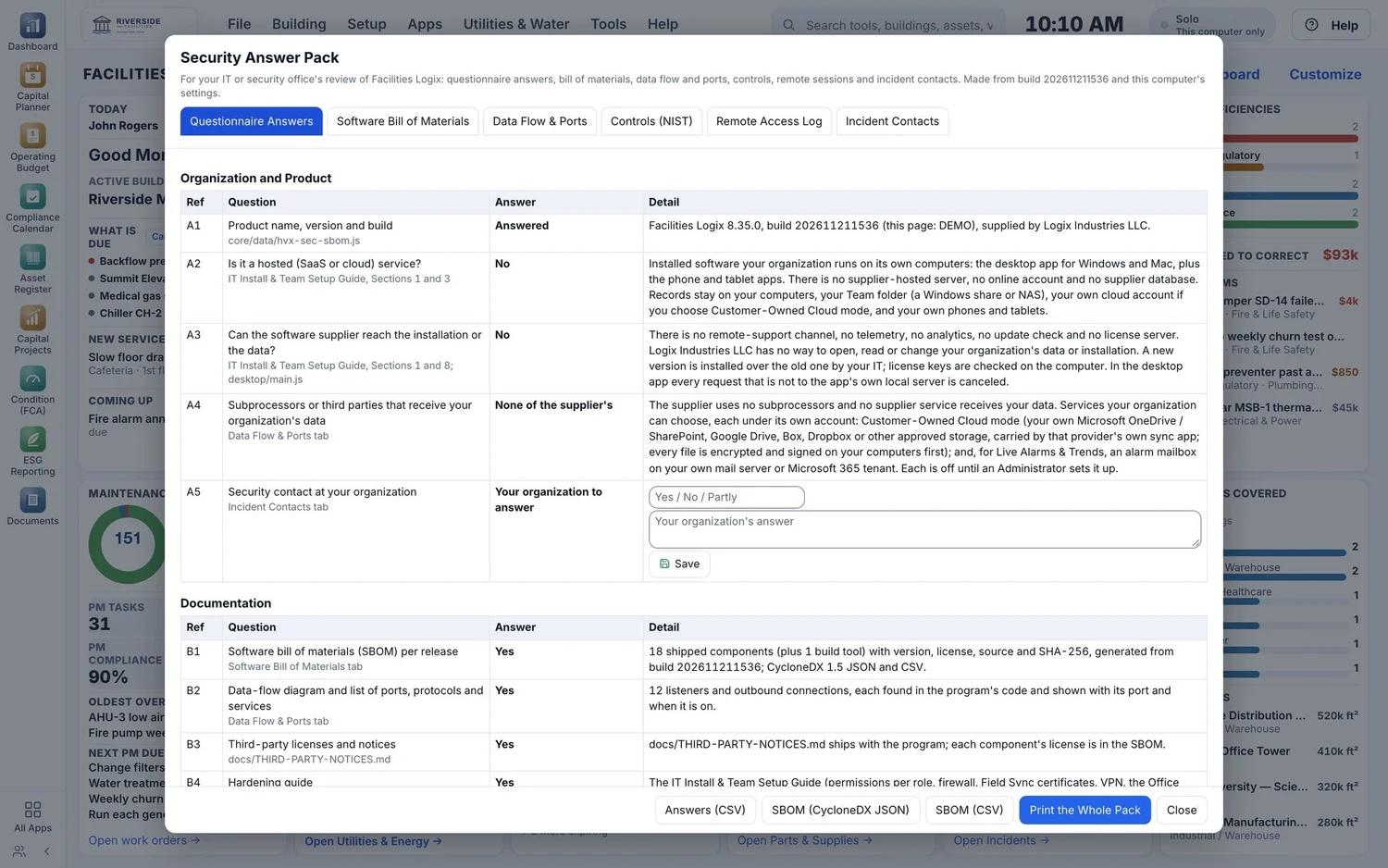
The Security Answer Pack: what stays on your computers, what can leave and only by your choice.
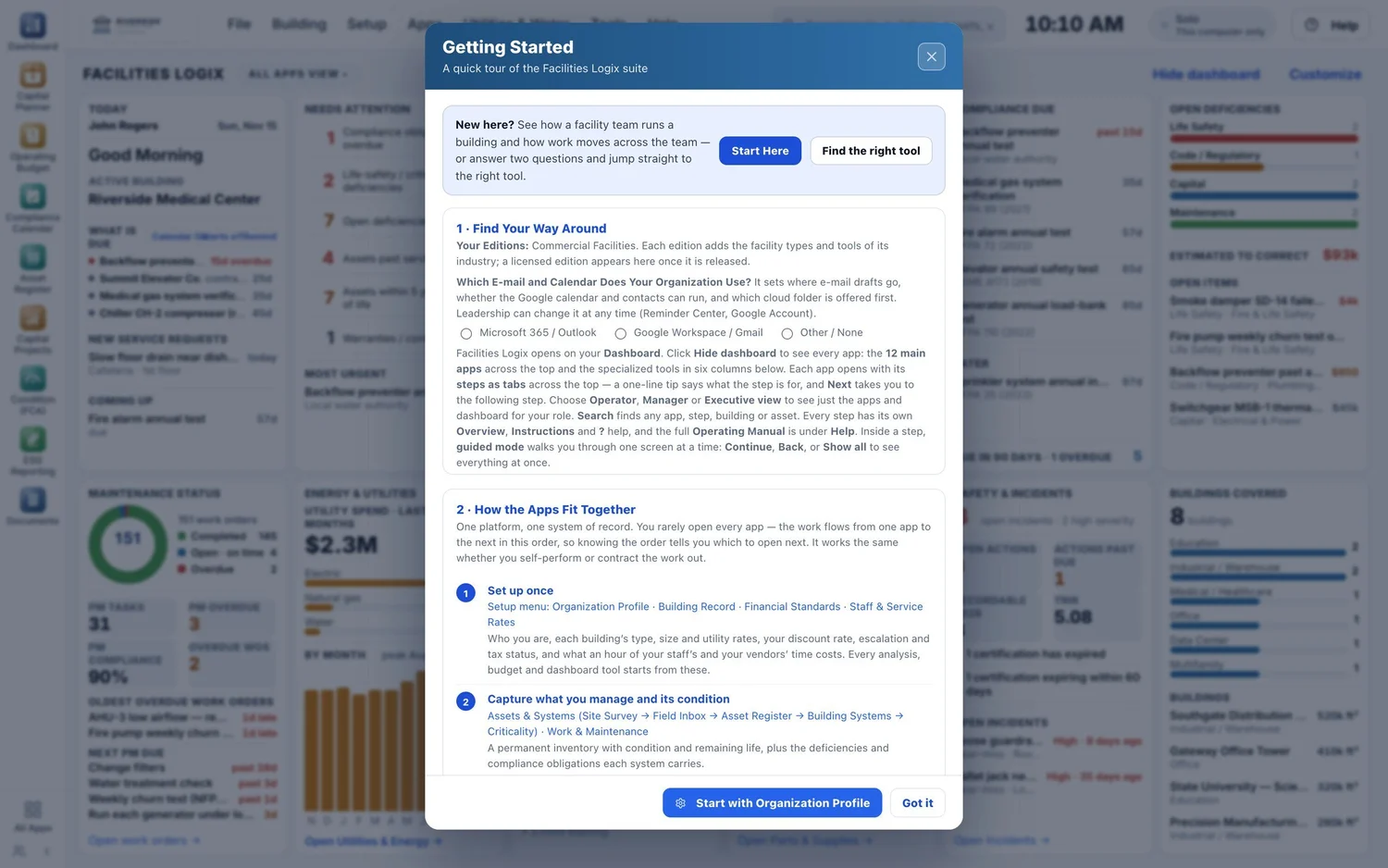
The first weeks raise questions that a manual cannot answer, so Getting Started points to the checklist, videos and help.
Frequently Asked Questions
Do we need to send staff to outside training?
Does Help need an internet connection?
Can new staff practice without risking real records?
Is there help for the phone and tablet app?
Be First When Facilities Logix Opens
Stop chasing building records across spreadsheets and binders. Join the list and we will tell you the day downloads open, with setup guides ready.
Launching early 2027 for Facilities Logix. Nothing to buy today, and no sales calls.