

Software Your People Can Learn on Their Own, Inside the Program
Launching Early 2027 · Join the Early-Access List
A program that runs the whole company only pays off if the whole company uses it. HVAC Logix teaches itself: a guided setup, tours that point at the real controls, help on every screen, a complete manual and a demonstration copy filled with a sample company, all inside the program and all available offline.
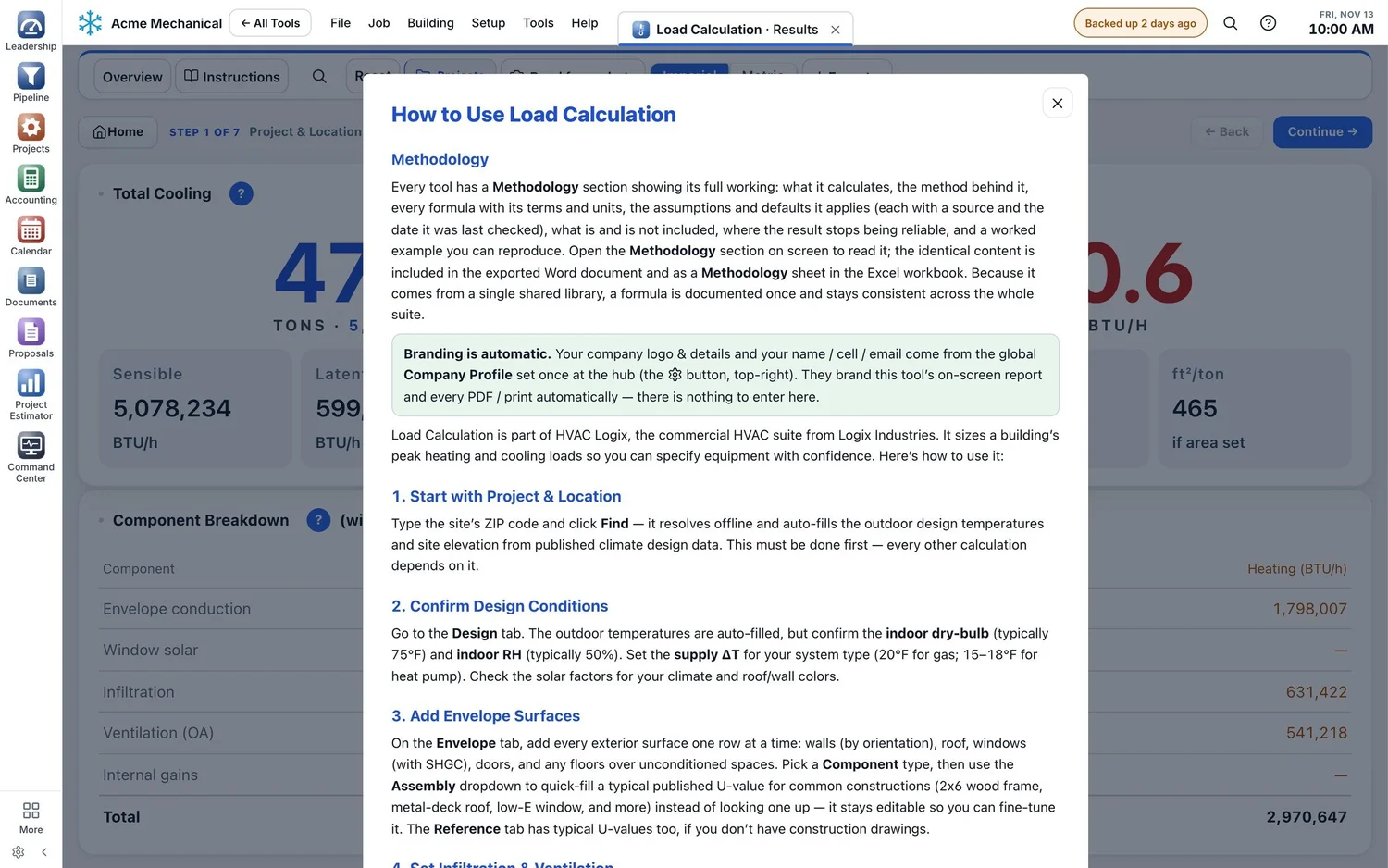
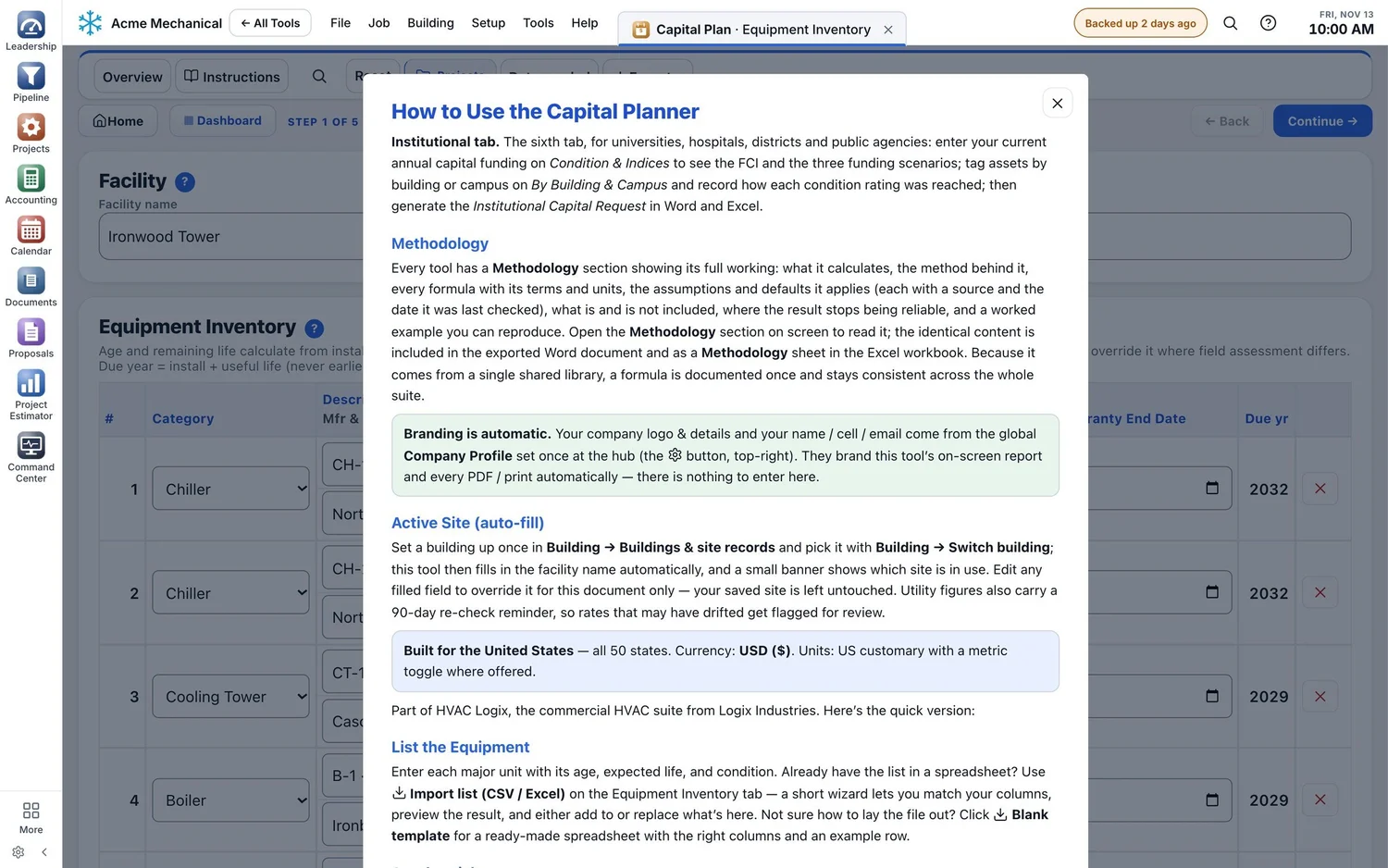
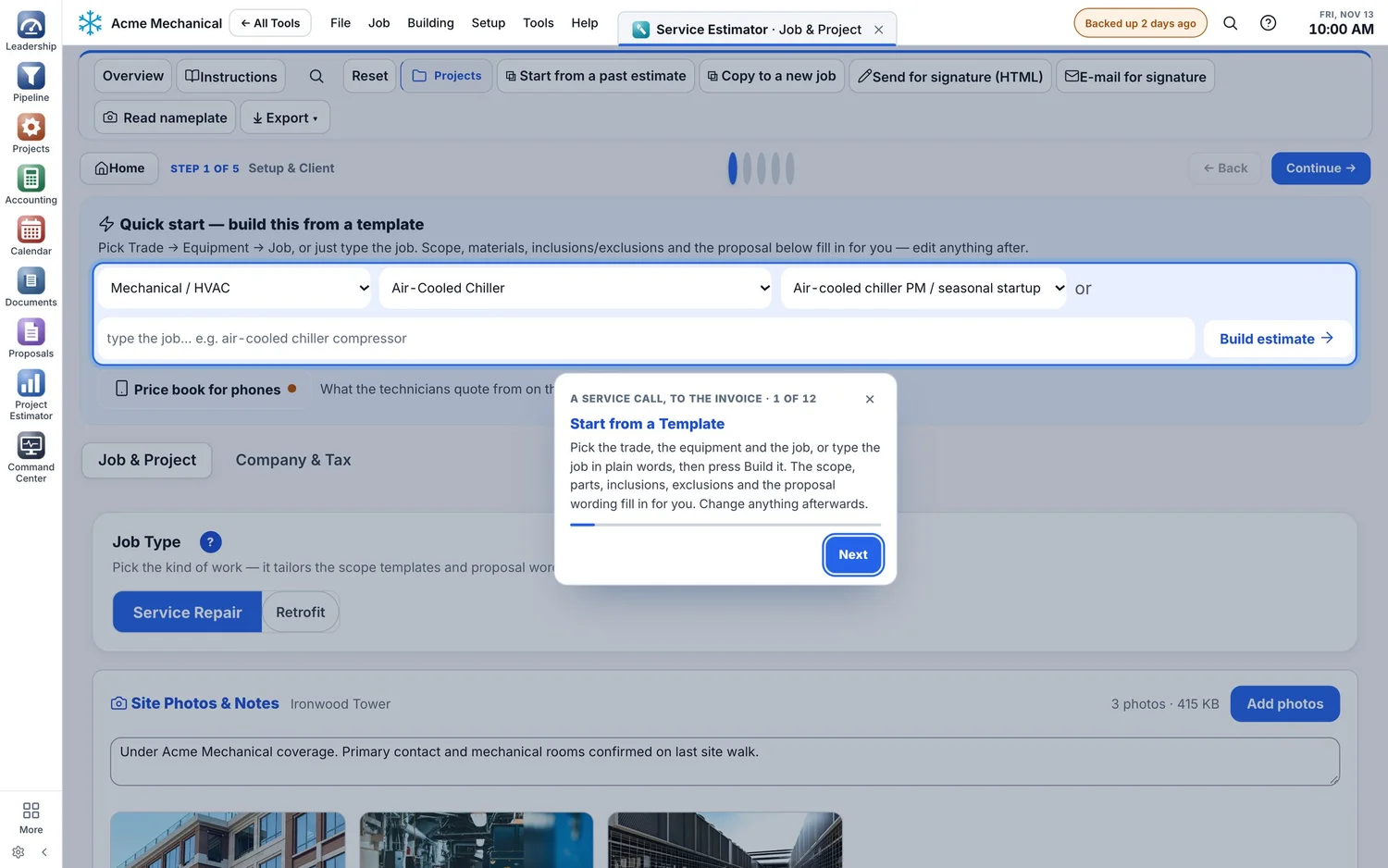
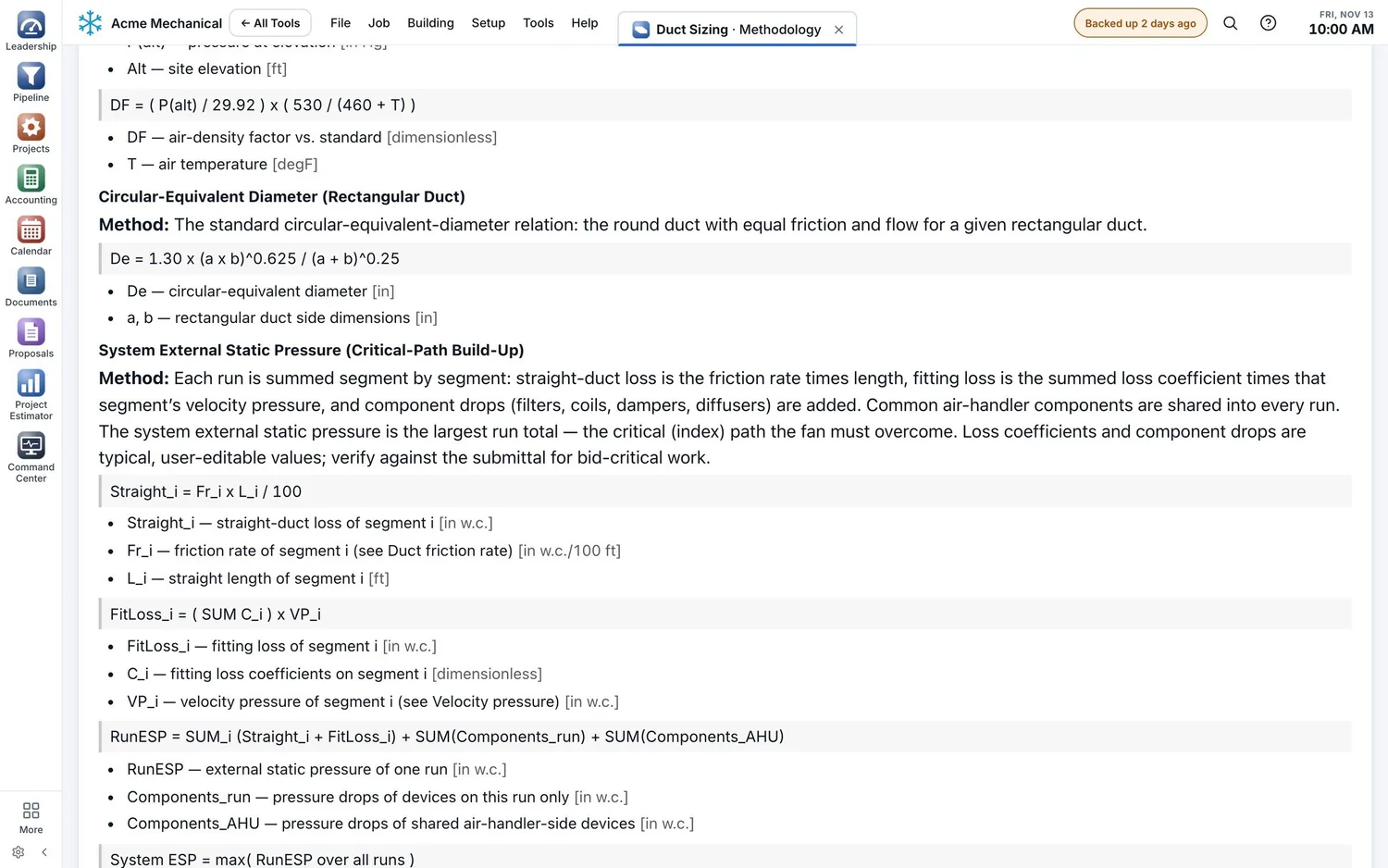
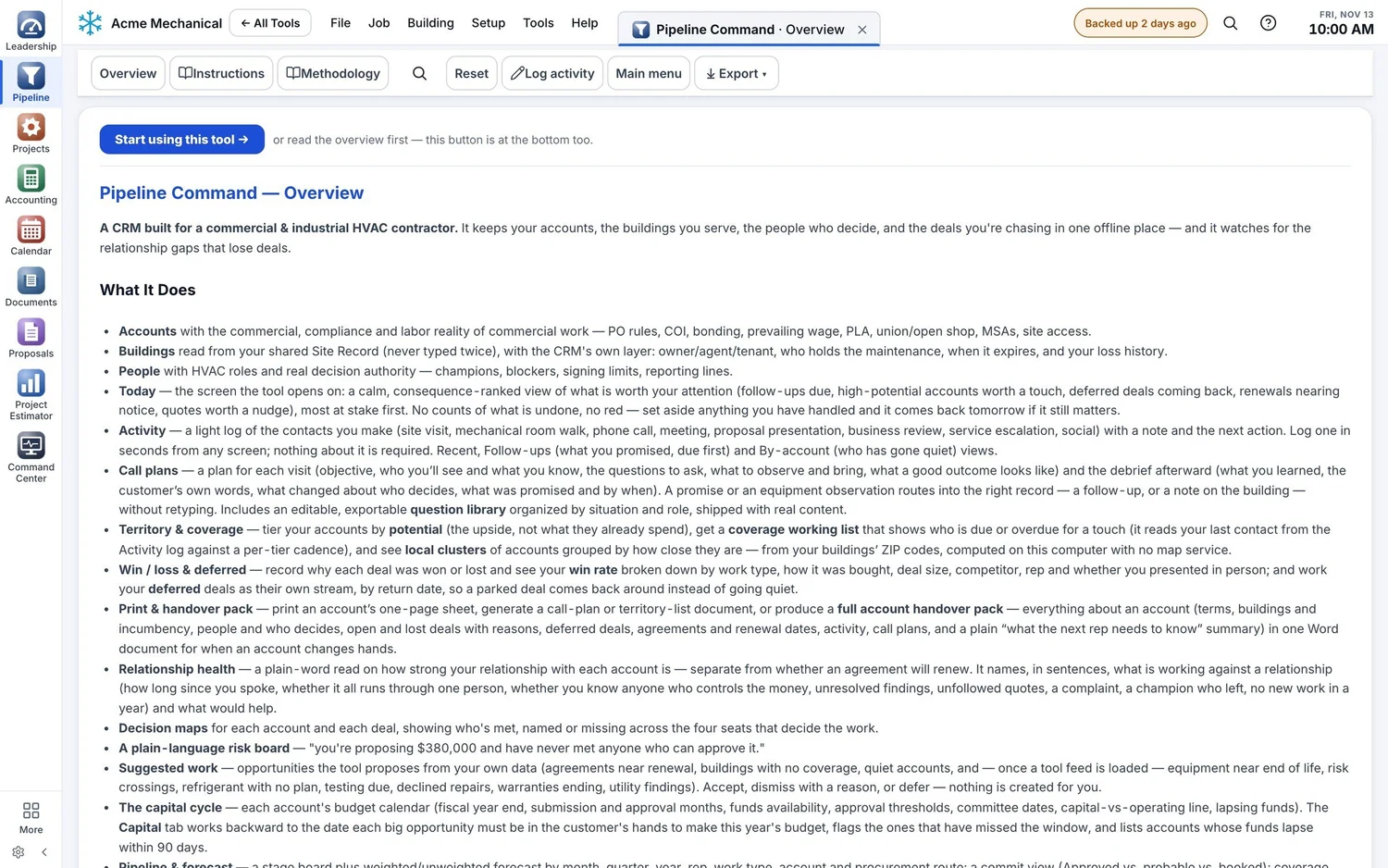
From a New Install to a First Branded Proposal in About Ten Minutes
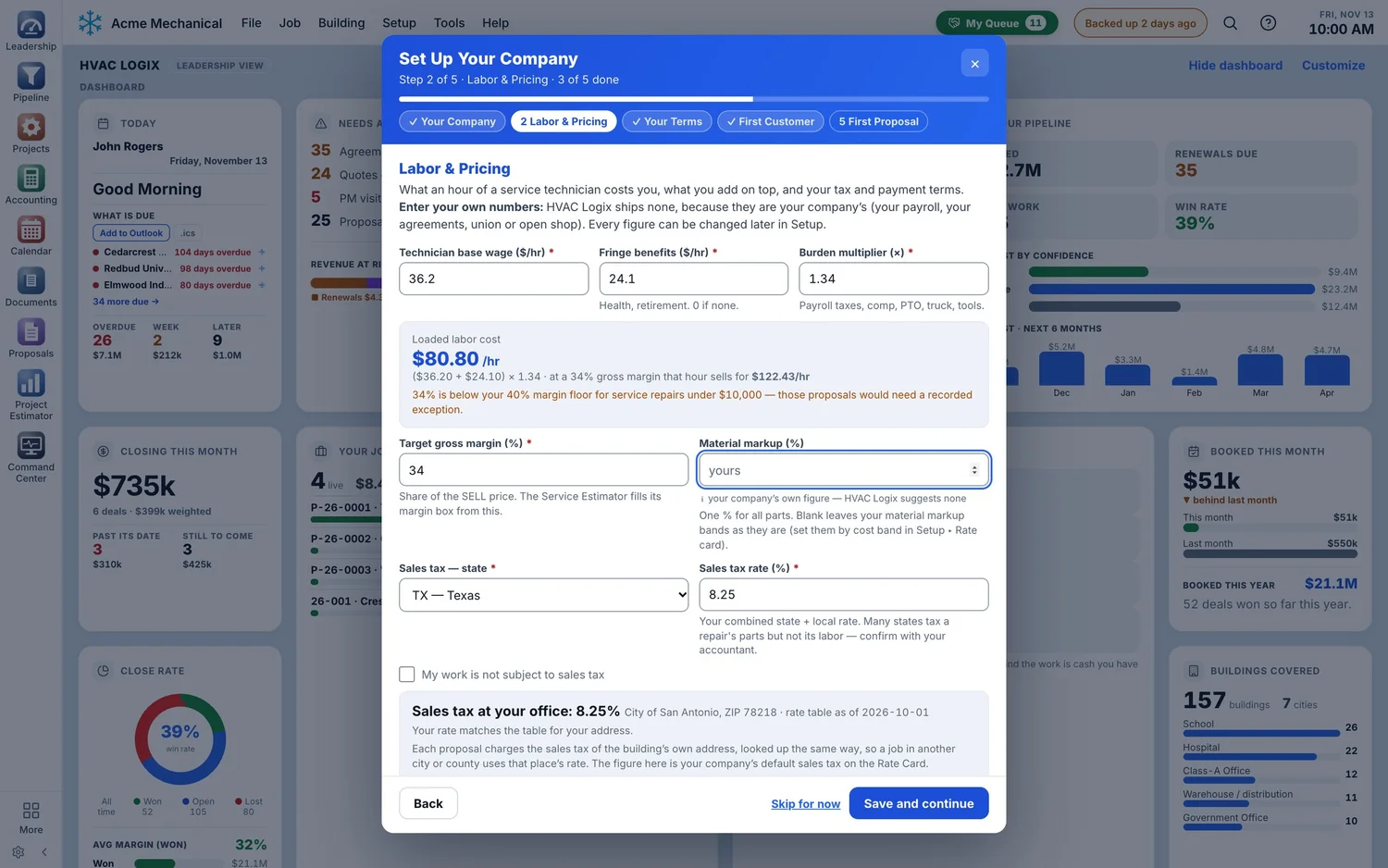
The guided setup is five steps, each saved as you leave it.
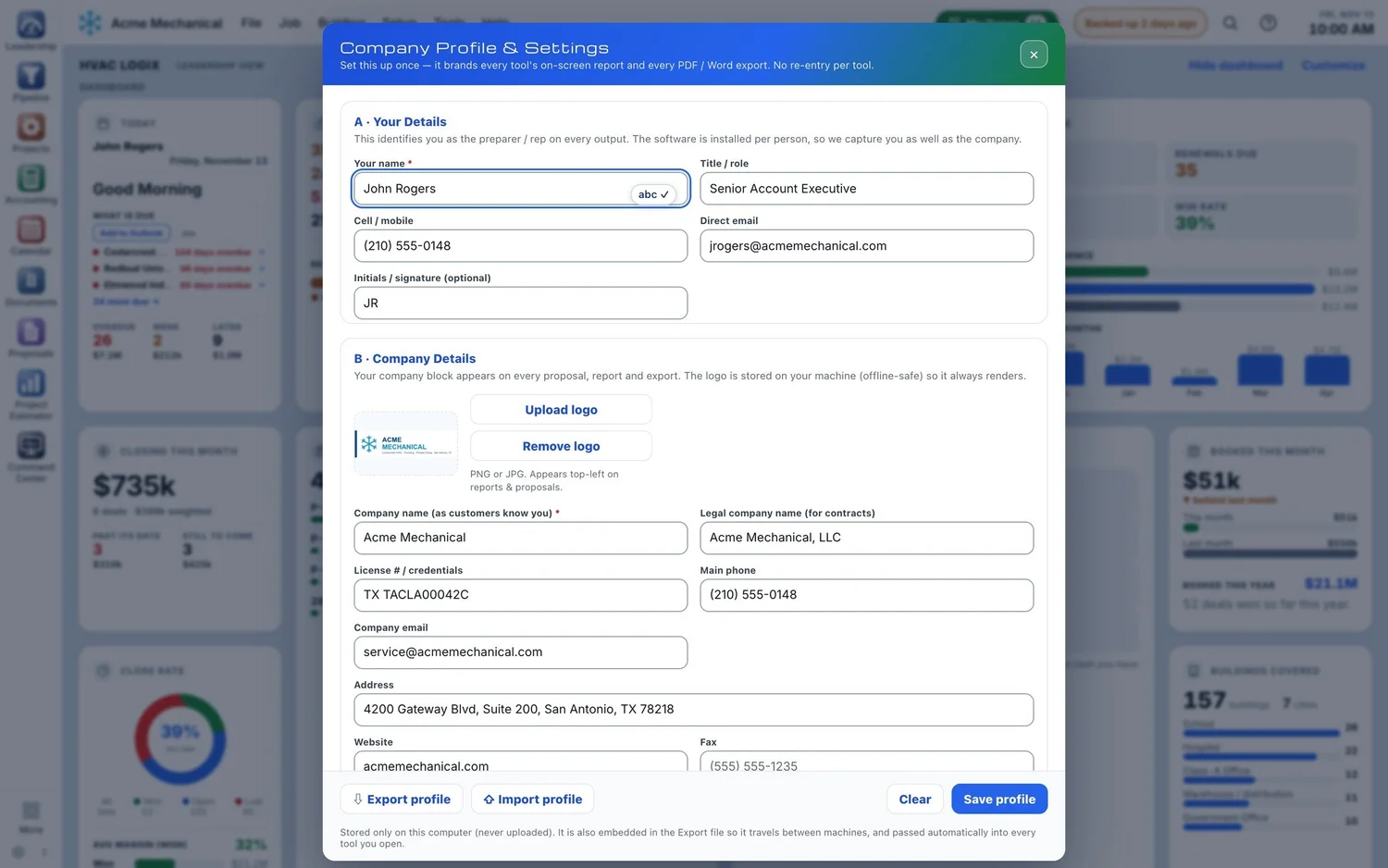
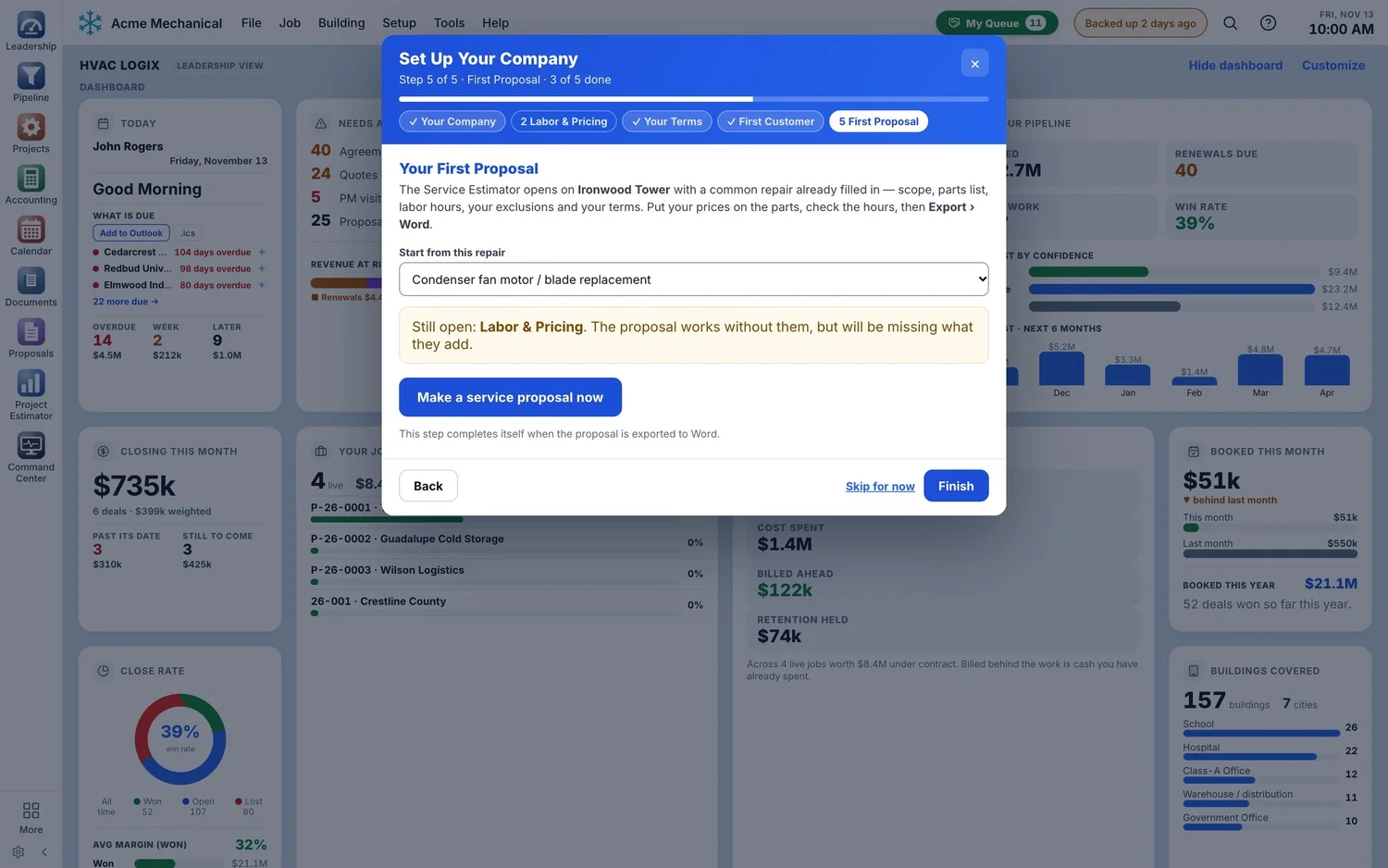
The Five Steps
- Your company: name, address, license, logo and your own sign-in
- Labor and pricing: your own five numbers, with your loaded labor cost per hour shown
- Terms: starting service and project terms for your attorney to review
- First customer: a customer and a building, which also creates the account in Pipeline Command
- First proposal: the Service Estimator opens on that building with a repair filled in, ready to export
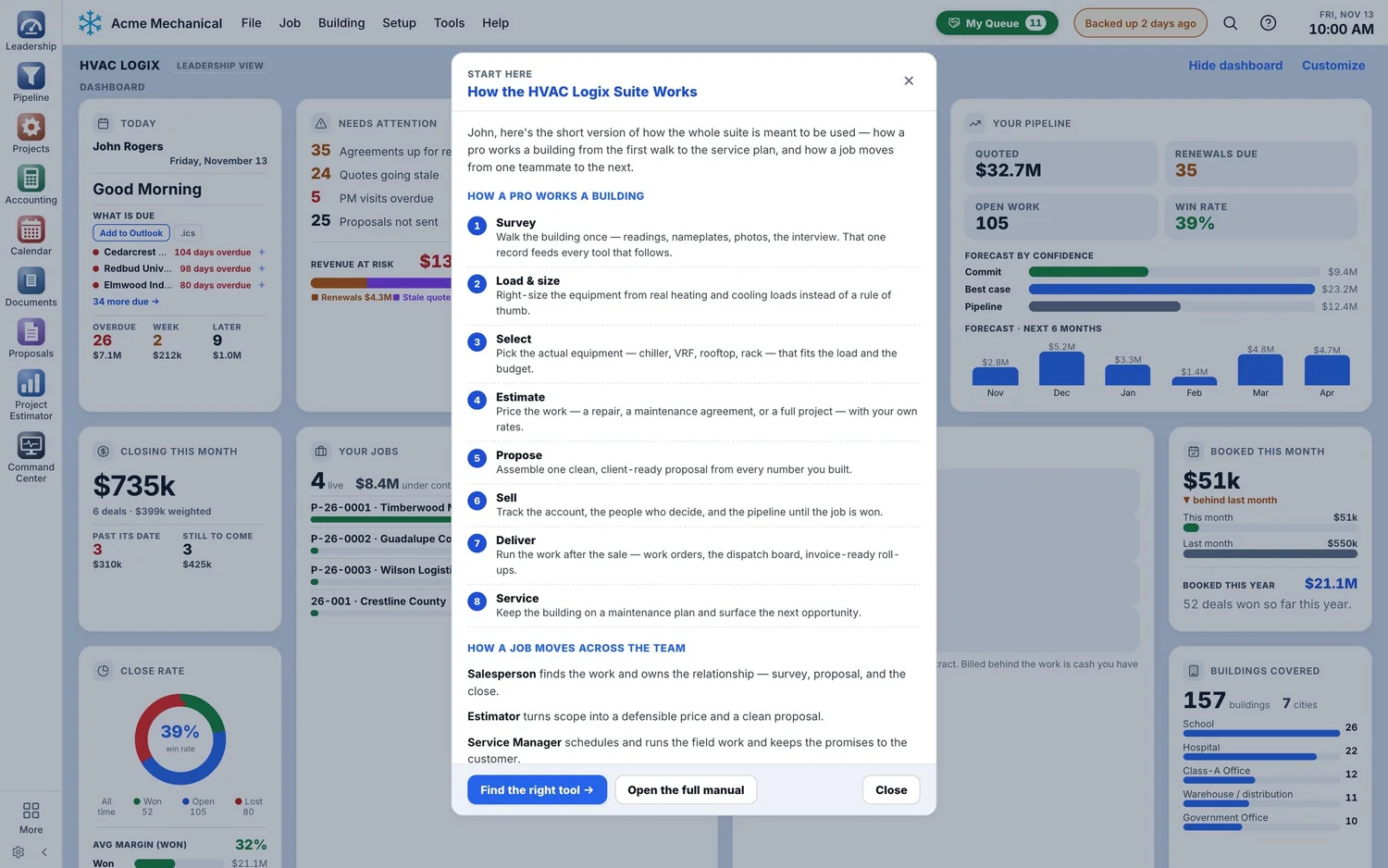
Start Here in HVAC Logix: a short primer on how a building is worked from survey to service and how a job moves between people.
Stop and Come Back
- Close the setup at any time
- A chip in the header, such as Finish setup (3 of 5), reopens it where you left off
- A one-minute tour shows the home screen with coach marks
- Nothing else interrupts the first launch: no update notes and no prompts until you have done some work
Bring Your Lists with You
- Customers, buildings, contacts, equipment, service agreements and employees load from CSV or Excel
- Download a blank list with the headings and one example row
- A preview counts what will be added, updated and left out before anything is saved
- Undo This Import takes it back out
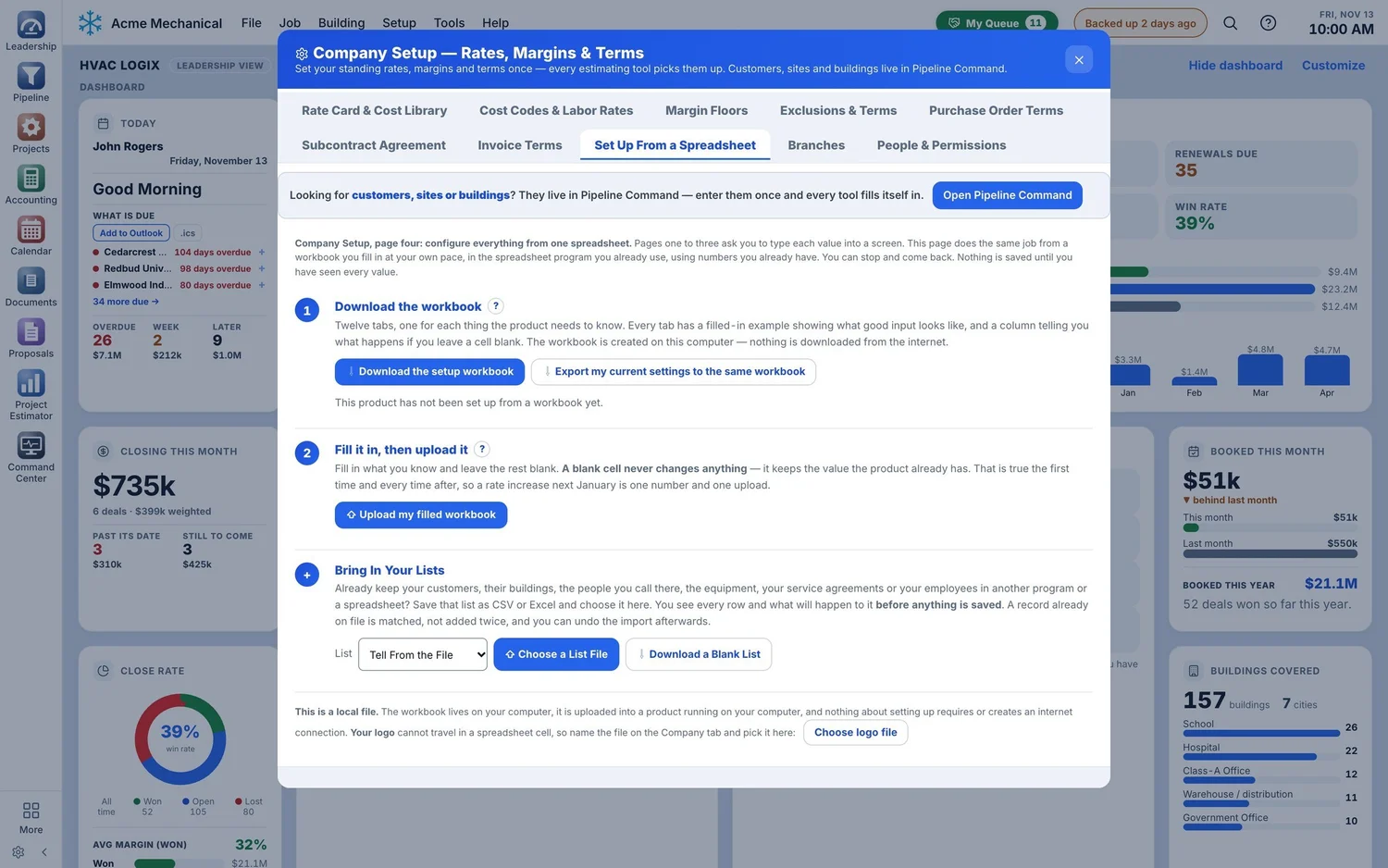
Typing every rate by hand wastes a day, so company setup loads from one spreadsheet.
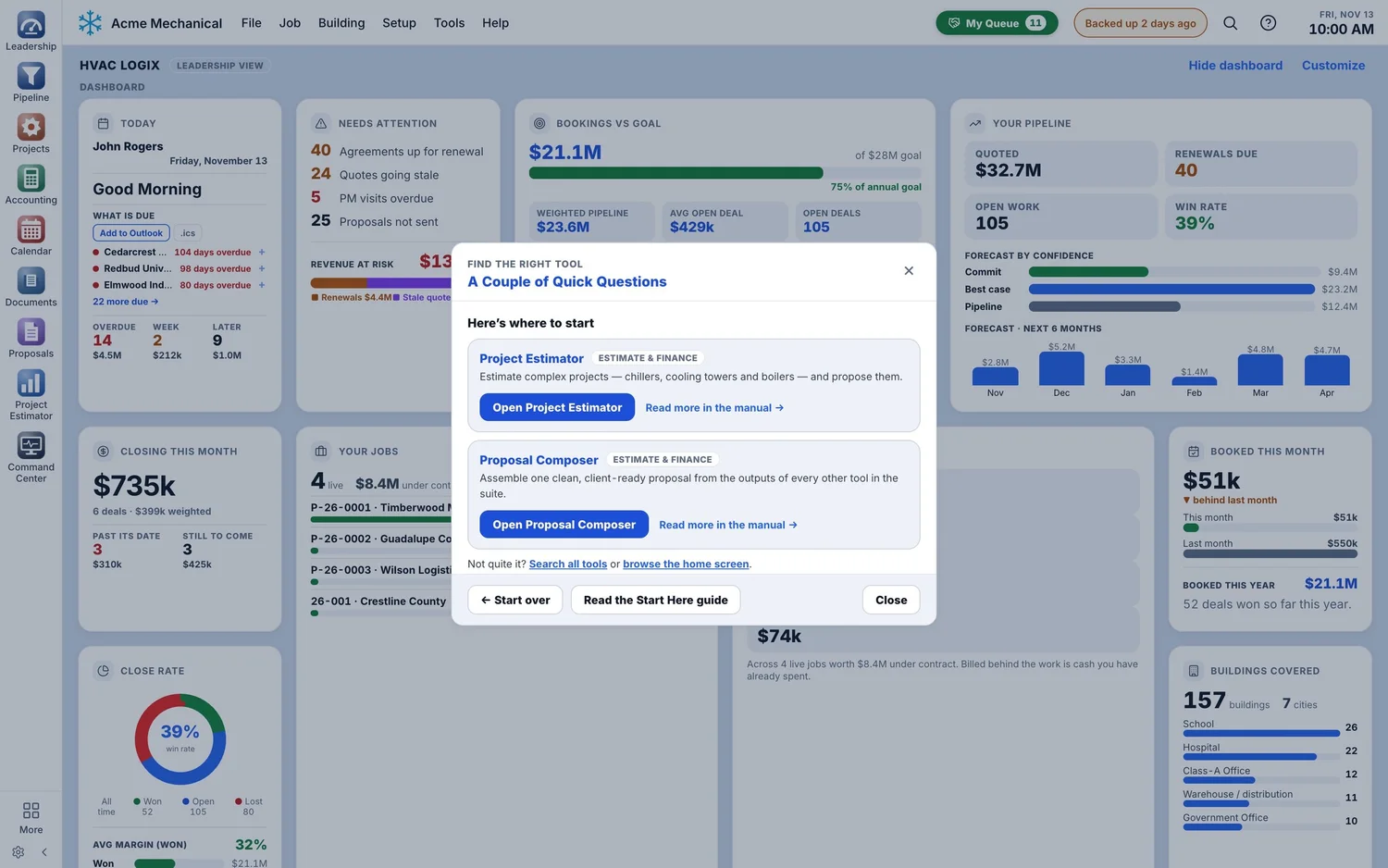
Start Here and Find the Right Tool
- Start Here: a short primer on how a building is worked from survey to service, and how a job moves between roles and handoffs
- Find the Right Tool: answer a couple of plain questions and it points to one to three tools, each one click to open
- The setup checklist reports what is still not set before you price
- Point at any icon on the home screen and a card says, in a full sentence, what that app does
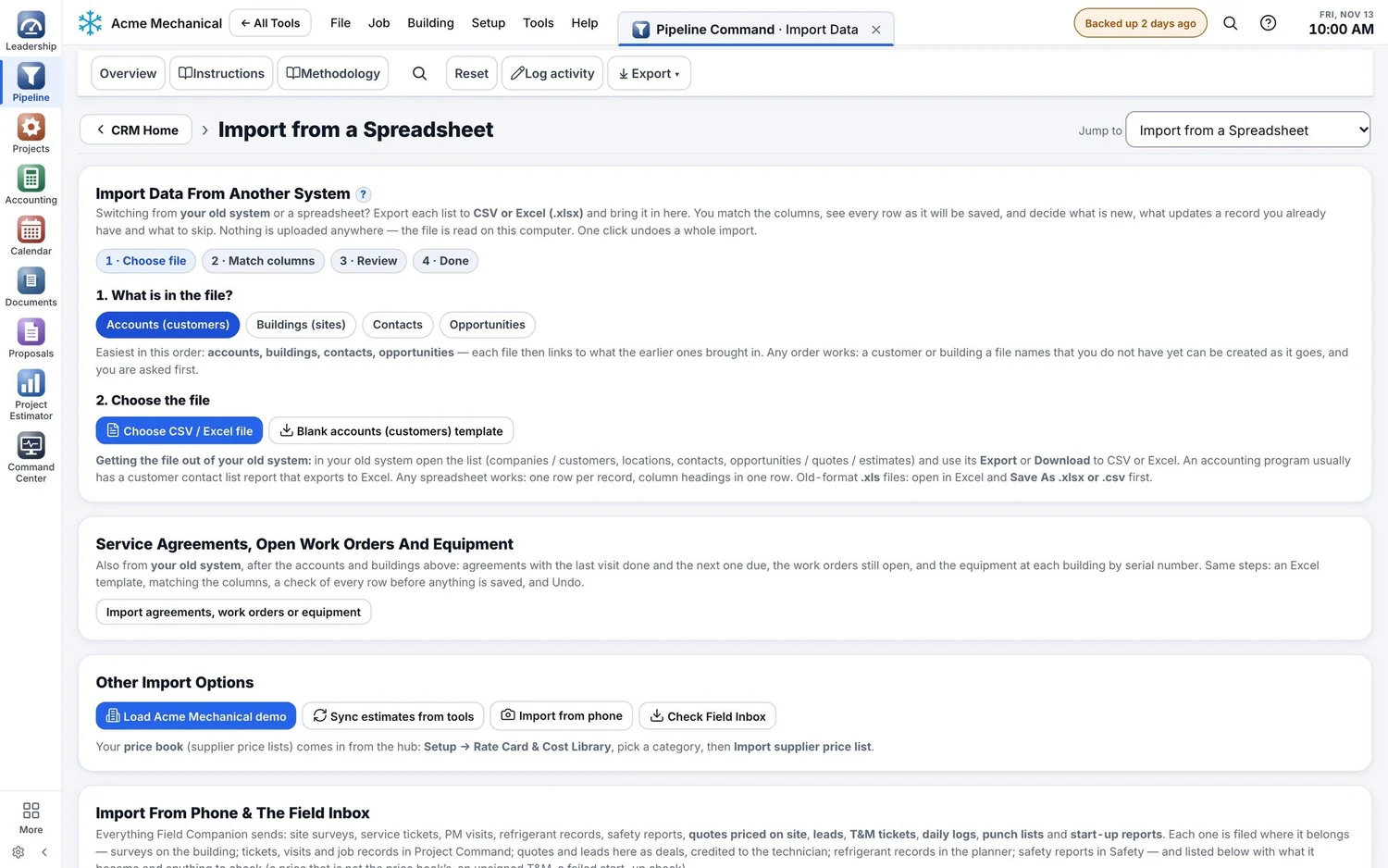
A bad import is hard to undo, so each file is previewed with adds, updates and skips.
Walk Me Through It: Tours on the Real Screen
Every main tool's Instructions panel, and the Help drawer, has a Walk me through it button. A tour points at each real control, says what to do and moves on when you are ready.
A Service Call, to the Invoice
Service Estimator, proposal, e-signature, work order and the file for your accounting package, carried across each tool involved.
Learn More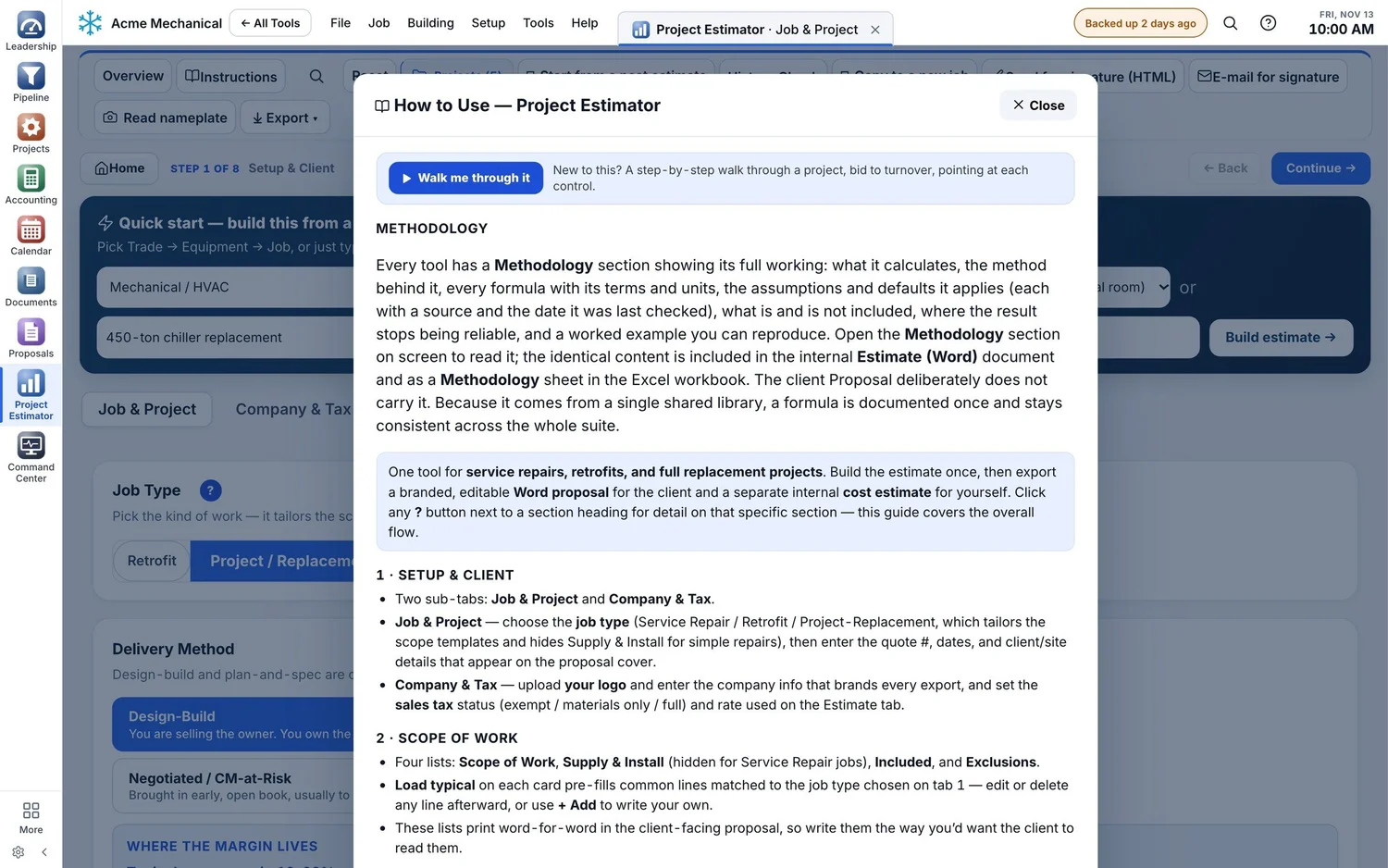
New estimators learn faster by doing, so each tool's instructions start a guided tour.
A Project Bid, to Turnover
Project Estimator, proposal, Project Command, change orders and turnover.
Learn More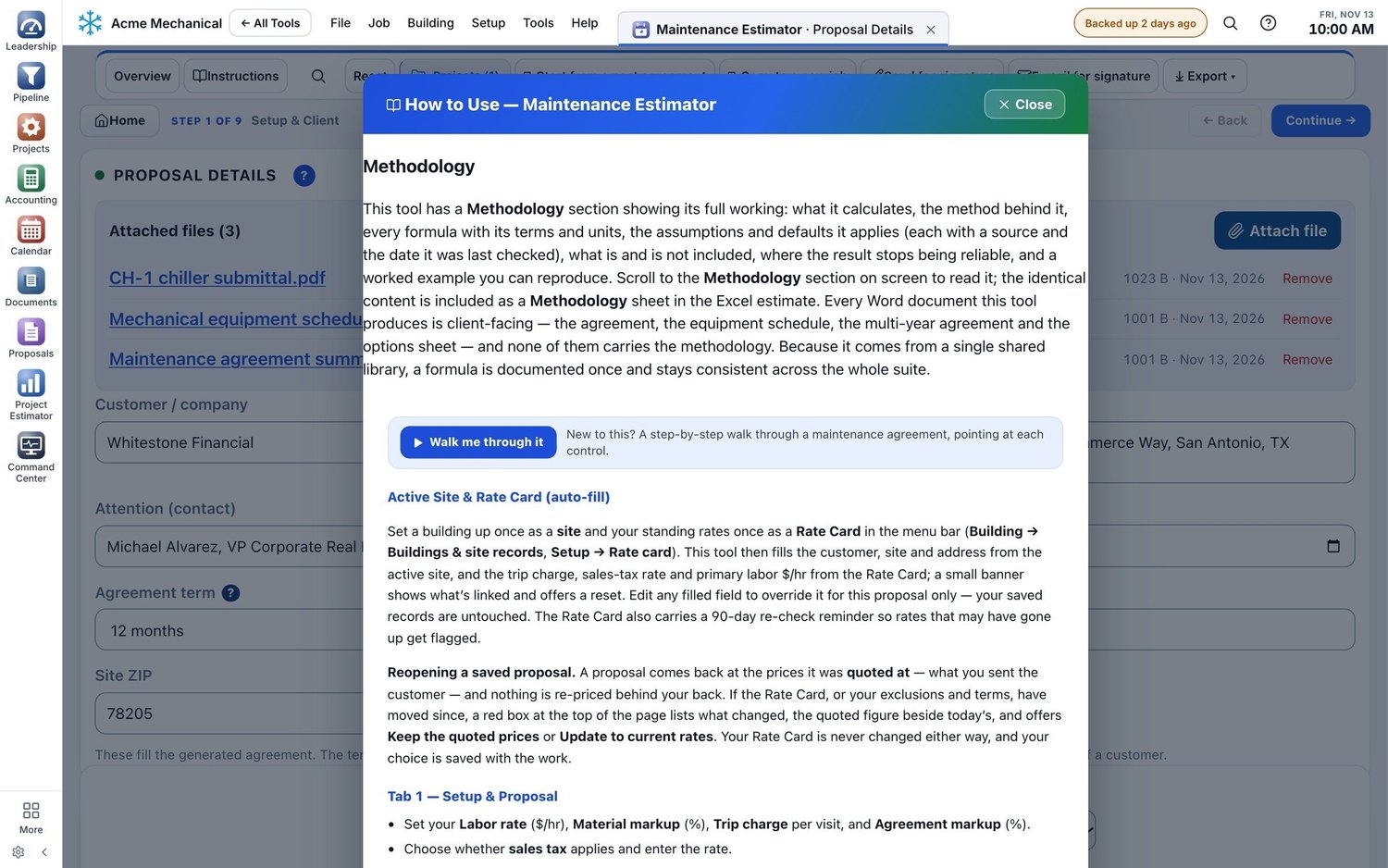
Agreement pricing has many steps, so the instructions walk through them in order.
Your First Sale in Pipeline
An account, a deal and the steps that move it through Pipeline Command.
Learn More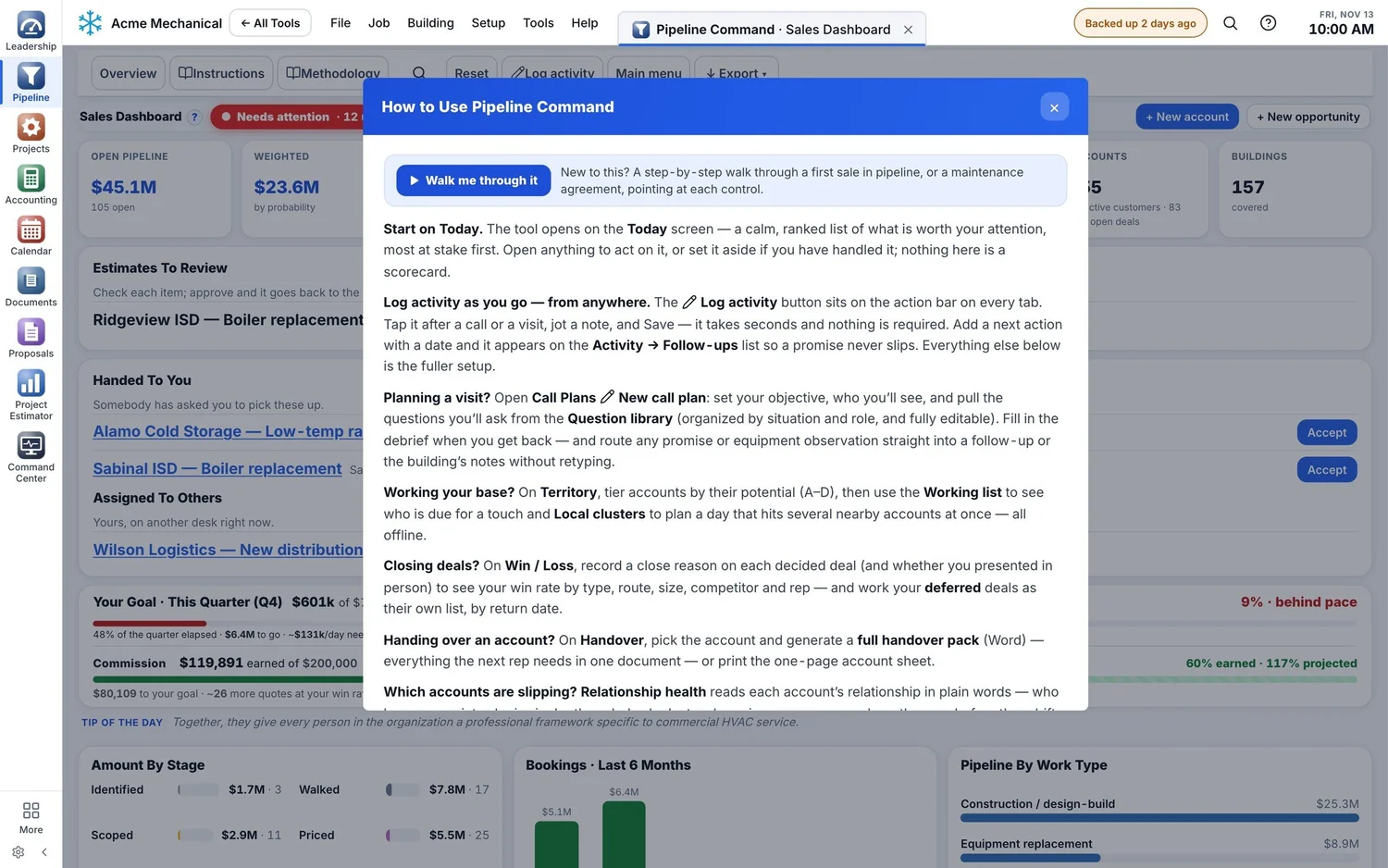
A first sale should not be a puzzle, so Pipeline Command explains each step and offers a tour.
A Customer's Financial Case
Facility Economics and the ROI Analyzer, for the conversation with a customer's finance team.
Learn MoreShow Less
A replacement sold on payback and cost of waiting is easier for a customer's finance team to approve than one sold on price. This tour walks a new salesperson through building that case.
- Facility Economics' Express tab turns nine questions into a first-meeting owner snapshot.
- The full study compares Act Now with Do Nothing and prices the cost of waiting year by year.
- The ROI Analyzer shows payback, net benefit and a sensitivity strip on the run-hour estimate.
- Bundled measures are interaction-adjusted, so savings are never simply added.
Plain Controls
Escape ends a tour and the arrow keys move between steps. A step whose control is not on the screen says so plainly and carries on.
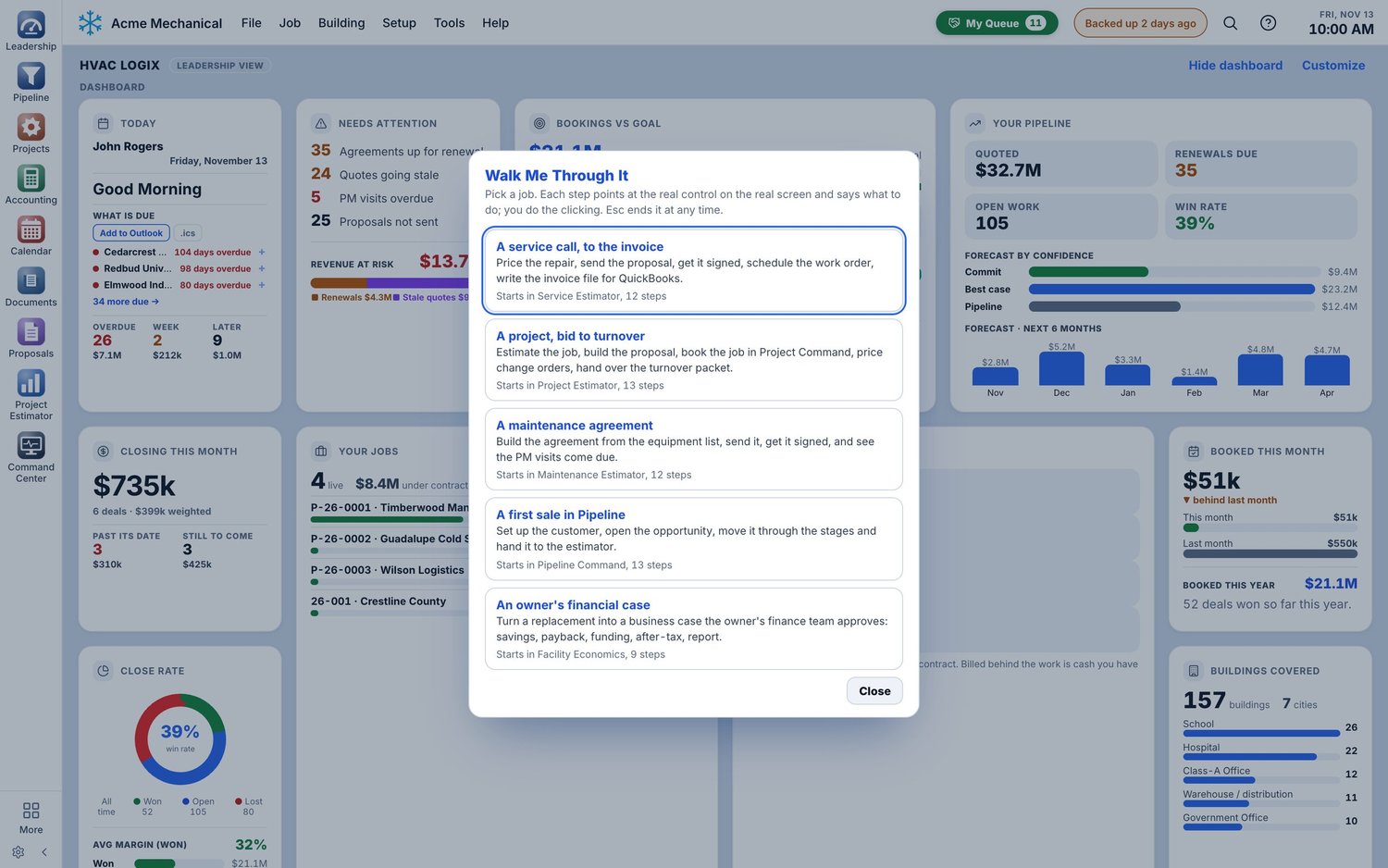
The list of guided walk-throughs that run inside the program.
Help on Every Screen, and a Manual That Opens to the Right Page
Help for This Screen
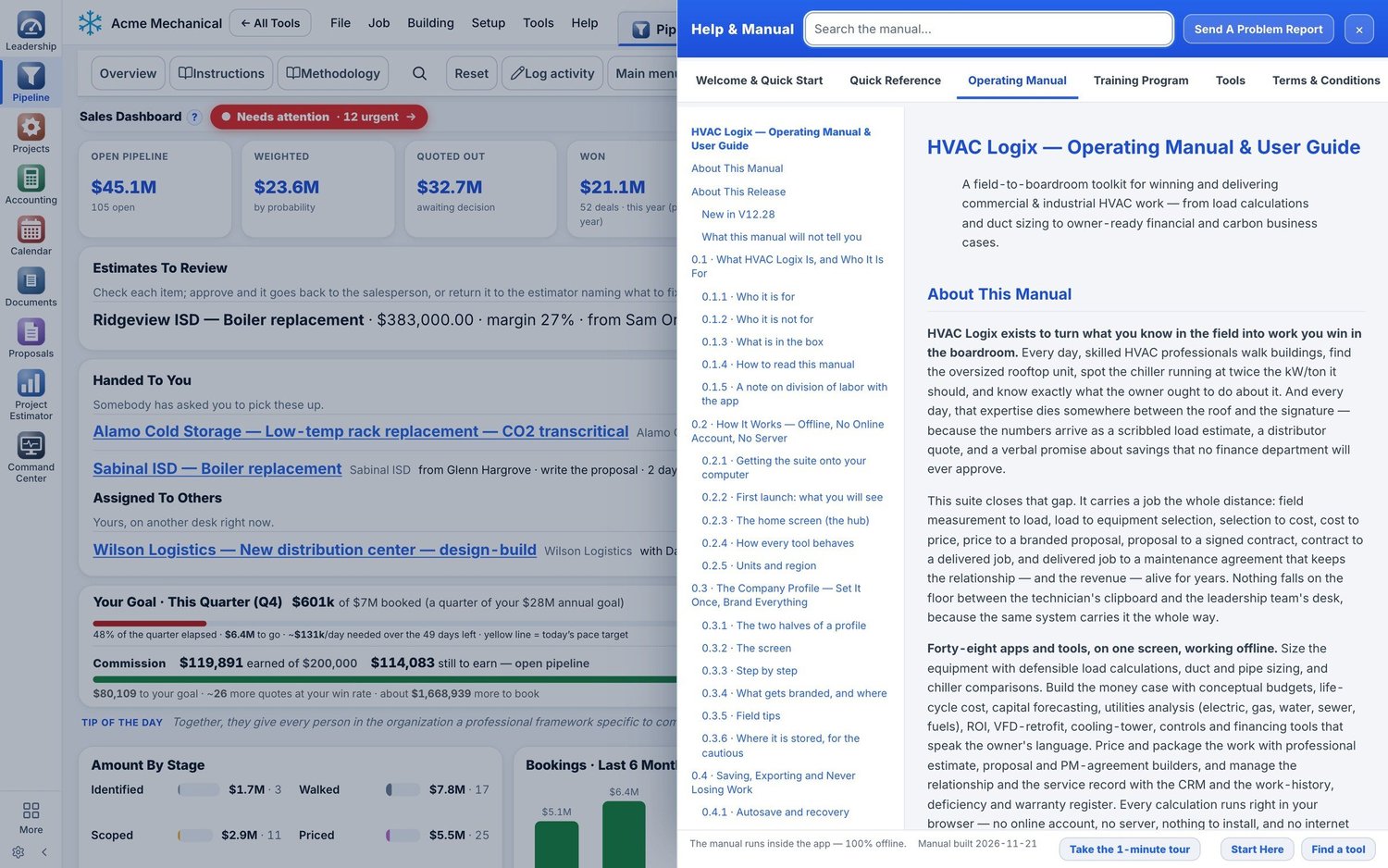
Press F1 anywhere, or use the Help button in the header. The Help menu also holds the manual, Getting started, a setup checklist and the keyboard shortcuts.
Learn MoreShow Less
An answer found on the screen in seconds costs less than a phone call or a stalled job. Help opens at the section for the screen you are on, offline.
- The Help menu also holds moving in from another program and License & Activation.
- Each tool's Help opens at that tool's own section, not a general index.
- Help is the same content as the PDF manuals, built in.
- Shortcuts are ignored while you type in a box, so F1 never interrupts a figure.
Instructions in Every Main Tool
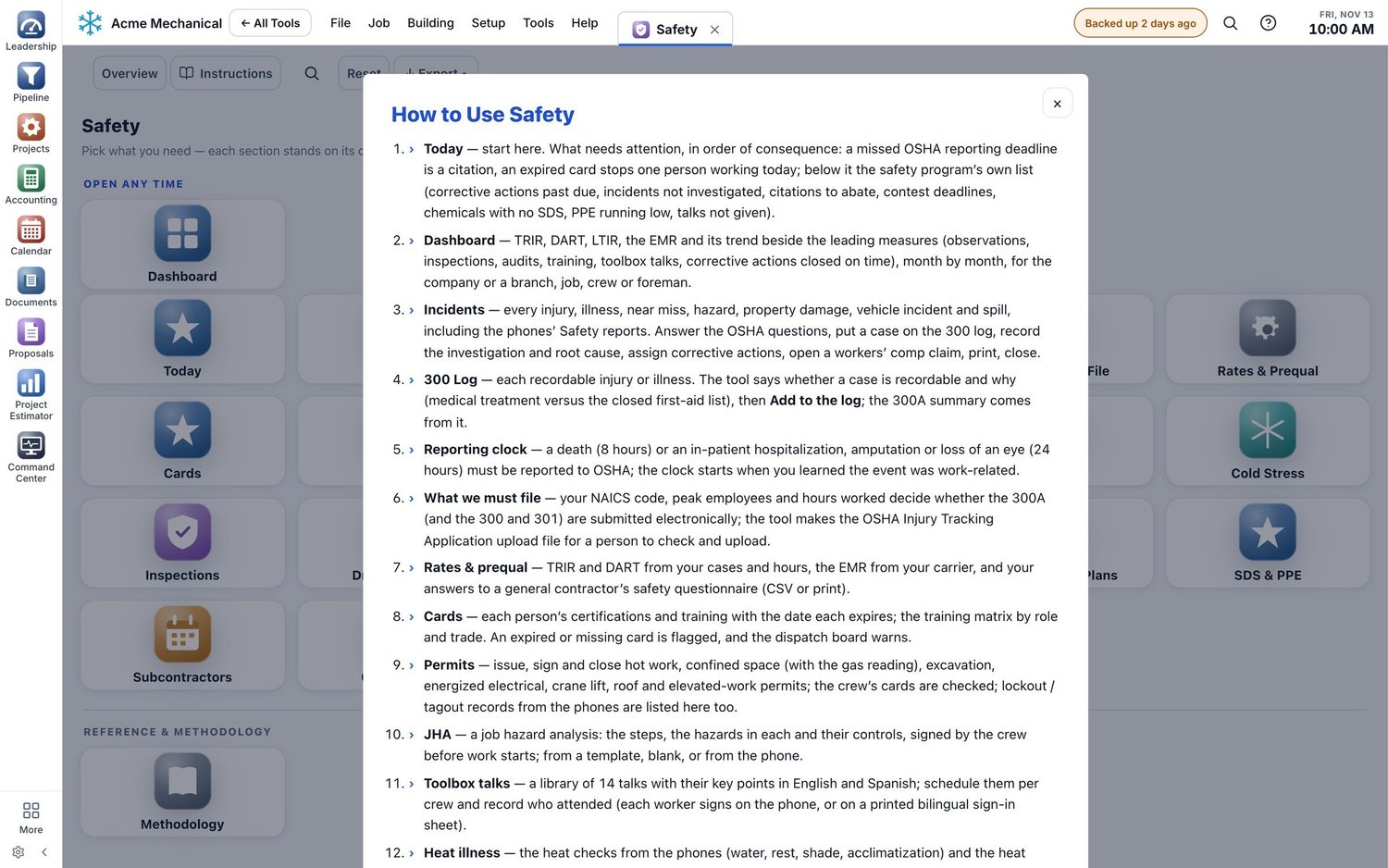
Each main tool has an Instructions panel that explains the tool and starts its guided tour. Tools with several tabs open on a guided Home, and the long single-page engineering tools offer Guided Steps, one card at a time.
Learn MoreShow Less
A new hire who can learn a tool on their own is billable sooner. Instructions start the guided walkthroughs, which point at each real control on the real screen.
- A service call, from estimate to invoice.
- A project bid, from estimate through change orders to turnover.
- A maintenance agreement, from the estimator to PM visits.
- Your first sale in the pipeline, and an owner's financial case.
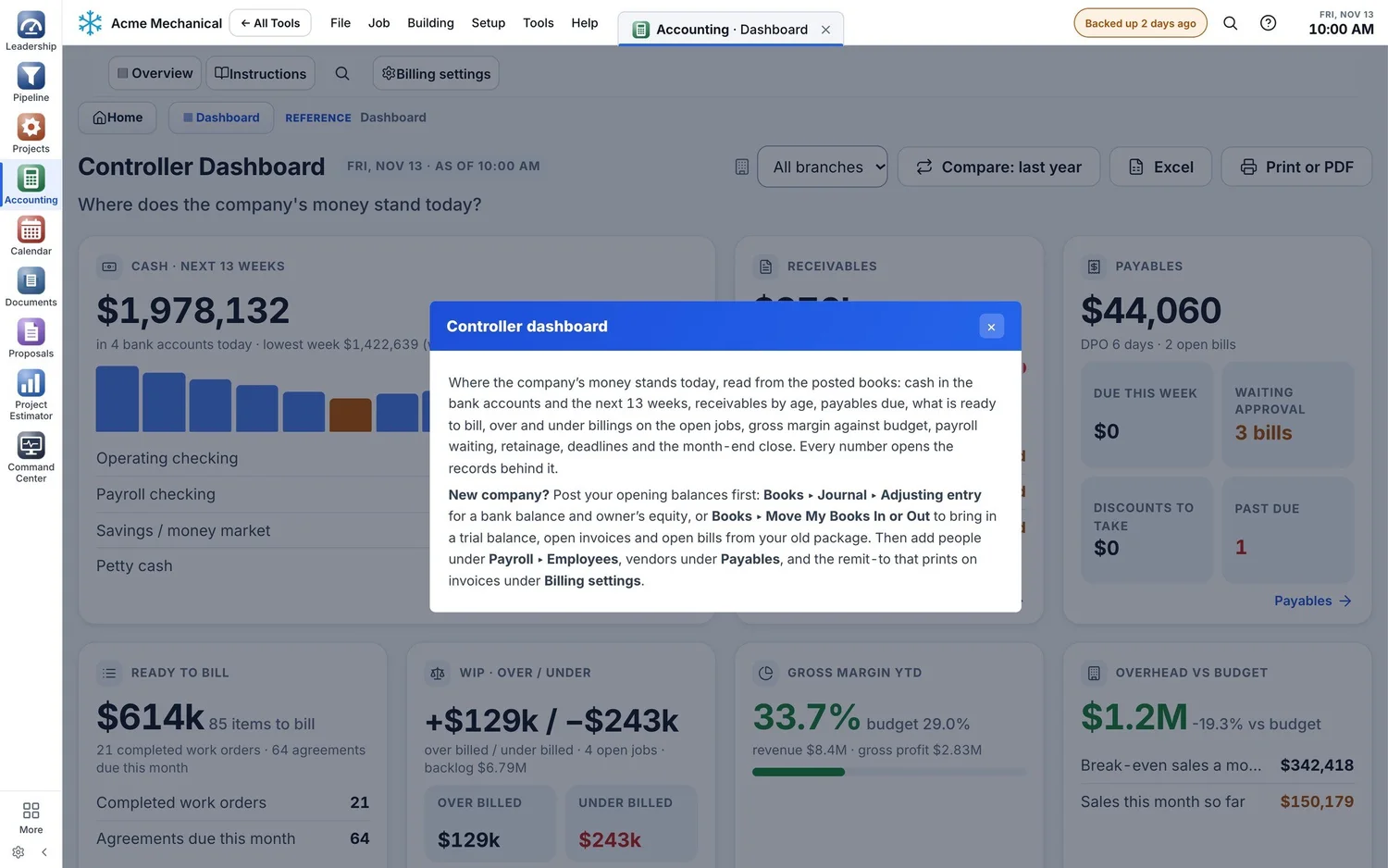
Bookkeepers should not guess what a screen does, so each tool explains itself.
The Operating Manual
One book, written in layers. Part 0 gets you set up in about twenty minutes. Part 1 is a one-page quick reference for each tool. Part 2 is the full walkthrough of every tool with a worked example. Part 3 shows how tools hand work to each other across a job, and Part 4 is the reference.
Learn MoreShow Less
Answers in a book you own cost nothing per question, and the manual says it was produced by the software rather than written from memory. Each tool is covered three ways, from a one-page summary to a full worked walkthrough.
- Each Part 1 page gives what the tool is for, the screen, step by step, key inputs and field tips.
- Part 2 walks every tool with a worked example.
- Part 3 shows the cross-tool handoffs, so work moves on without retyping.
- It works offline inside the program and prints as a PDF.
Methodology in Every Tool
Each calculating tool carries a Methodology section in seven parts: what it calculates, the method, every formula, the assumptions with their sources and review dates, what is included, accuracy and limits, and a worked example. A ? button beside it explains what that tool's section covers.
Learn MoreShow Less
A customer's engineer or CFO trusts a number they can check, and a trusted number closes the sale. The same derivation goes with every file you send.
- The Methodology text is written into the Word document and as a worksheet in the Excel workbook.
- Shared calculations, such as simple payback used by five tools, are written once, so two tools never describe one formula differently.
- Adding Methodology changed no formula and no result.
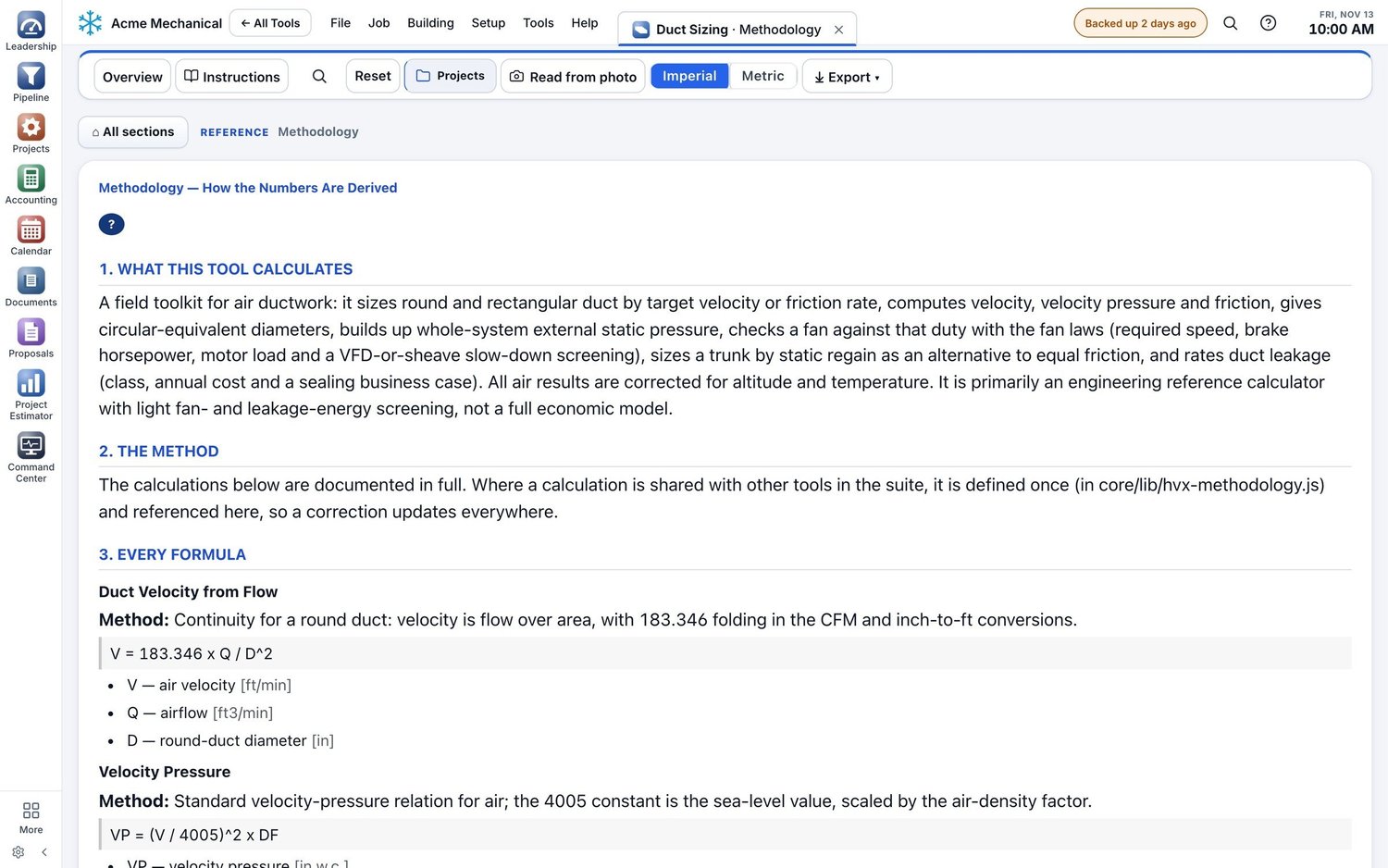
Engineers check the math, so each tool's methodology lists every formula and reference value.
Menus That Explain Themselves
An item that cannot run right now stays on the menu, grayed, and says why when you point at it. Buttons start with what they do, and one action has one name everywhere.
Learn MoreShow Less
Every minute a person spends hunting for a hidden menu item is a minute not billed. The menu never changes shape, so people learn it once.
- Grayed items say why, for example "No app is open".
- Building, Switch Building (Ctrl+B) says which building everything points at before you choose.
- Job, Handed to Me opens the queue of work passed to you, with who asked and how long it has waited.
- Tab, Enter, Space and Esc work on every screen without a mouse.
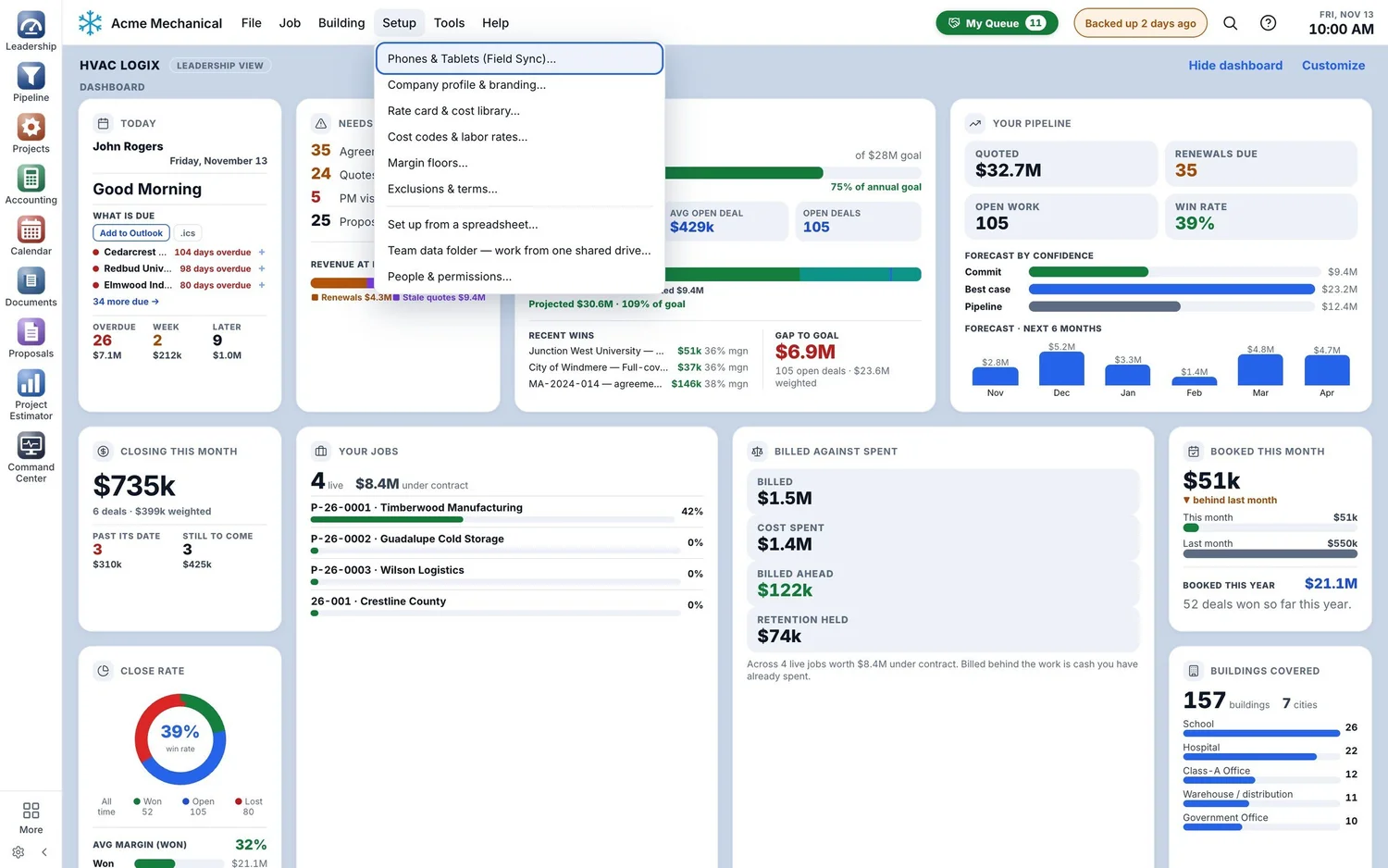
Setup lives in one menu, so nobody hunts for a setting.
Send a Problem Report
If something does not work as expected, Help offers a problem report. You see the whole report before anything is sent, customer and people names are removed, and it goes only when you press Send in your own e-mail program.
Learn MoreShow Less
A problem reported with the facts gets fixed faster, so less of your day is lost to it. The report gathers what is needed and nothing private.
- It holds the version, build, edition, the screen, the last buttons pressed, error messages and the last 300 lines of the technical log.
- The report file is always saved on your computer first.
- The same button appears on the "Your work was not saved" and "this tool did not load" messages.
- After an unexpected close, the next start offers a report once.
A ? Beside the Fields That Matter
Many people are new to these methods and want the answer at the field, not in a manual. Key fields carry a small ? dot. Click it, or press Enter on it, and a short window explains in plain words what the field is and why it matters, with More in the Manual to open the full page. The ? on a section heading opens a help window for that whole section, and the setup and rate card screens have the same help. Help never changes a number.
Learn MoreShow Less
A wrong entry in a key field can throw off a price or a calculation. The answer sits at the field, so people get it right the first time without stopping work.
- Each explanation says what the field is, why it matters and where to find the value.
- The same concept reads the same way in every tool that uses it.
- The help changes no calculation, no export and no saved project.
- It works offline and never prints.
How the Numbers Are Worked Out
Nobody should hand a customer a number they cannot explain. Methodology writes out every formula with each term and its units, gives each assumption and reference value its source and the date it was last reviewed, says what the analysis leaves out and when not to rely on it, and runs a worked example from inputs to result. Where tools share a calculation it is written once, so a correction reaches every tool together. Part 4 of the manual lists the standards and formulas used, so an owner's engineer can review the basis.
Learn MoreShow Less
An estimate you can defend line by line wins more bids and survives a customer's review. Each Methodology follows the same seven parts in every tool.
- What it calculates, the method, every formula, assumptions with sources, scope, accuracy and limits, and a worked example.
- No default appears as a bare number; each shows its source and review date, so a stale figure is visible.
- A correction made once updates every tool that shares the calculation.
- The same text travels in the Word and Excel exports.
Overview, Instructions and Methodology
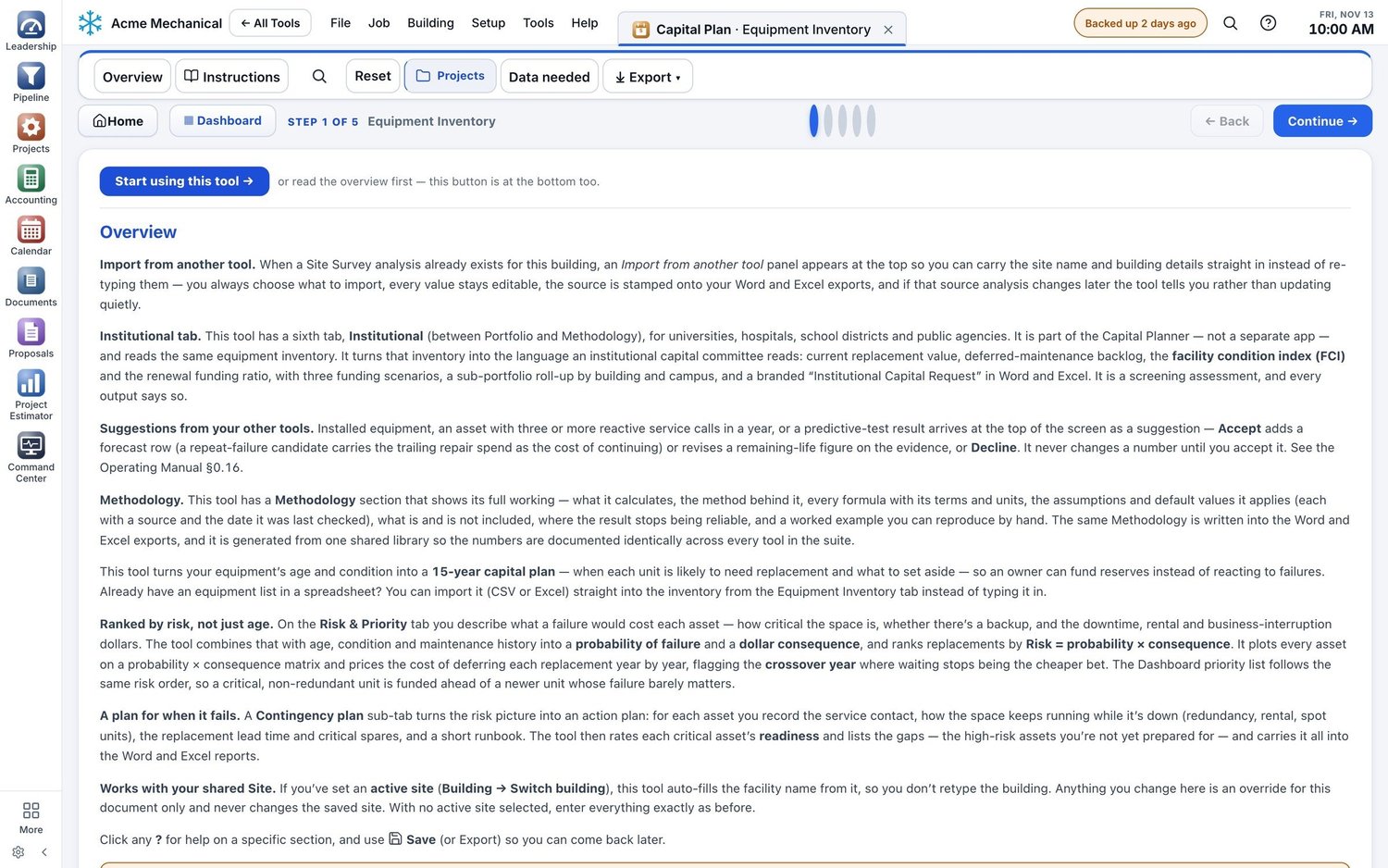
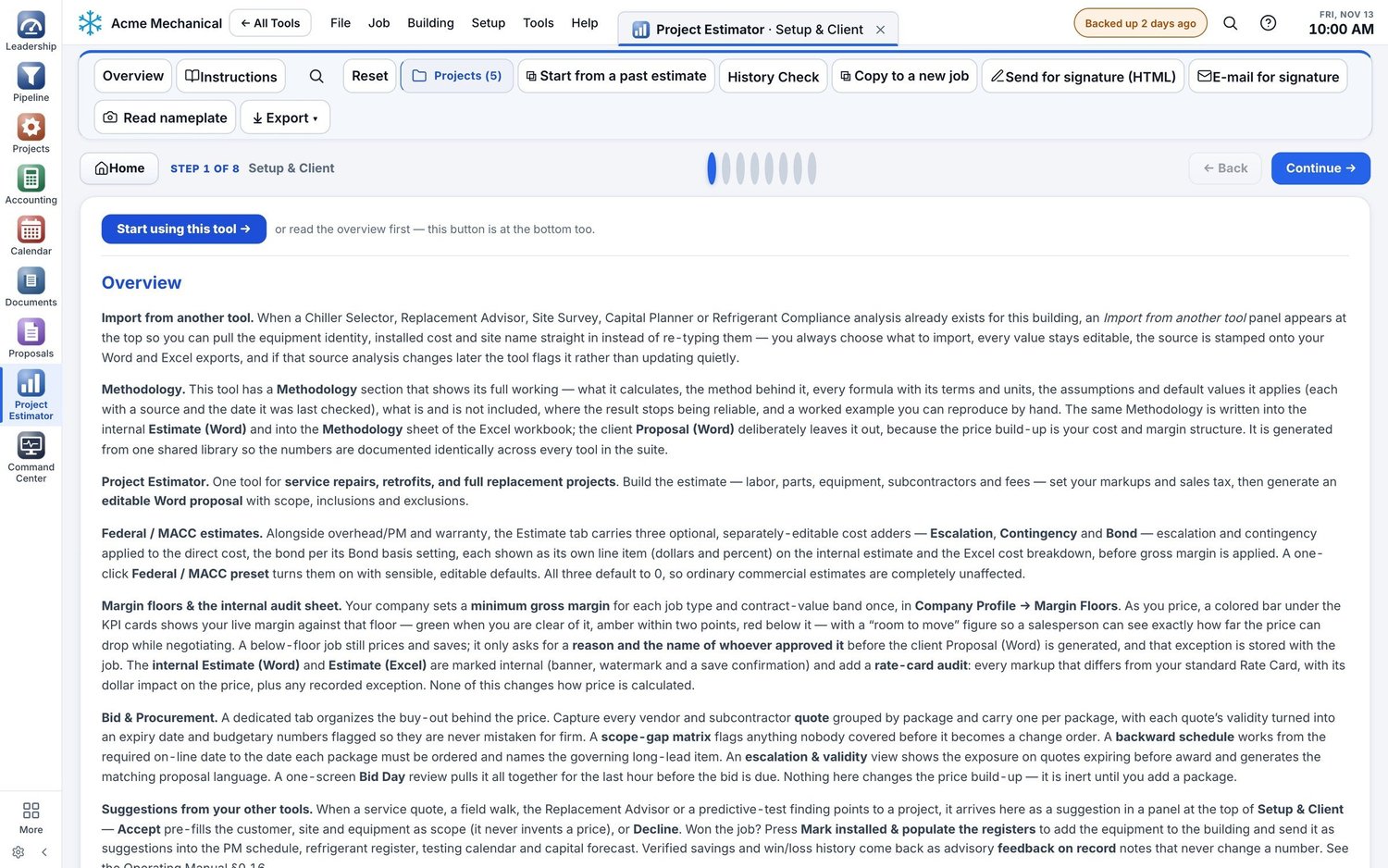
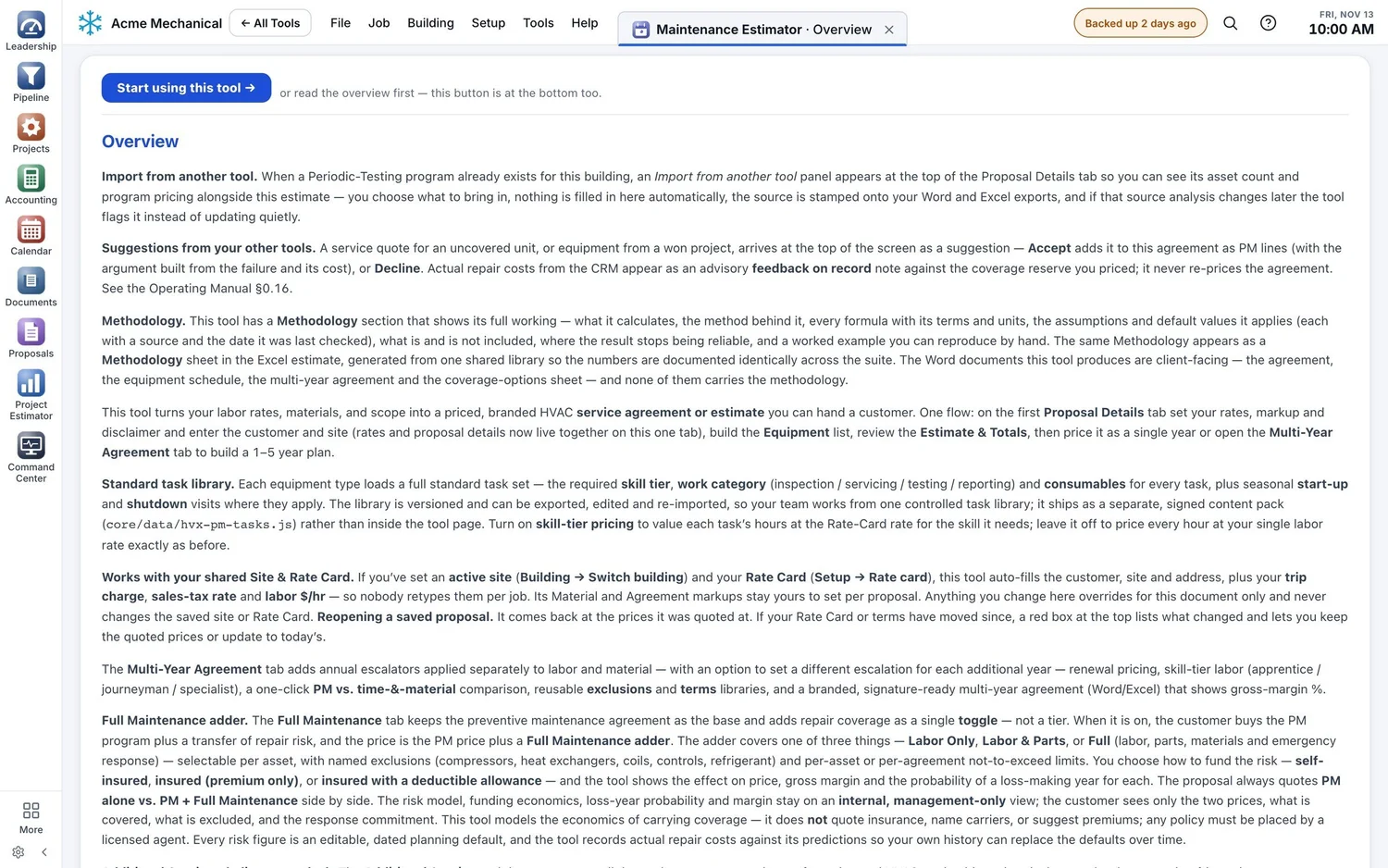
Every tool has an Overview screen that says what the tool is for and what it produces, an Instructions panel for working through it, and its Methodology. The tool opens on the step where data is entered, and Overview stays one click away.
Learn MoreShow Less
Knowing what a tool produces before starting saves time spent in the wrong tool. Overview, Instructions and Methodology answer what, how and why on every tool.
- Overview ends with a Tip of the Day suited to the app.
- Instructions starts the guided walkthrough for that tool.
- Which Tool When explains the pairs of tools that look like they overlap.
- Methodology shows how each result was reached.
Before You Start: What to Gather
The heavier analysis tools open the first time with a checklist of everything to gather, grouped by where each number comes from: the utility bill, the owner or finance office, the nameplate and the site. Print it or save it as a PDF, tick it off in the building and reopen it any time. Analysis apps also have Data Needed, the client data request filtered to that analysis.
Learn MoreShow Less
A second trip to a building for a missing number is unbilled time. The checklist gets everything on the first visit, and reports say plainly what could not be concluded without it.
- Each item shows the period, format and why it is needed, marked Required or Helpful.
- Copy as Email writes the request with only the items still needed.
- A mark made in one app shows in every other app for that building.
- Reports add a section listing each missing item and the conclusion it limits.
Four Books, in the Program and as PDFs
Welcome & Quick Start, the Quick Reference, the Operating Manual and the Training Program open in the Help drawer, offline, and ship as PDF files for printing. Part 4 of the Operating Manual holds the glossary, the standards and formulas, the advisory range checks, and the FAQ and troubleshooting. The Tools tab lists every tool and opens it from Help.
Learn MoreShow Less
A team that can look things up itself spends less time waiting on one expert. The four books cover every level, from the first hour to the full reference.
- The Quick Reference gives one page per tool with the common mistakes.
- Help opens at the section for the tool in front of you.
- The Training Program is worked on sample buildings, with a check at the end of each session.
- All four work with no internet.
What's New
Help, Version and License, What's New says what changed in this version in plain words. Every release brings its own notes.
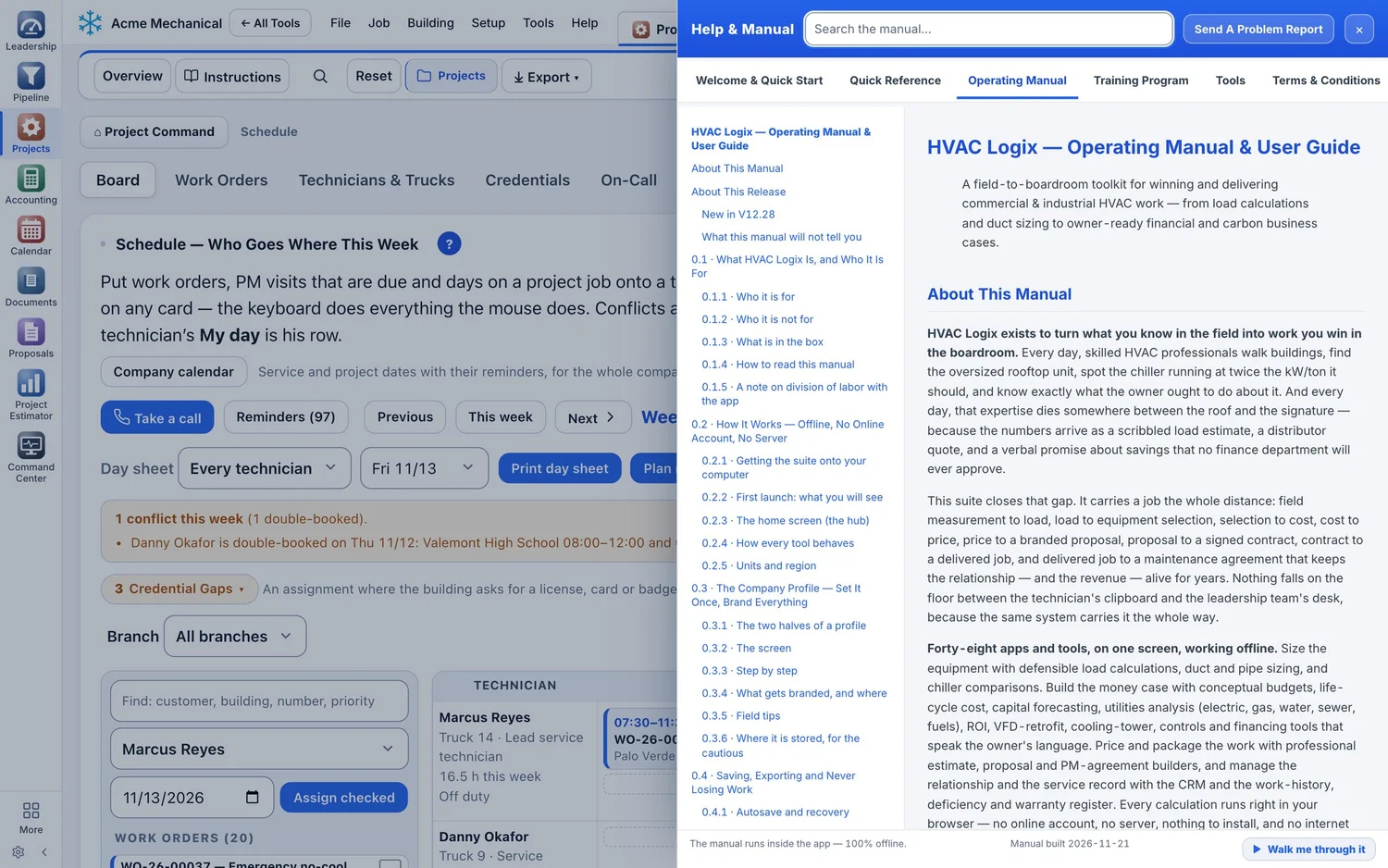
Find a Record, a Setting or a Page by Typing What You Remember
The search box is in the header of every tool. Press Ctrl-K, or Cmd-K on a Mac, from anywhere.
Records
Type part of a name, number or address to find customers, buildings, contacts, deals, work orders, jobs, invoices and more. Picking a result opens the right tool on that record, limited to what your role may see.
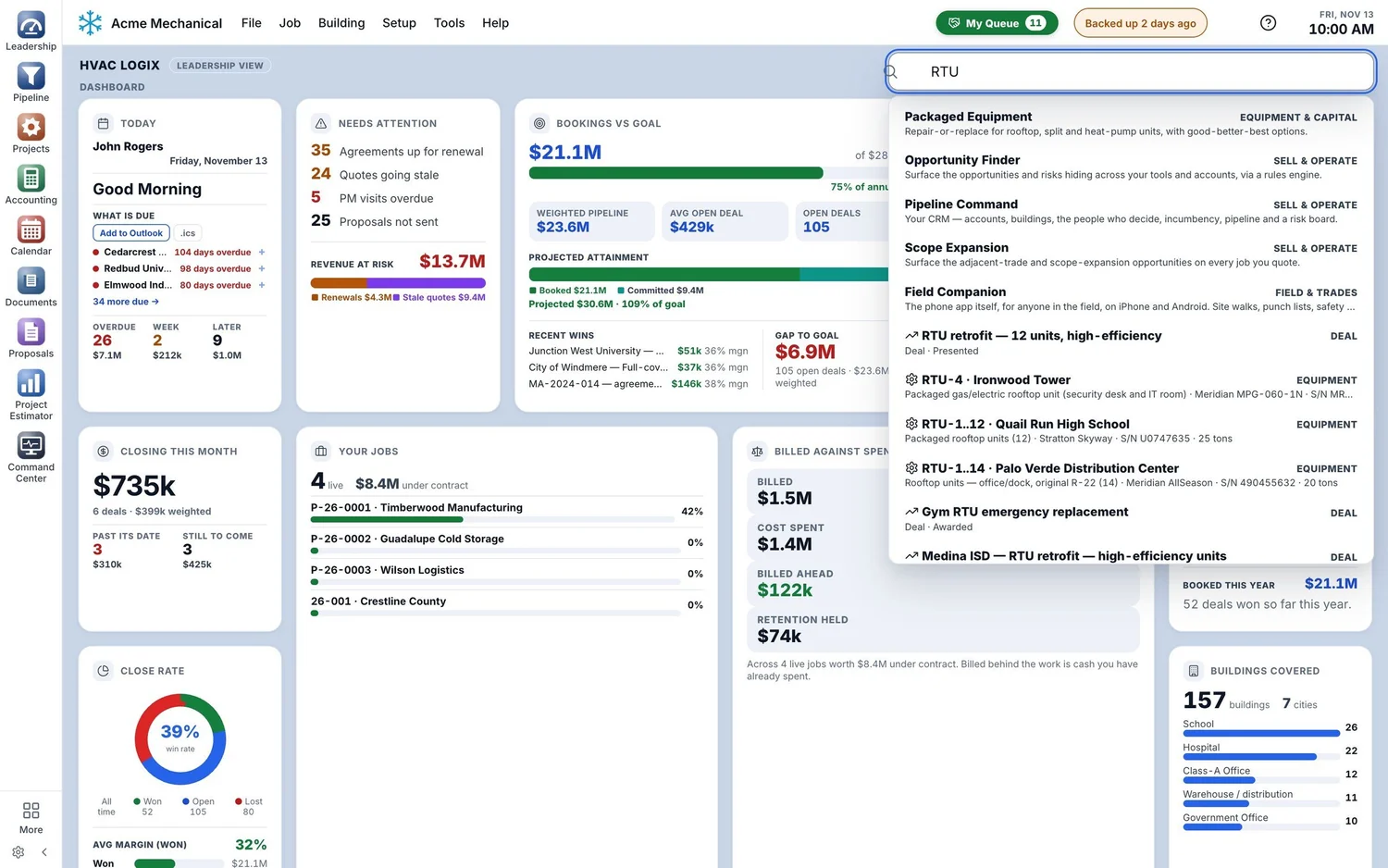
Records are easy to lose across screens, so typing part of a name lists matching units, buildings and deals.
On This Screen
Search also looks through the open tool's own content across all of its tabs, including the ones you cannot see. The result names the tab, switches to it and highlights the line.
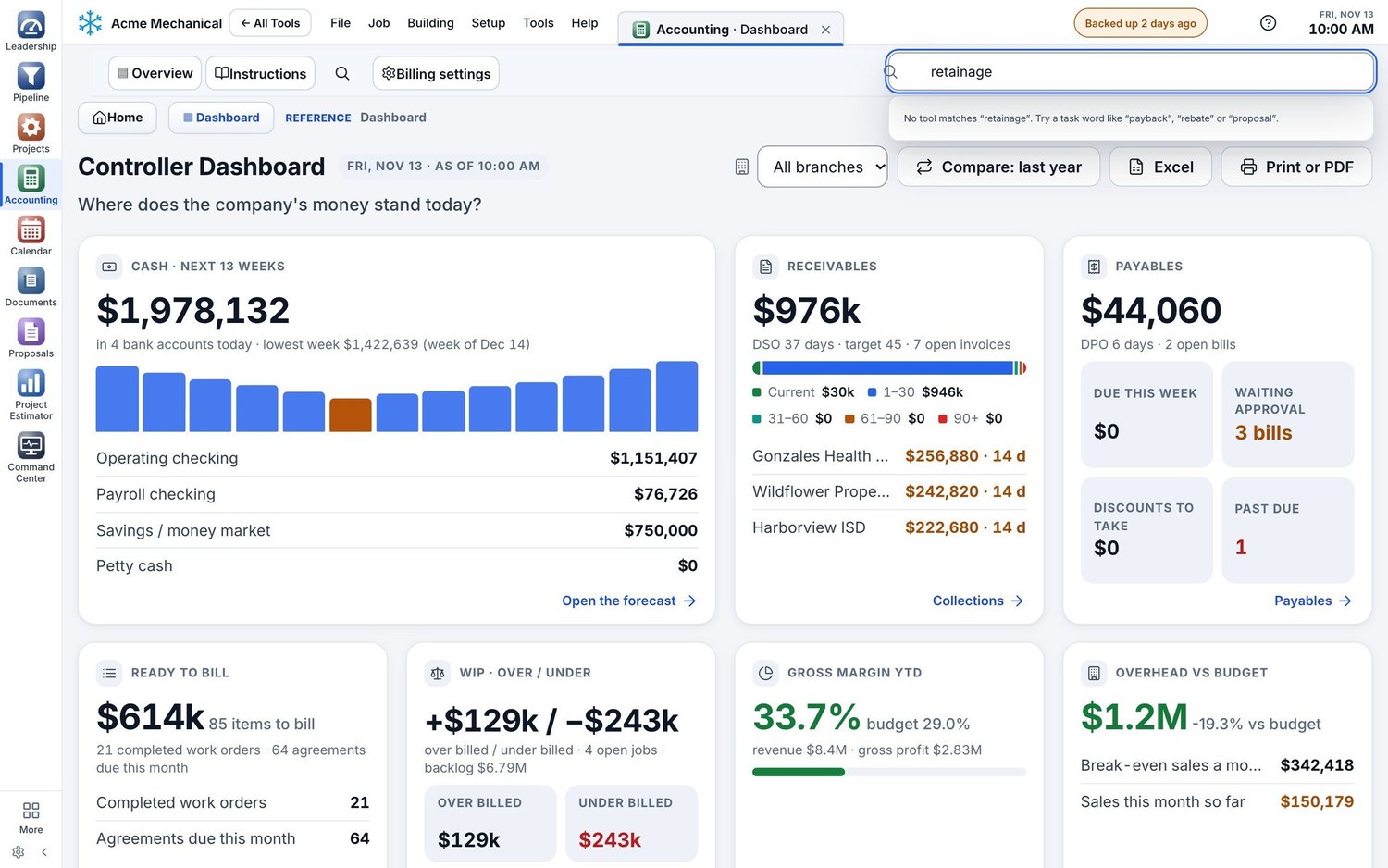
Settings are as hard to find as records, so search works inside the open tool too.
Smart Search
Under the exact matches, a Smart Search group lists the manual pages, documents and notes closest in meaning to what you typed, even with none of the same words. Typing "unit won't cool" finds the work order "Rooftop unit not cooling".
How Smart Search Works
A small language model that ships with the program compares the meaning of texts. It runs on your computer, nothing is sent anywhere, there is no outside service, and it cannot write text. The Help drawer's own search shows Best Matches from the manual the same way.
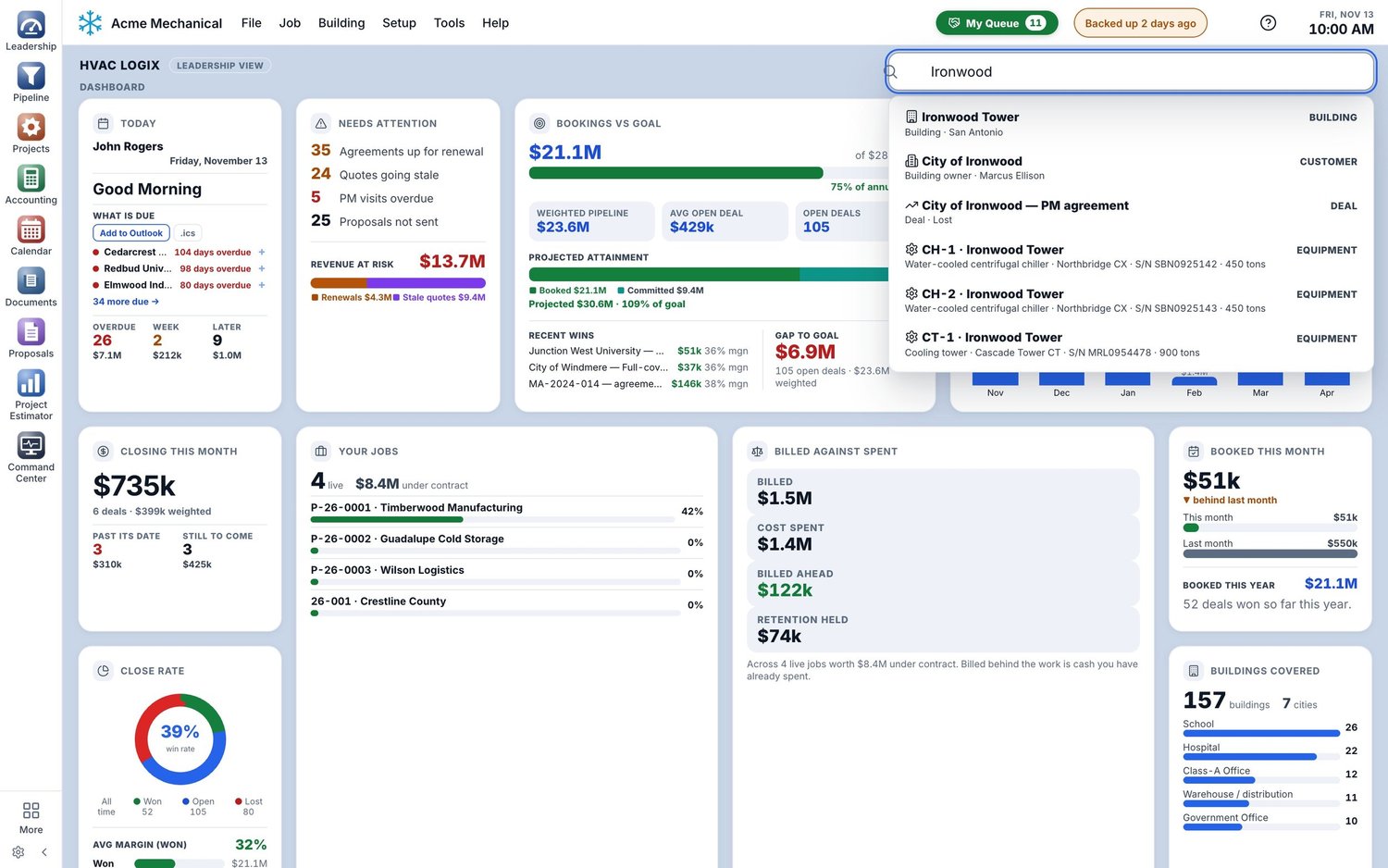
Records are easy to lose across screens, so typing part of a name lists the matching buildings, customers, deals and equipment.
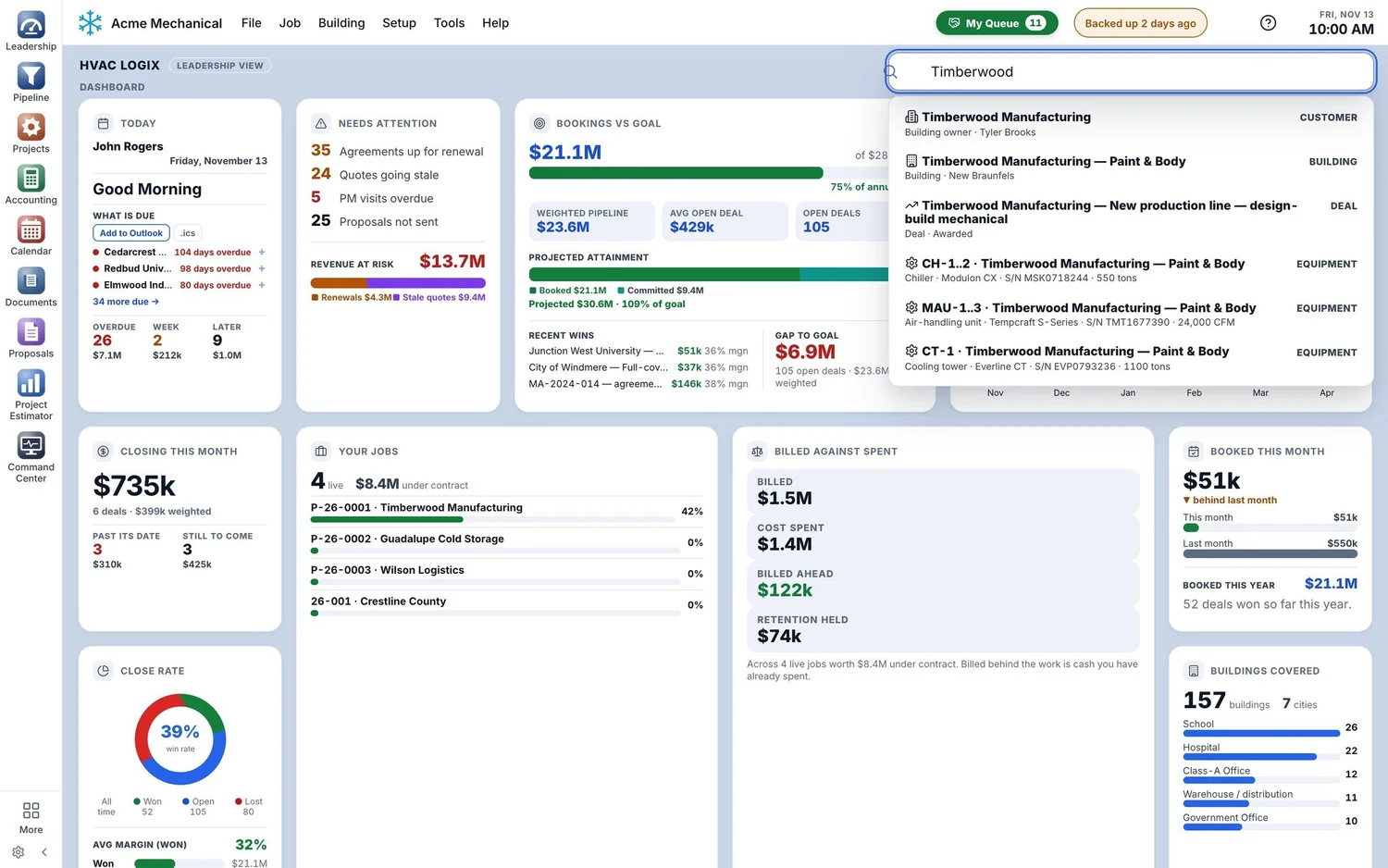
See the Whole Program Working Before You Enter a Thing
Your own copy starts empty on purpose, because it should hold your buildings and your customers. To learn HVAC Logix, or to show it to someone, open the demonstration copy: a separate copy of the program already filled in with a complete, fictional sample company.
A Whole Company Already Filled In
Customers with their buildings and equipment, deals and quotes, work orders and service history, project jobs with their costs and billing, invoices and payments, payroll, the fleet and the technicians' phones. The home screen opens already populated.
Learn MoreShow Less
Seeing the whole program working on a full company shortens the time from install to first invoice. The sample company shows each department fed by the same records.
- Worked examples in the manual use the sample company, so the numbers on screen match the book.
- Seven sample buildings, from an office tower to a university campus, load into any tool.
- Every export made while a sample is loaded carries a red "Sample Data, for Demonstration Only" banner.
- It runs on the same 30-day trial as the standard copy.
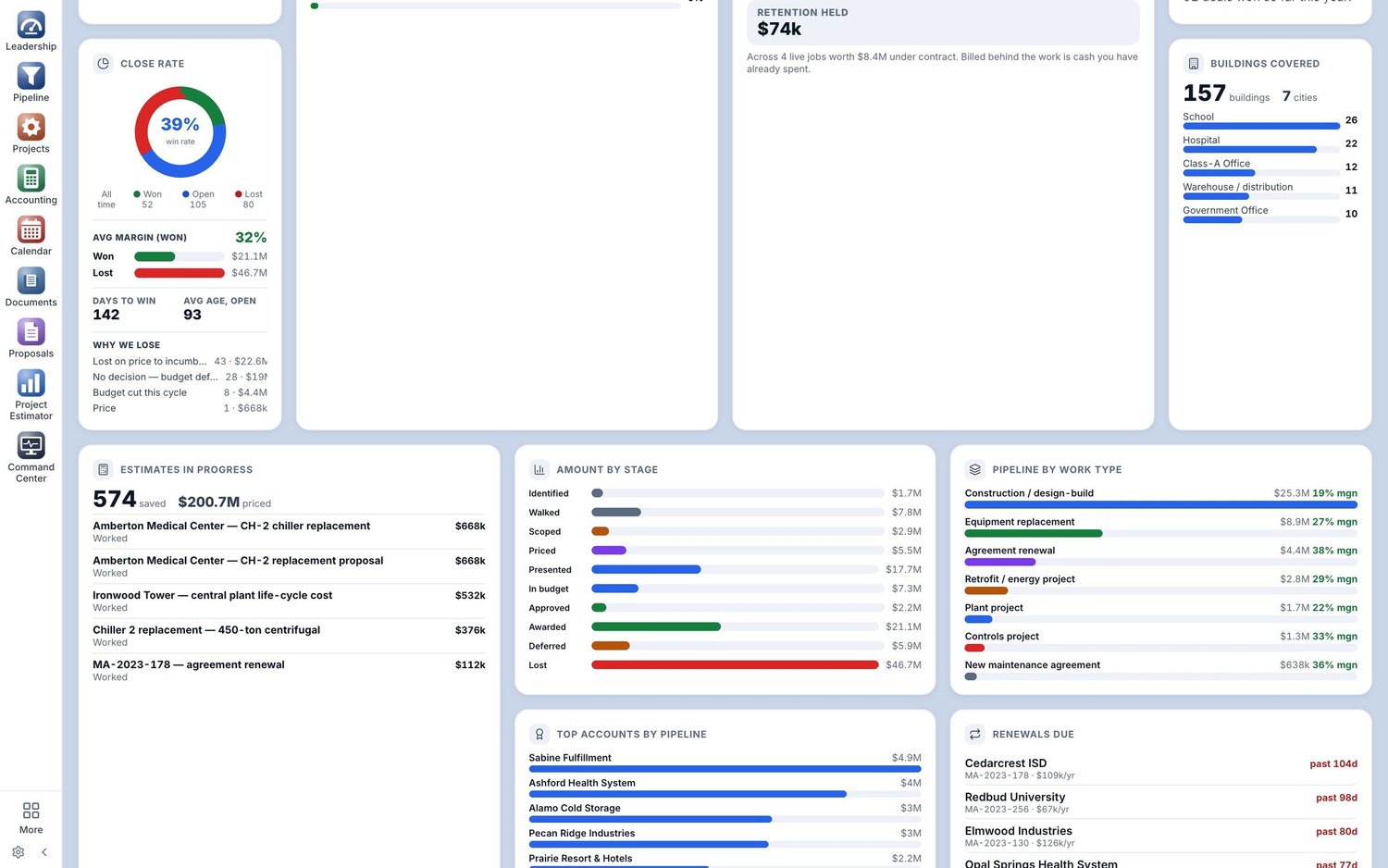
An empty program teaches nothing, so the demonstration copy opens with a full company already at work.
Kept Apart from Your Own Work
The demonstration copy is a separate copy of the program with its own data. Nothing in it reaches your own copy, and nothing in your own copy reaches it.
Learn MoreShow Less
Practicing on real records risks a real mistake on a customer's account. The demonstration copy keeps training away from live work.
- Moving from the demonstration copy to the standard copy clears the sample company and keeps your license details.
- Loading a sample building inside your own copy first snapshots your saved work; if the snapshot fails, the sample does not load.
- Exit Samples & Restore My Work puts your own work back.
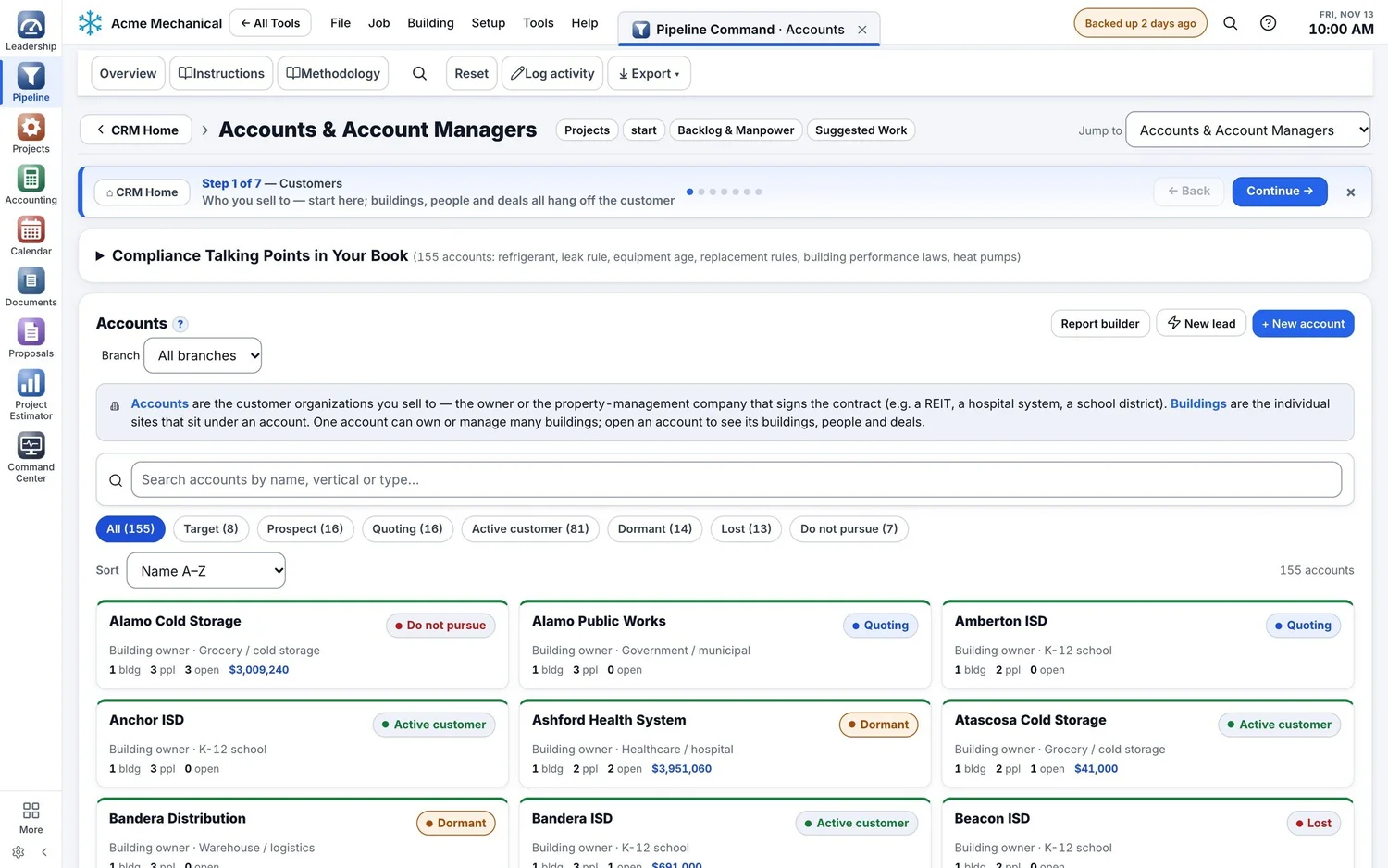
New people learn faster with real-looking records, so the demonstration copy carries customers and their buildings.
Illustrative, Never a Benchmark
Every company, person, building and figure in it is fictional. None of it is a rate, a benchmark or a reference figure. It is for learning and showing; real work goes in your own copy.
Learn MoreShow Less
A sample figure that ends up in a real bid can price a job wrong. Everything sample is labeled so it never gets mistaken for your own numbers.
- An amber Sample Data banner runs across the top while a sample building is loaded.
- Exports made then are watermarked, so a practice file is never sent as a real proposal.
- Your own copy ships with no company rates, markups or labor costs; you enter yours.
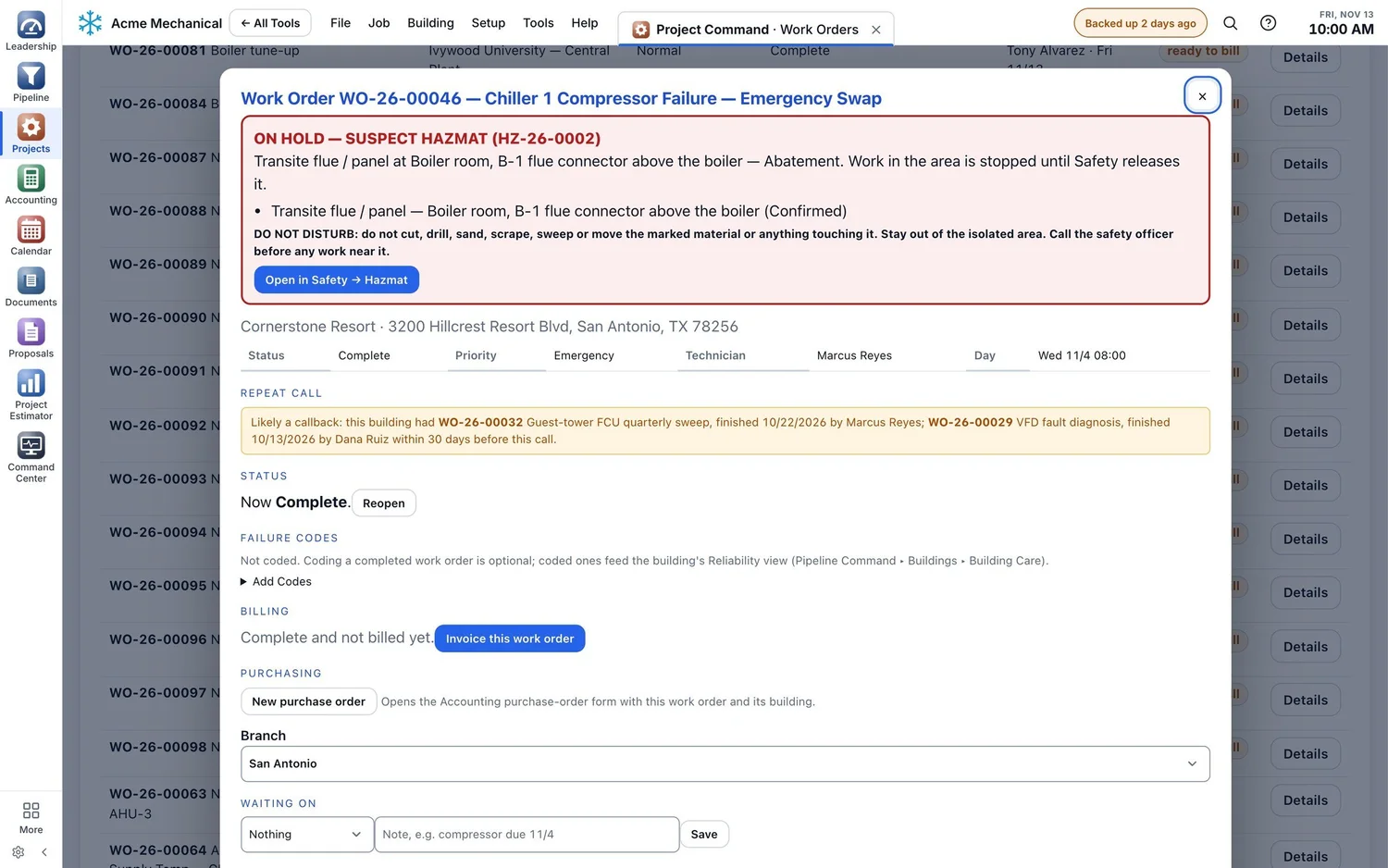
Work orders are easier to learn by example, so the demonstration copy includes open service calls.
A Five-Minute Walk for New People
Start on the populated home screen, open Pipeline Command for the sales picture, search for a building and open its equipment, open Accounting for the invoices, payables and pay runs from the same jobs, and finish in Field Companion to see what a technician sees. The Training Program is worked in the same copy.
Learn MoreShow Less
A new hire who sees how departments connect makes fewer costly hand-off mistakes. The walk follows one set of records from sale to invoice to the phone.
- A second five-minute script runs one sample hospital from the utility bill to a proposal, with nothing retyped.
- The same building and figures appear in every tool along the way.
- The Training Program sessions use the same sample buildings.
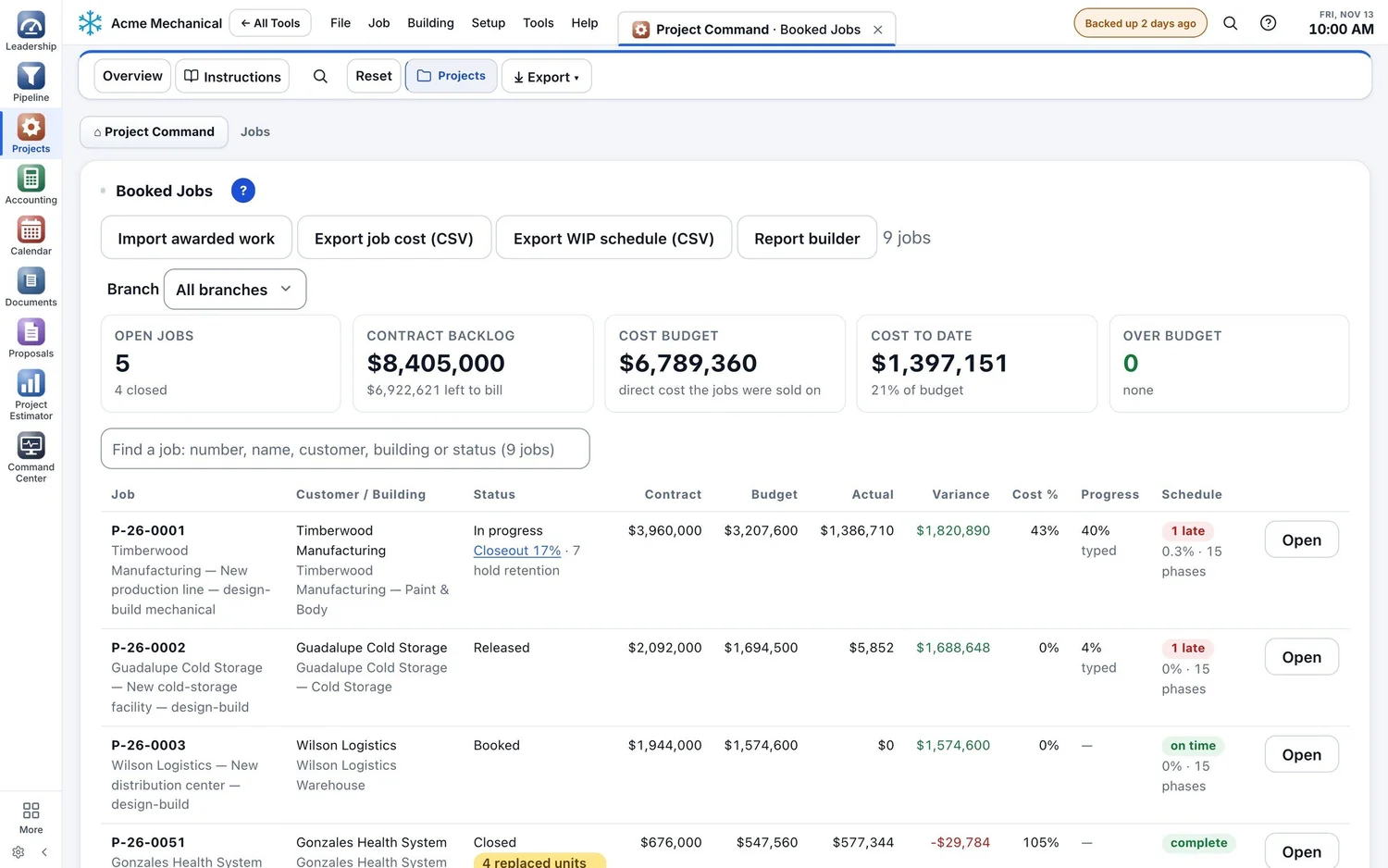
Project screens make sense with jobs on them, so the demonstration copy carries jobs at every stage.
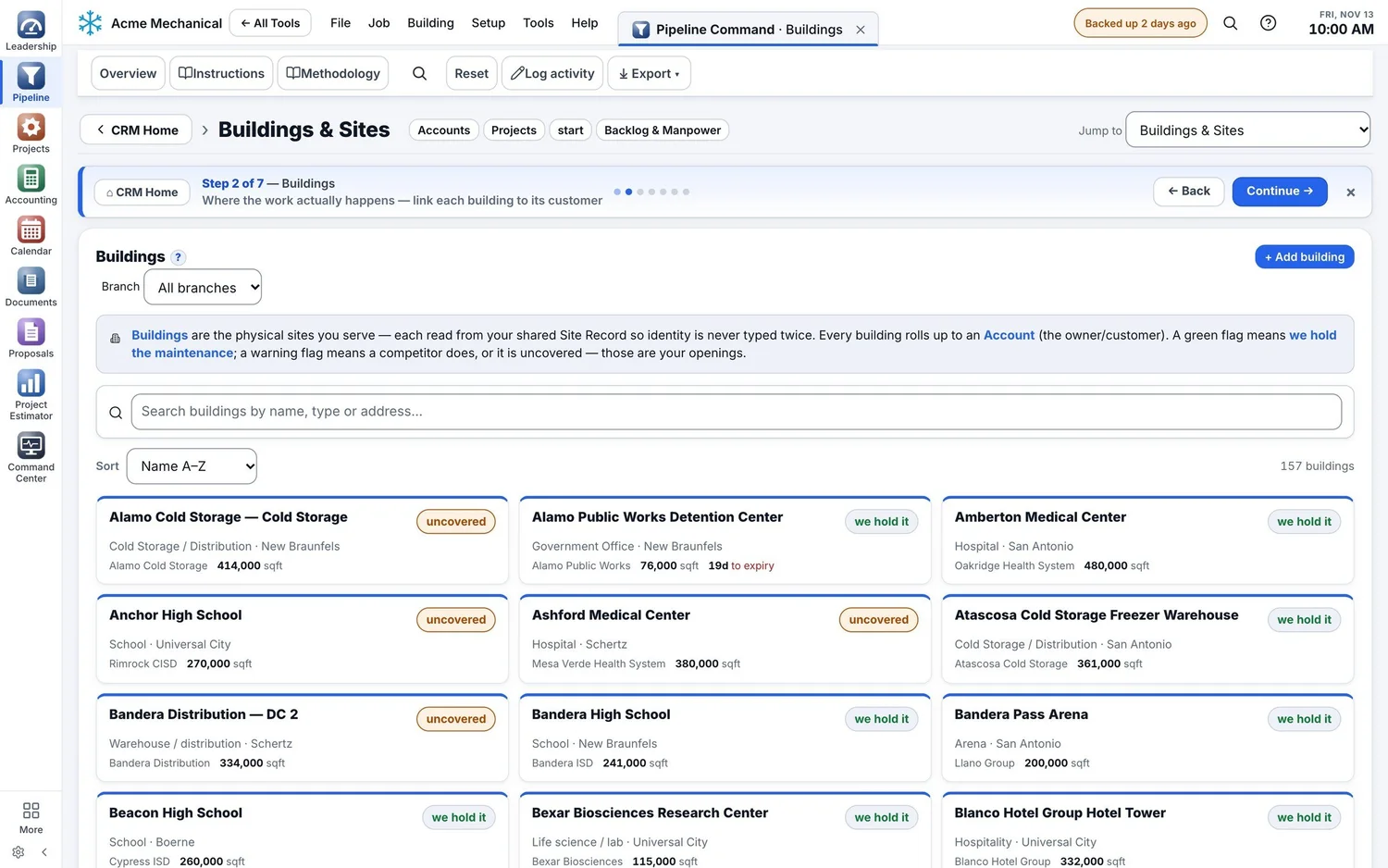
Every tool reads the same buildings, so the demonstration copy fills them in for you.
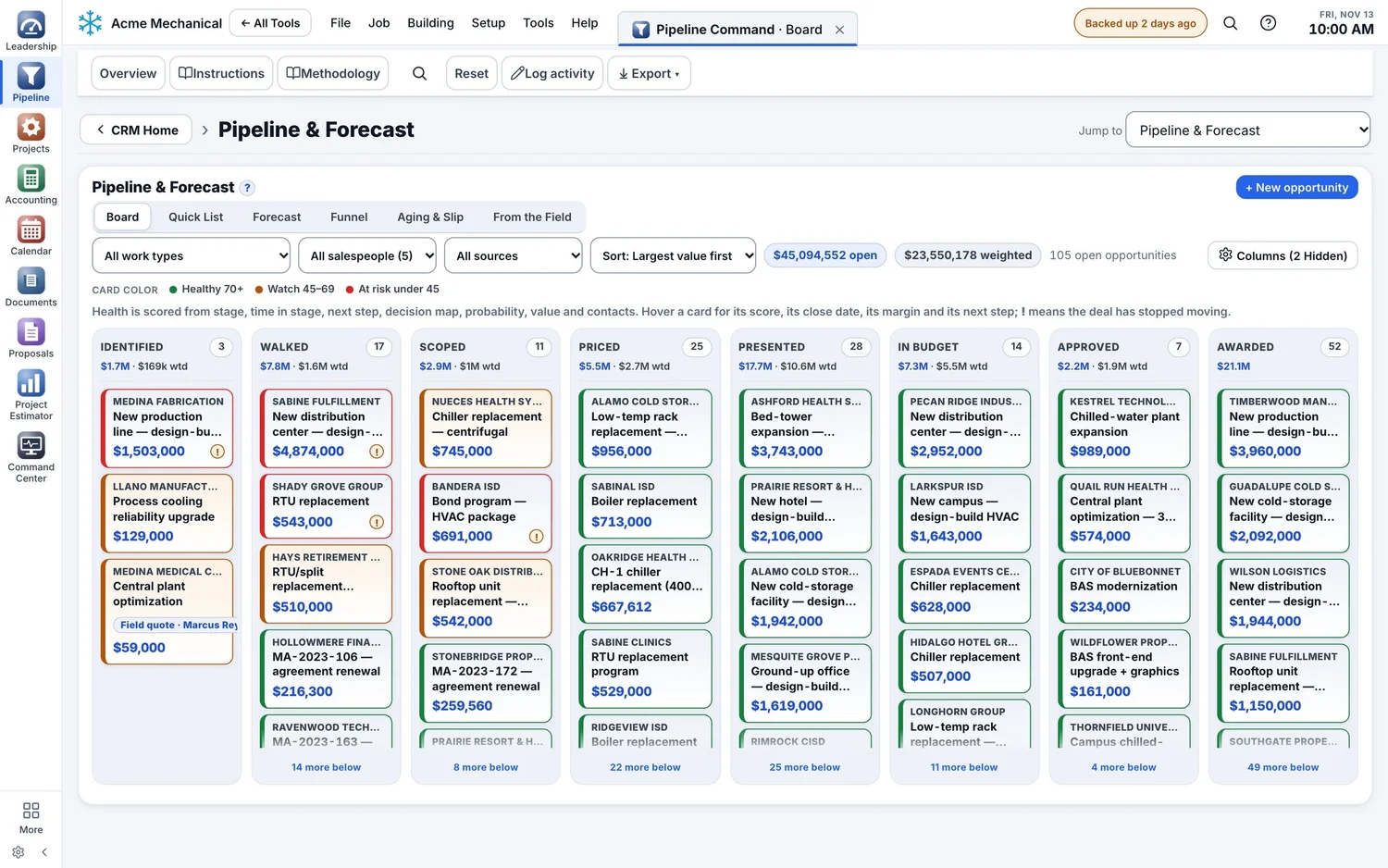
Small Things That Keep People from Getting Lost
A Home Screen for Your Role
Set your role once and the home screen opens to your work: a salesperson's pipeline and stale quotes, an estimator's estimates in progress, a project manager's jobs with percent complete and what was handed to them.
Learn MoreShow Less
Each person starting the day on their own work, instead of hunting for it, adds up across a whole company. The role sets what shows first.
- Service managers see the maintenance base and renewals due; technicians see work handed to them.
- Leadership sees bookings against goal, jobs, billing and what is late.
- A salesperson's cards count only their own accounts and the unassigned ones.
- Every widget stays one click away under Customize, and your own arrangement wins.
What to Do Next on This Building
A read-only panel reads what has been entered across the tools and suggests the natural next step. It suggests and never grades: there is no completion percentage and no red badge.
Learn MoreShow Less
A building that goes quiet is a sale or renewal lost. The panel points to the next useful step so opportunities do not slip.
- Waiting for You shows suggestions another tool sent, such as a service quote that is really a replacement.
- Across Buildings lists every building: work in progress, proposals outstanding, agreements expiring, or quiet.
- Buildings that need you sort to the top.
- It creates nothing and changes no number.
Results as You Type
There is no Calculate button. Every tool calculates live, and a result with a missing input shows a dash, never a made-up zero.
Learn MoreShow Less
Seeing the answer change as you type lets an estimator test options in the meeting instead of after it. A missing input shows a dash, so nobody quotes a number built on a blank.
- Fields filled from the building record are marked, and a reset link puts the shared value back.
- A value you typed is never overwritten.
- Every tool autosaves as you work.
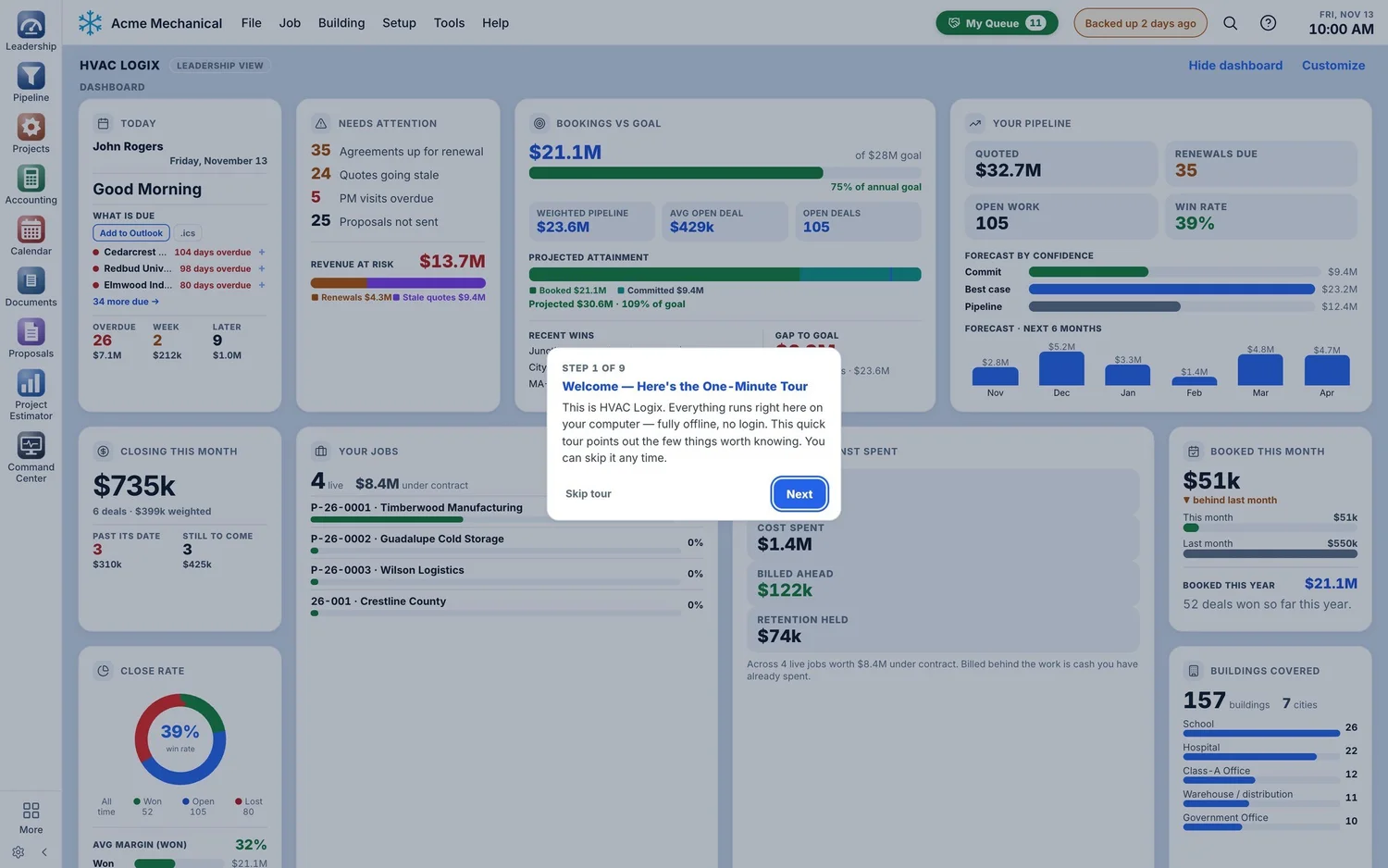
New people need a quick start, so a one-minute tour shows the main screens.
A Calmer First Screen
Input-heavy tools open with their optional and advanced sections collapsed, so you meet the inputs that matter first. Everything expands automatically on a print or export.
Learn MoreShow Less
Less clutter on the first screen means faster entry and fewer missed inputs. The optional depth stays one click away.
- Required inputs are never collapsed.
- A section that already holds your data stays open.
- Your open or closed choice is remembered for each tool.
- Collapsed sections never drop out of a printed or exported document.
Tables That Fit the Window
Every table fits itself to a laptop screen. Headings wrap, long values show whole, numbers line up on the right, and date boxes open a calendar.
Learn MoreShow Less
Cut-off names and hidden columns cause misreads and wrong entries. Tables fit a laptop window without changing a single value.
- A report that still cannot fit scrolls sideways with the first column pinned and a More Columns button.
- Point at any box to see its whole value.
- The box you are typing in widens over its neighbors.
- Saving, exporting and printing work exactly as before.
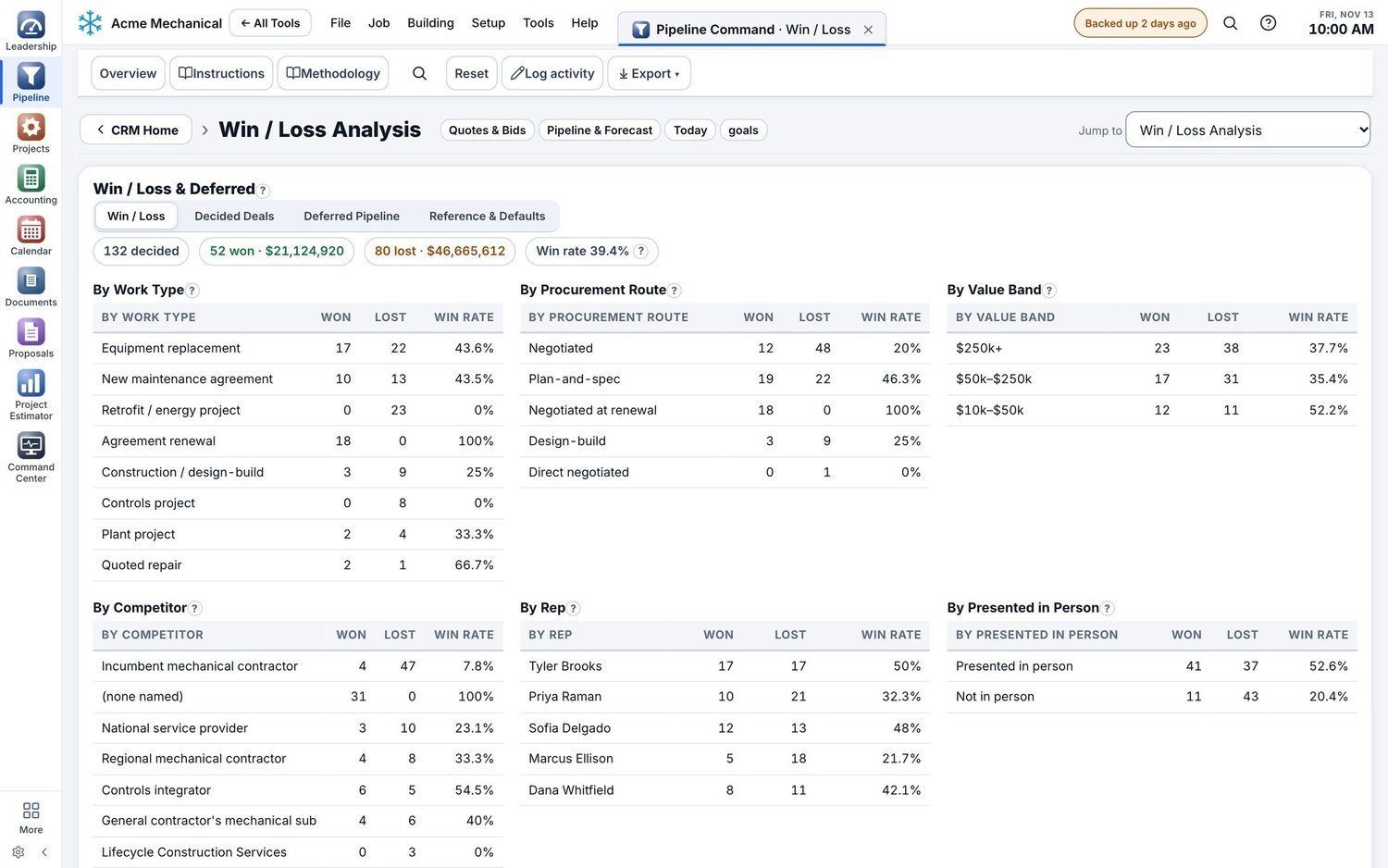
Tables that run off the screen are hard to read, so every table fits the window.
One Menu, One Set of Shortcuts
File, Job, Building, Setup, Tools and Help are the same everywhere. Ctrl-K searches, Ctrl-B switches the active building, Ctrl-H goes home, and Esc closes only the top dialog.
Learn MoreShow Less
One set of shortcuts learned once saves time in every tool, every day. The menu is about the job and the building, the two things every app shares.
- Ctrl+P prints and F1 opens help for the screen.
- On a Mac the same shortcuts use the Mac's own key in place of Ctrl.
- Shortcuts are ignored while you type in a box.
- Help, Keyboard Shortcuts lists them.
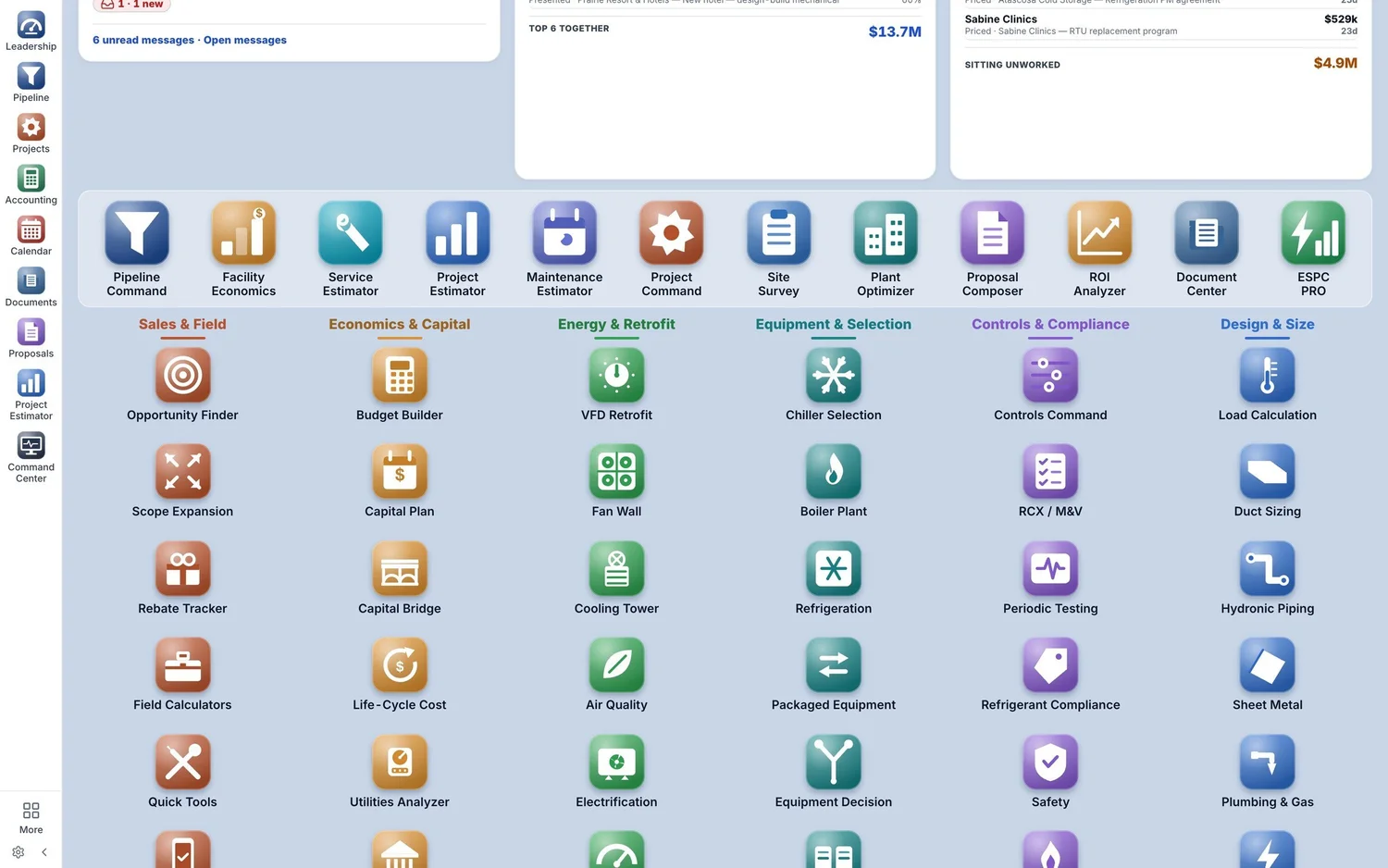
Finding a tool should be quick, so every app and tool sits on one launcher.
Typical Ranges as You Type
Click into a number such as an energy rate or a chiller's kW per ton and a muted typical range appears under it, so a first-time user knows what a normal value looks like. It is labeled typical, never a recommendation, and it never changes a value. Your company's own rates are always yours to enter.
Learn MoreShow Less
An entry off by a decimal point can wreck an energy study or a payback. A typical range under the field catches that before it reaches a customer.
- Labor rates, wages, burden, markups and margins carry no typical range and no default: they are your numbers.
- The range never fills or changes a value.
- The setup workbook explains each value, where to find it and what goes wrong if it is wrong.
Point at an Icon
Two words on a tile are not always enough. Point at any app on the home screen and a card names it and says in a full sentence what it does.
Tip of the Day
The last line of a tool's Overview screen is one line of commercial HVAC judgment, suited to the app you are in, changing once a day and the same for everyone on the team.
Learn MoreShow Less
Small bits of selling and service judgment, seen daily, help newer people price and sell like seasoned ones. The tip is suited to the app you are in.
- There are 284 tips, from costing in an estimator to customers in the sales pipeline.
- It also shows on the sales dashboard under the goal bar.
- It is never an instruction: nothing is calculated from it and no report contains it.
- It takes no clicks and prints on nothing.
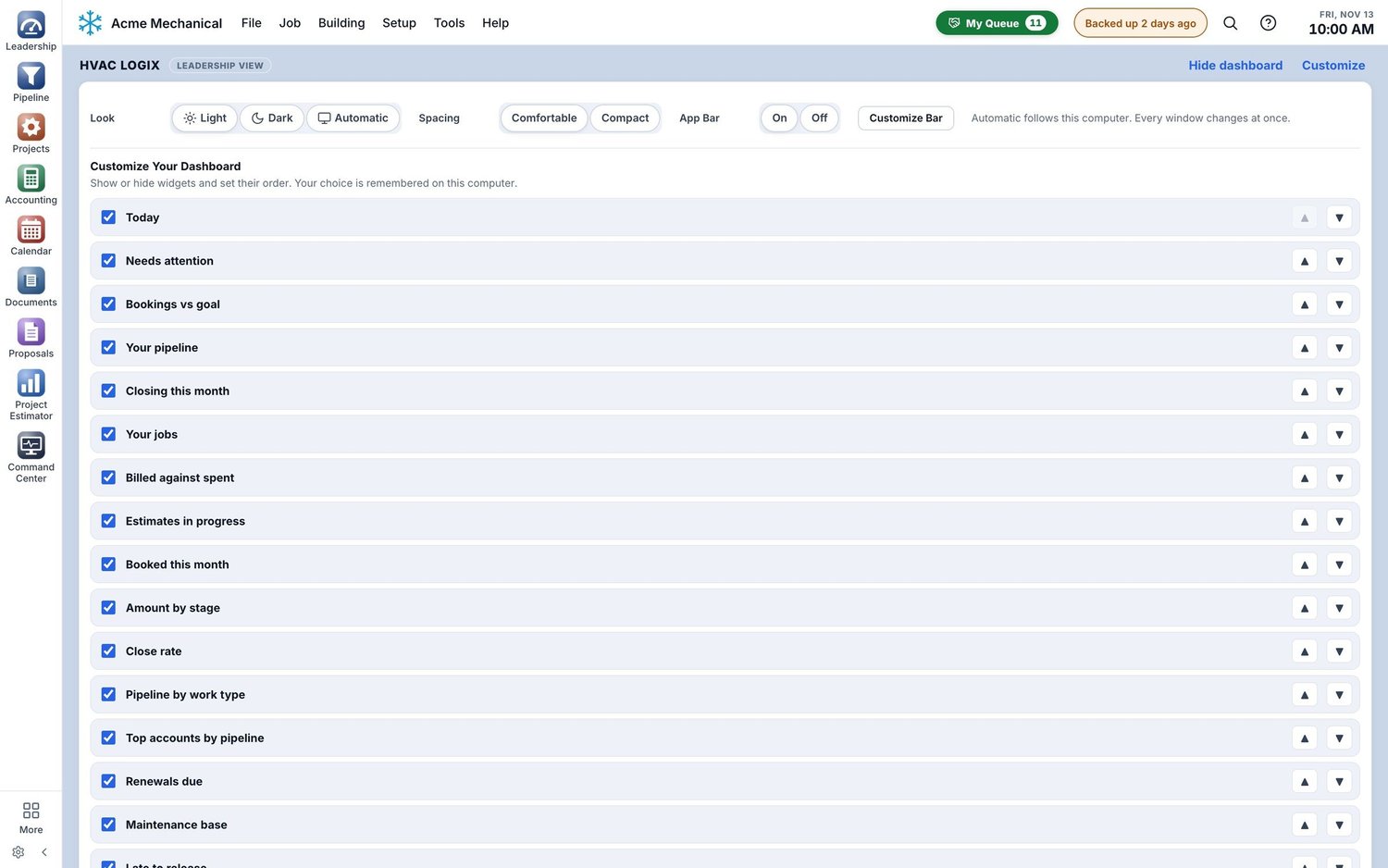
Each person works differently, so the home screen can be customized panel by panel.
Hands-On Sessions for Each Role, Worked on the Demonstration Copy
Sending people to outside classes costs days in the trucks. The Training Program is built into HVAC Logix and is made to be worked, not read.
Five Sessions Everyone Does
Sessions 1 to 3 are the foundation for every role: the shape of the program, capturing the building properly and the money case. Session 4 is your own role, and Session 5 puts the whole thing together on one building. Each is about two hours.
Learn MoreShow Less
Training that sticks means fewer expensive mistakes on live jobs. The sessions are built to be worked, not read, at about one a day across a week.
- Session 1 covers the grid, one building entered once and your first number.
- Session 2 is the site walk and the condition index, on a computer or phone.
- Session 3 is the money case: rate first, and reading results honestly.
- Session 5 takes one building end to end.
A Track for Your Role
Session 4 splits into Leadership, Salesperson, Estimator, Service and Operations Manager, and Engineer. Do your own track and skip the others.
Learn MoreShow Less
Training people only on what their job needs saves paid hours. Each track uses the same sample buildings and ends with a check.
- Leadership, salesperson, estimator, service or operations manager, and engineer tracks.
- The service track includes the hand-off in both formats and running the project after it.
- The salesperson track shows what is collected on the walk going with the job.
- Session 5 then ties every role together on one building.
The Office, the Books and the Jobs
Sessions for whoever takes calls and dispatches, bills a service call end to end, keeps the books, bills a construction job and runs the jobs, and runs time and payroll.
Learn MoreShow Less
A billing or payroll error costs real money, so the office sessions practice on sample records first.
- Session 7: take a call, read the board, the activity log and connecting a computer to the office.
- Session 8: price a work order, send it, take a payment and a credit memo, and send statements.
- Session 9: keep the books, starting with where the books are kept.
- Session 10: bill a construction job and run the jobs.
A Short Session for Each Feature
More than a hundred shorter sessions follow on single features, from equipment passports and on-site sync to instrument readings, the year-end close and the safety program.
Learn MoreShow Less
Learning one feature in a short session means it gets used, and a feature that is used pays for itself. Pick the sessions for the features your company turns on.
- Each session is worked in the demonstration copy.
- Each names what you can do at the end and closes with a self-check.
- The Training Program also prints as a PDF.
Check Yourself
Each session names what you will be able to do, walks you through it on an example building and ends with a check you score yourself. If a check does not come out, the session says which part to redo.
Learn MoreShow Less
A gap found in training is cheaper than one found on a customer's invoice. Each session is designed so nobody moves on with a gap.
- Checks are short and scored by the learner.
- A check that does not come out names the part to redo.
- Five core sessions of about two hours each; doing them all in one sitting is discouraged, because the material builds.
Safe to Practice
Everything is done in the demonstration copy, so nobody risks a live job to learn. It needs no internet and no online account, and the Training Program is also a PDF.
Learn MoreShow Less
Nobody risks a live job or a real invoice to learn. Practice happens on fictional records that look and work like the real thing.
- Sample exports are watermarked, so practice files cannot be sent as real ones.
- Seven worked sample buildings cover offices, a hospital, a warehouse, a data center, schools and a campus.
- Nothing typed leaves the machine.
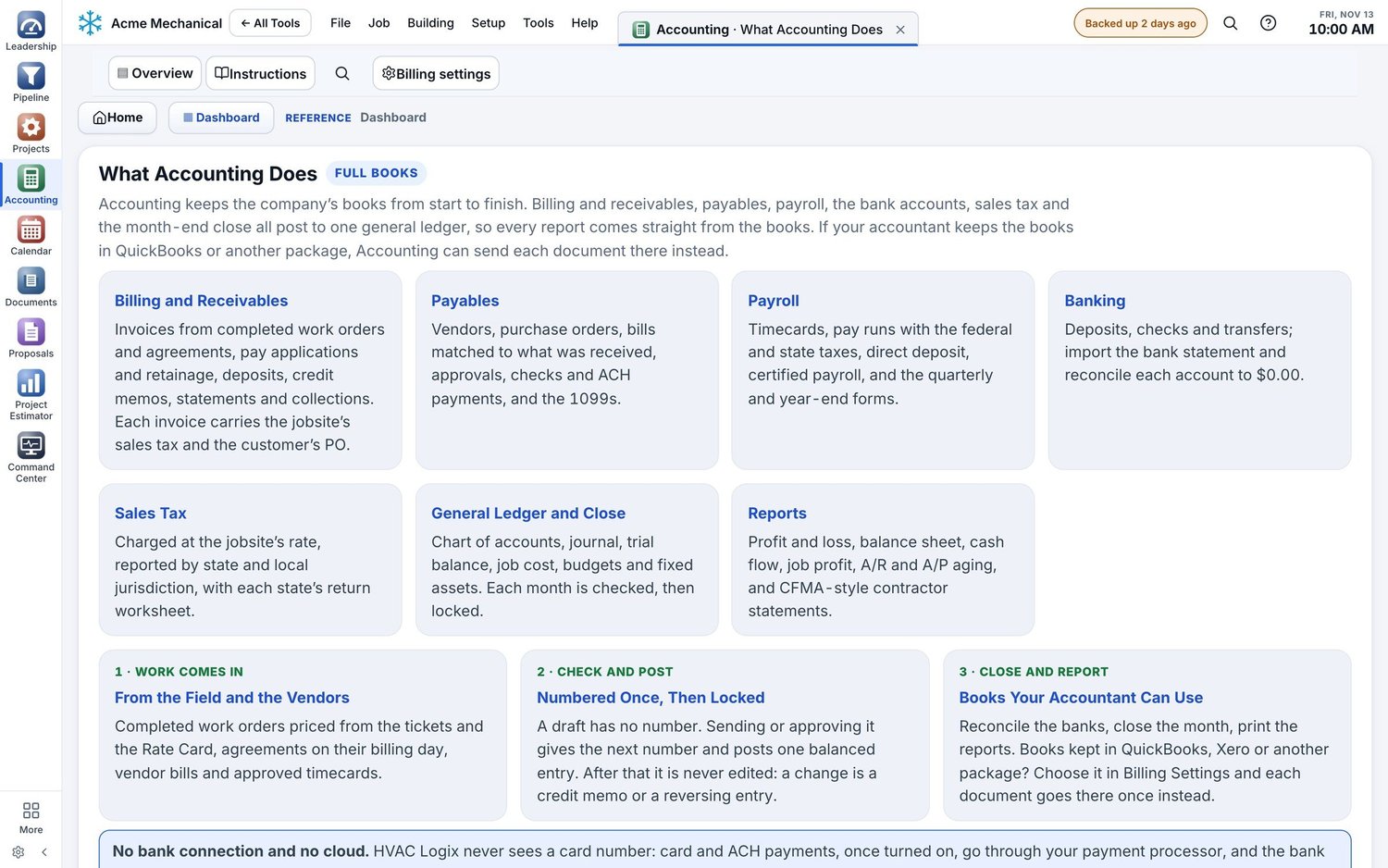
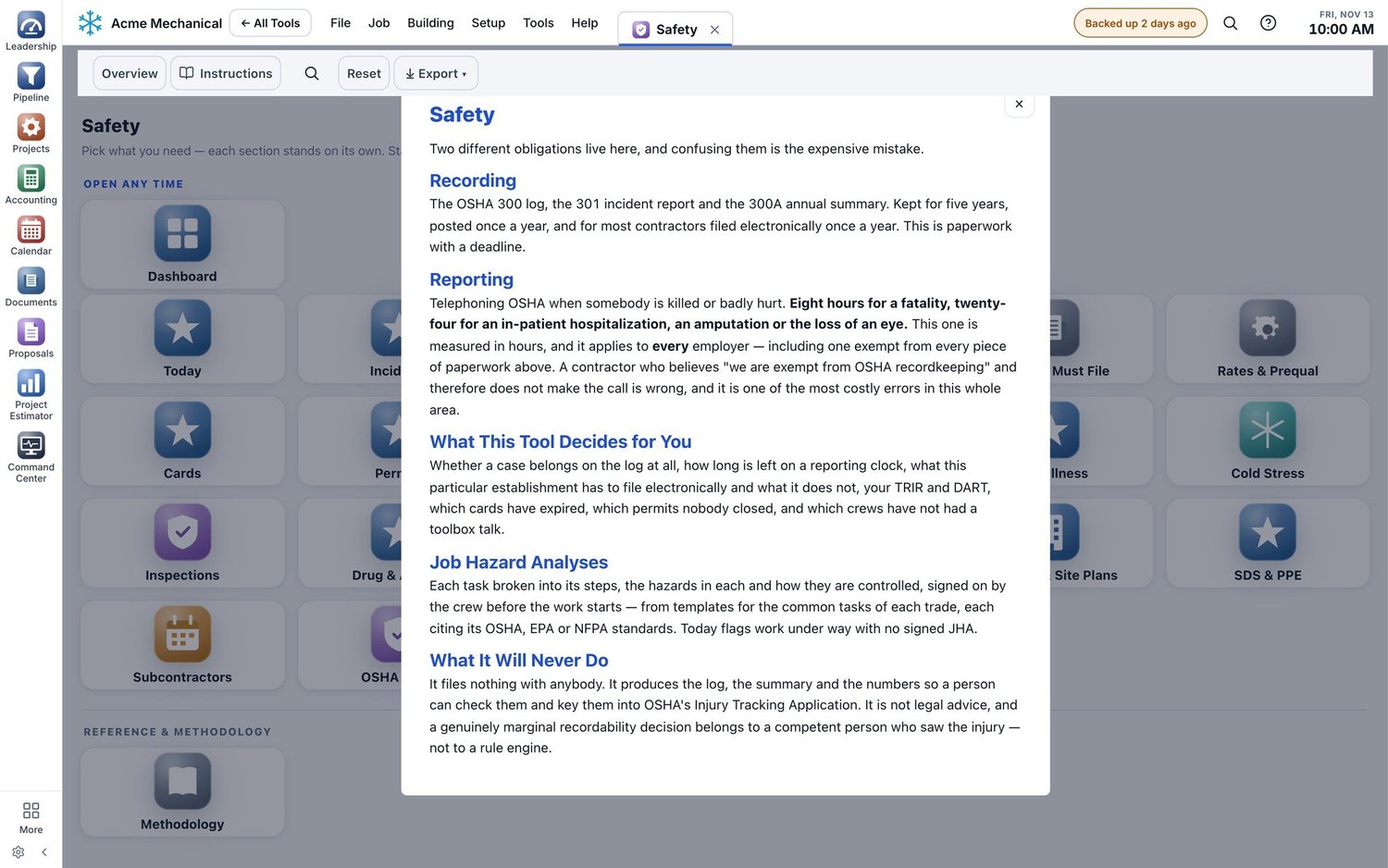
New people learn best on real screens, so each session starts from the tool's own overview in the demonstration copy.
Frequently Asked Questions
How long does it take to get started?
Do the guided tours use a separate training copy?
Does Smart Search send what we type to an outside service?
Is there help for the phone app?
Can sample data get mixed into our real work?
Is the help available with no internet connection?
Be First When HVAC Logix Opens
Stop paying people to copy numbers between programs. Join the list and we will tell you the day downloads open, with setup guides ready.
Launching early 2027 for HVAC Logix. Nothing to buy today, and no sales calls.